Table of Contents
Your internet feels slower than it should. Videos buffer in the evening. Or you’ve just had an SMS saying a new device connected to your home Wi-Fi, and you have no idea what it is.
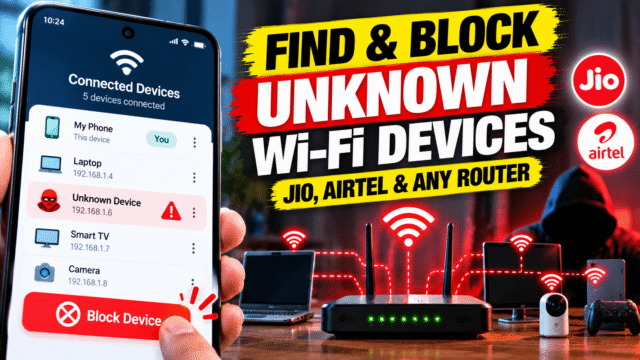
You can see every device on your Wi-Fi in a couple of minutes, from your phone. Then you can block anything you don’t recognise and make sure it can’t simply reconnect.
This guide covers the quickest method for JioFiber, Jio AirFiber and Airtel users in India (they don’t all use the same app), the router admin page that works for any internet provider, and mesh Wi-Fi systems.
Signs someone else is using your Wi-Fi
You don’t need a reason to check, but these are the usual clues:
- Your speed drops at times when nobody at home is online.
- Your data usage is higher than expected, which matters if your plan has a monthly data limit.
- Your router’s lights keep flashing when every device at home is off.
- You get an alert about a new device. JioFiber, for example, sends an SMS to your registered mobile number when a new device connects.
- A neighbour, guest or former tenant once had your password, and you’ve never changed it.
The quickest check: your internet provider’s app
JioFiber
Jio’s own help pages give these steps in the MyJio app:
- Open the MyJio app and log in with your JioFiber Service ID or registered mobile number.
- Select your JioFiber account.
- Tap the menu at the top left, then Settings.
- Tap Device Settings, then My Device.
- Wait a few seconds for your router’s details to load. You’ll see a list of connected devices.
To remove a device, tap Block next to it. To undo that later, open Blocked Devices and tap Unblock.
The app also lets you search your devices by name and filter them by online, paired or blocked, which makes a long list easier to scan.
Jio AirFiber
AirFiber works differently. You don’t use MyJio for this. You need Jio’s separate JioHome app.
- Download the JioHome app from the Play Store or App Store.
- Log in with your registered mobile number and the OTP Jio sends you.
- Tap Network, then Devices, then All. You’ll see every device connected to your AirFiber.
- Tap the device you want to remove.
- Switch on Block Internet.
A blocked device may still show as connected to your Wi-Fi, but it can’t get online. To undo it, open the same device and switch Block Internet off.
The app’s layout has changed over time, so if your version looks different, look for a section listing your devices, sometimes under MySafeNet.
Airtel Xstream Fiber and AirFiber
Open the Airtel Thanks app, go to your broadband connection and look for the Wi-Fi or router settings. Depending on your router and app version, you may be able to see connected devices and change your Wi-Fi password there.
If the app doesn’t show connected devices, use your router’s admin page instead. The next section explains how.
Any provider: use your router’s admin page
Every router has a settings page you can open in a web browser. It shows every connected device, and it works whichever internet provider you use.
Step 1: Find your router’s address
The address is usually printed on a sticker on the router, along with the admin username and password. Common addresses include:
- 192.168.29.1 for JioFiber
- 192.168.1.1 or 192.168.0.1 for many other routers
If there’s no sticker, your phone can tell you. Connect to your Wi-Fi first.
- iPhone: go to Settings, then Wi-Fi, and tap the (i) next to your network. The address is shown next to Router.
- Android: go to Settings, then Wi-Fi (or Network and internet), and tap your network or the gear icon next to it. Look for Gateway, which may be under Advanced or Network details.
- Windows: open Command Prompt, type ipconfig and press Enter. The address is next to Default Gateway.
- Mac: go to System Settings, then Wi-Fi, click Details next to your network, then TCP/IP. The address is next to Router.
Step 2: Log in
Type the address into your browser’s address bar, the same way you’d type a website, and press Enter. Your browser may warn that the connection isn’t private. That’s normal for a router page on your home network.
Log in with the admin username and password from the router’s sticker. If you’ve never changed it, it may be something like admin and admin, or a password unique to your router. If you can’t log in, call your provider. They can reset it or tell you the details for your model.
Step 3: Find the device list
Look for a section called Connected devices, Device list, Attached devices, DHCP clients, Client list or Wireless clients. It’s often under Status, Network, LAN or Wireless.
The list usually shows each device’s name, its IP address and its MAC address, a unique ID for the device’s network hardware.
Work out which devices are yours
This is the tricky part. Device lists are often full of names like “android-3f8a1b”, “ESP_4C2D1A” or simply “Unknown”.
Don’t panic about every unknown name. Most homes have more connected devices than people realise:
- Phones, tablets and laptops
- Smart TVs and streaming sticks
- Smart speakers, such as Echo or Google Nest devices
- Smart plugs, bulbs, cameras and doorbells
- Air conditioners, washing machines and air purifiers with Wi-Fi
- Printers and gaming consoles
- Smartwatches
To identify them, try these:
Count first. Add up every device in your home that uses Wi-Fi and compare it with the list. If the numbers match, you’re probably fine.
Check your phone’s own address. Modern phones use a different, private MAC address for each Wi-Fi network, so the address in the list won’t look like it belongs to Apple or Samsung. To find the one your phone uses on your network:
- iPhone: go to Settings, then Wi-Fi, tap the (i) next to your network, and look at Wi-Fi Address.
- Android: go to the Wi-Fi network’s details and look for MAC address, sometimes under Advanced or Privacy.
Match that with the list, then do the same for each family member’s phone.
Switch things off. Turn off Wi-Fi on one device at a time, refresh the list, and see which entry disappears. This works well for smart home devices with confusing names.
Rename as you go. Many routers and provider apps let you rename devices. Give each one a clear name, such as “Mum’s phone” or “Living room TV”, so next time you’ll spot a stranger immediately.
Anything left after all that, especially if it’s online when everyone at home is asleep, is worth blocking.
Kick them off
There are two parts to this, and most people stop after the first.
Part 1: Block the device
In the MyJio app (JioFiber), tap Block next to the device. In the JioHome app (AirFiber), select the device and switch on Block Internet. On a router’s admin page, look for Block, Deny or Blacklist next to the device, or a section called Access control or MAC filtering.
Blocking works instantly, but on its own it isn’t enough. Someone who knows your password can often reconnect using a different device, or by changing the MAC address on the same one.
Part 2: Change your Wi-Fi password
This is what actually locks them out.
- In your provider’s app (MyJio for JioFiber, JioHome for AirFiber, Airtel Thanks for Airtel) or your router’s admin page, open the Wi-Fi or wireless settings.
- Set a new password of at least 12 characters. A short phrase made of random words is strong and easy to type, such as “mango-window-river-42”.
- Avoid names, birthdays, phone numbers and your flat number. These are the first things a neighbour will guess.
- Save the change.
Every device will disconnect. Reconnect your own devices with the new password, and only share it with people you trust.
Lock it down so it doesn’t happen again
While you’re in the settings, a few more changes make a big difference.
- Use WPA2 or WPA3 security. In your router’s wireless settings, choose WPA2, WPA3 or WPA2/WPA3 mixed mode. Never use WEP, or an open network with no password.
- Turn off WPS. WPS lets devices join by pressing a button on the router. Anyone who can reach your router can use it, and on many older routers it has known security weaknesses. For JioFiber, Jio’s help pages say you can turn it off in the MyJio app under My Device.
- Change the router’s admin password. This is different from your Wi-Fi password. If it’s still the default printed on the sticker, anyone on your network could log in and change your settings. Set a new one, and store it somewhere safe.
- Set up a guest network for visitors. Most routers can create a separate Wi-Fi network for guests. They get internet access but can’t see your other devices, and you can change the guest password whenever you like without affecting your own devices.
- Keep the router updated. Router makers and providers release updates that fix security problems. Many routers update themselves. On others, look for Firmware update in the admin page.
- Hiding your network name won’t help much. Some guides suggest hiding your Wi-Fi name. It stops casual browsers seeing it, but anyone with basic tools can still find it, and it can make connecting your own devices more awkward. Jio also says hiding the network name isn’t available on AirFiber right now. A strong password matters far more.
If you use a mesh Wi-Fi system
Mesh systems, such as Google Nest Wifi, TP-Link Deco, Eero or Netgear Orbi, are managed through their own app rather than a browser page. Open the app and look for Devices or Clients. You’ll see every connected device, and most apps let you rename, pause or block them, change the Wi-Fi password and set up a guest network.
Can you see what other people are doing on your Wi-Fi?
Mostly, no. Your router can show which devices are connected and sometimes how much data they use. Some provider apps and mesh systems also offer parental controls that block certain websites or pause the internet at set times.
But most of what people do online today is encrypted, so you can’t read their messages or see what they’re watching. And if someone is on your network without permission, the fix is the same either way: block them and change the password.
Quick Answers
How can I see who is connected to my Wi-Fi?
Use your internet provider’s app or your router’s admin page. For JioFiber, open MyJio, select your JioFiber account, then Settings, Device Settings and My Device. For any router, type its address, often 192.168.1.1 or 192.168.0.1, into a browser and look for Connected devices.
How do I block a device on Jio AirFiber?
Use the JioHome app, not MyJio. Log in with your registered number and OTP, tap Network, then Devices, then All, select the device and switch on Block Internet.
How do I block a device from my JioFiber Wi-Fi?
In the MyJio app, go to Settings, then Device Settings, then My Device, and tap Block next to the device. Then change your Wi-Fi password so it can’t reconnect.
What is the JioFiber router login address?
It’s usually 192.168.29.1. The admin username and password are printed on a sticker on the router.
Will changing my Wi-Fi password kick everyone off?
Yes. Every device disconnects and needs the new password to reconnect. It’s the most reliable way to remove anyone using your Wi-Fi without permission.
Why can’t I recognise devices on my Wi-Fi list?
Phones use private MAC addresses, and smart home devices often have odd names. Count your devices, check your phone’s Wi-Fi address in its settings, and switch devices off one at a time to match them up.
Is blocking a device enough to stop someone using my Wi-Fi?
Not on its own. Someone with your password can reconnect from another device, so always change your Wi-Fi password after blocking.
Bottom Line
Checking who’s on your Wi-Fi takes a few minutes. Open your provider’s app (MyJio for JioFiber, JioHome for AirFiber) or your router’s admin page, and look at the connected devices list. Match the devices to your own by counting them and switching them off one at a time. Block anything you don’t recognise, then change your Wi-Fi password, because blocking alone won’t keep out someone who knows it. While you’re there, turn off WPS, change the router’s admin password and set up a guest network for visitors.