Table of Contents
Search for parental controls and you’ll be sold something within thirty seconds. Almost every guide ranking for this topic is published by a company selling monitoring software, which is worth knowing before you read any of them, including the parts where they explain why the free tools on your child’s phone aren’t enough.
Here’s the version without a product to push: the controls already built into iPhones and Android phones are genuinely capable, they take about twenty minutes to set up properly, and they have real limits that are worth understanding rather than being scared about. And with Meta’s settlement bringing platform-level defaults to teen accounts in the coming months, the picture is about to improve on one front while staying exactly the same on every other app your kid uses.
Let’s set up what you already own.
iPhone: Screen Time, Set Up Properly
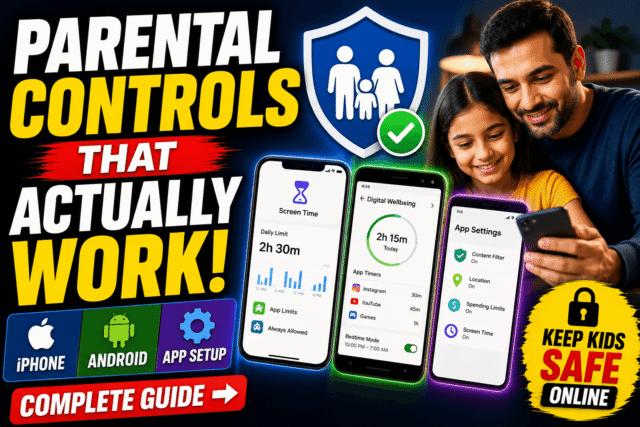
Screen Time is built into Settings, costs nothing, and most people enable about a third of it. Do this from your own phone via Family Sharing so the settings are managed remotely rather than sitting on your child’s device where they’ll be tampered with.
- Downtime schedules the hours when only apps you approve work. Set it for bedtime, and consider a second window for school hours. This is the single highest-value control in the whole panel.
- App Limits cap categories or individual apps by daily minutes. The trick most parents miss: limits are set by category by default, so setting “Social Networking: 1 hour” is far more robust than trying to name every app one at a time.
- Content & Privacy Restrictions is where you set age ratings for apps, films, music and books, block explicit websites, and, crucially, control whether your child can install or delete apps at all. Deleting apps is the underrated one, since it prevents a child removing an app to reset its limits.
- Communication Limits control who your child can contact during allowed hours and downtime.
- One setting that matters more than the rest: your Screen Time passcode must be different from the phone’s unlock code, because a child who knows the unlock code and watches you type the same digits into Screen Time has just defeated the whole system. Apple now ties Screen Time passcode recovery to your Apple Account, which makes resets harder without your password.
Android: Google Family Link
Family Link is free, and it’s the right tool for Android households with younger children. Install it on your phone and on your child’s device.
- App approval is its strongest feature: your child requests an install, their screen says “waiting for approval,” and you get a notification. Children who need permission for every download simply end up with fewer inappropriate apps.
- Screen time schedules and daily limits, plus bedtime, work the way you’d expect and are set from your phone.
- Content filters work across Google Play categories by age rating, and turn on filtering in Google Search.
- Location shows where the device is.
Two honest limitations you should know before relying on it. First, Family Link’s full feature set requires the child’s device to be Android; if your child uses an iPhone, the deeper controls largely don’t apply, and Screen Time is your tool instead. Second, supervision changes as children reach the teen years, when Google’s model shifts toward the child being able to manage their own account, which is a policy decision rather than a bug, and it’s the point at which many families move to conversation-plus-app-level controls rather than device lockdown.
The App-Level Controls Worth Setting
Device controls govern how long. App controls govern what, and they’re separate settings most parents never open.
- YouTube is the big one, because Screen Time can cap YouTube minutes but shows you nothing about what was watched, and filters nothing within the app. Use YouTube Kids for younger children, or in the main app, set Restricted Mode and, if you manage a child account through Family Link, choose the appropriate content level.
- Instagram has Teen Accounts with their own supervision tools, plus the settings we’ve documented separately for AI content reuse and the newer features Meta enables by default. Under the settlement, teen accounts will also get hidden like counts, banned extreme beauty filters, and a parent-enforceable non-algorithmic feed, which is worth revisiting once those go live.
- TikTok’s Family Pairing links your account to your child’s for screen time, content restrictions, and DM controls.
- Your router or DNS can filter at the network level for everything on your home Wi-Fi, which catches devices that don’t have their own controls, though it stops at your front door and does nothing on mobile data.
What Kids Actually Route Around
Honest limits, because knowing them beats being surprised by them.
- Web filters leak through other browsers. A child who installs a different browser from the app store, or opens links inside another app’s built-in browser, sidesteps content restrictions aimed at Safari or Chrome.
- Time limits invite creative accounting. Deleting and reinstalling an app, switching to the web version of a service, or using a second device that isn’t managed all reset the clock.
- Android has more escape hatches than iOS, including safe mode and, at the extreme, a factory reset, though Google makes removing supervision noisy: attempts to strip the management profile trigger alerts to parents.
- And the biggest one: content, not time. Both platforms tell you how long an app was used, not what happened inside it. Nothing in Screen Time or Family Link reads messages for bullying or contact from strangers, which is genuinely the gap that paid monitoring tools exist to fill, and the honest reason some families buy them.
If bypassing becomes a pattern rather than an experiment, that’s information: the controls have become a game, and escalating the technology usually escalates the game.
Where the Free Tools Stop
The fair summary of the paid market: services like Bark, Qustodio and similar add content monitoring (scanning messages and social activity for concerning patterns), cross-platform coverage, and tamper resistance that the built-in tools don’t match. For a family dealing with a specific worry, that’s a legitimate purchase.
For most families with children under about twelve, the free tools genuinely cover the common concerns, and the vendors’ framing that built-in controls are inadequate reflects what they’re selling as much as what your household needs. Start free, run it for a month, and buy something only when you can name the specific gap you’re trying to close.
The Part No Setting Handles
A phone locked down to the last toggle is still a phone your child uses for six hours somewhere else, on a friend’s device, on a school laptop, on the app you hadn’t heard of yet. Controls buy structure and remove the hardest arguments (bedtime, school hours) from nightly negotiation. They don’t do the part where a child tells you something upsetting happened online, and that only comes from the relationship, not the software.
The settlement’s own framing said something similar: platform defaults are a layer of support for family boundaries, not a substitute for talking about sleep, privacy, and what to do when something goes wrong. Set the controls tonight because they genuinely help. Just don’t mistake them for the whole job.
Quick Answers
What’s the best free parental control app?
The ones already on the phone: Apple’s Screen Time on iPhone and Google Family Link on Android. Both cover time limits, content ratings, and app approval at no cost.
Does Family Link work on iPhones?
Only partially. The parent app runs on both platforms, but the full control set requires the child’s device to be Android. For an iPhone child device, use Screen Time.
Can my child turn off Screen Time?
Not without the Screen Time passcode, which must be different from the device unlock code. Managing settings from your own phone through Family Sharing is more robust than setting them on the child’s device.
Do parental controls block YouTube content?
Device controls limit YouTube’s time, not its content. Use YouTube Kids or Restricted Mode inside the app for content filtering.
Do I need paid monitoring software?
Most families with younger children don’t. Paid tools add content monitoring and tamper resistance, which matter for specific concerns. Start with the free tools and buy only against a gap you can name.
The Bottom Line
Twenty minutes tonight gets you most of the way: Downtime and category-based App Limits on iPhone, or schedules and app approval through Family Link on Android, plus a Screen Time passcode your child has never seen you type. Add the app-level controls for YouTube and social platforms, since those govern content in ways device settings can’t. Know the leaks (other browsers, reinstalls, unmanaged devices) so you’re not blindsided, and treat repeated bypassing as a conversation rather than an arms race. The free tools handle more than the ads selling you alternatives suggest, and the part that matters most was never a setting anyway.