
Table of Contents
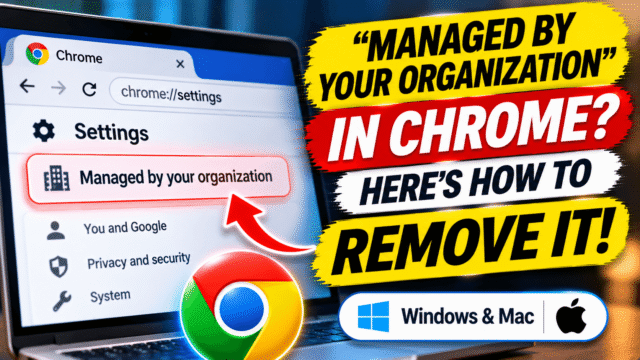
You open Chrome’s menu on your home laptop and there it is at the bottom: “Managed by your organization.” You don’t have an organization. Nobody at work set up this computer. So who is managing your browser, and can they see what you do?
The message sounds alarming, and sometimes it is a warning sign. But often the cause is harmless, such as a work account you signed in to once or a program you installed that changed a Chrome setting. Here’s how to find out exactly what’s going on, and how to remove it if you don’t want it.
What the message actually means
Chrome shows “Managed by your organization” when something has set policies on it. Policies are settings that override your own choices, such as which extensions are installed, which homepage opens, or which search engine you use.
Companies and schools use policies to control the browsers they give employees and students. But Chrome shows the same message whenever any policy is set, even by a program on your own computer. It doesn’t automatically mean a company is watching you.
There are two kinds of management, and they’re very different.
- Managed profile: only one Chrome profile is managed, usually because you signed in to Chrome with a work or school Google account. Google says the organization can manage that profile only. Your personal profile stays separate, and the organization can’t see your personal, guest or Incognito browsing.
- Managed browser: the whole browser on this computer is managed. Google says an organization that manages the browser can see and control all profiles on it, including personal, guest and Incognito.
On a company-owned laptop, a managed browser is normal. On your own computer, it’s worth investigating.
Step 1: Find out what’s managing Chrome
Chrome has two built-in pages that tell you.
- Type chrome://management in the address bar and press Enter. This page shows whether the browser or a profile is managed, and by whom, plus any extensions installed by policy.
- Type chrome://policy and press Enter. This lists every policy that’s been set. Look at the Source column for each one.
Here’s how to read what you see:
- If chrome://management names a company or school domain you recognise, such as your employer, that’s your answer. It’s coming from a work account or a work enrolment.
- If chrome://management says the browser isn’t managed by an organization but chrome://policy still lists policies, a program on your computer set them. This is the most common case on home computers.
- If you see policies for things you never chose, such as a strange homepage, a search engine you’ve never heard of, or extensions you can’t remove, that’s a strong sign of adware.
Step 2: Check which account you’re signed in with
Click your profile picture at the top right of Chrome.
- An address ending in @gmail.com is a personal account.
- An address with a company or school domain, such as @company.com or @school.edu, is a work or school account. If that profile is managed, it’s because of that account.
If it’s an old work or school account you no longer need on this computer, you can remove that profile. Click your profile picture, open the profile settings, and remove the work profile. Your personal profile isn’t affected.
If you still need the work account, leave it. The management only applies to that profile.
Step 3: Look for programs that set Chrome policies
Some ordinary software sets Chrome policies on purpose. This can include:
- Security and antivirus programs that add web protection
- Parental control software
- Password managers or extensions installed alongside desktop apps
- Ad blockers or “privacy” tools
- Tools from a previous employer or school that you installed on your own computer
- Settings tweaks you or a technician made to disable Chrome features
Think about what you installed recently. If chrome://policy shows policies that match a program you trust, the message is harmless. Removing that program usually removes the policies.
Step 4: If it looks like adware, clean it up
These are the warning signs:
- Your homepage or search engine keeps changing back after you fix it
- Extensions appear that you didn’t install, and they say “Installed by your administrator”
- Pop-ups, redirects or new tabs open by themselves
- Chrome’s settings say some options are “controlled by your administrator” or locked
If you see these, work through these steps in order.
1. Uninstall unwanted programs
- Windows: go to Settings, then Apps, then Installed apps. Sort by install date and remove anything you don’t recognise, especially programs installed around the time the problem started.
- Mac: open Finder, then Applications, and move anything you don’t recognise to the Bin.
2. Remove unknown extensions
Type chrome://extensions in the address bar and remove anything you don’t recognise. If an extension can’t be removed because it was installed by policy, you’ll need to remove the policy first (Step 5).
3. Reset Chrome
Go to Chrome’s Settings, then Reset settings, then Restore settings to their original defaults, then Reset settings. This resets your homepage, search engine and pinned tabs, and turns off extensions. Your bookmarks, history and saved passwords are kept.
4. Scan for malware
Run a full scan with your security software, such as Microsoft Defender on Windows. Restart and check chrome://policy again.
Step 5: Remove leftover policies manually
If the policies are still there after you’ve removed the program and scanned your computer, you can delete them yourself. Only do this on your own computer, never on a work or school device.
On Windows
Editing the registry can cause problems if you delete the wrong thing, so follow these steps carefully.
- Press Windows key + R, type regedit and press Enter.
- Before changing anything, click File, then Export, and save a backup.
- Go to each of these locations and delete the Chrome key if it exists:
- HKEY_CURRENT_USER\Software\Policies\Google\Chrome
- HKEY_LOCAL_MACHINE\Software\Policies\Google\Chrome
- Close the Registry Editor.
- Open Chrome, go to chrome://policy and click Reload policies.
- Restart Chrome.
If chrome://management says the browser is enrolled in cloud management and you’ve never worked for that organization, Google’s own guide to removing management lists further registry keys and folders to delete. Follow it exactly, or ask a technician.
On a Mac
- Open System Settings, then General, then Device Management. (On older macOS versions, it’s System Preferences, then Profiles.)
- If you see a profile you don’t recognise, select it and click the minus button to remove it.
- Open Terminal and type: defaults delete com.google.Chrome
- Restart Chrome and check chrome://policy.
If a configuration profile won’t let you remove it, the Mac may be enrolled in an organization’s device management, in which case only that organization can remove it.
Can my “organization” see what I browse?
It depends on what’s managing Chrome:
- Software on your own computer usually just changes settings. It doesn’t report your browsing to anyone, although adware can track you or inject ads.
- A managed work or school profile can be monitored by that organization, but Google says your personal profile, guest and Incognito browsing aren’t visible to them.
- A managed browser on a company device can be monitored across all profiles. On a work laptop, assume your employer can see your browsing.
If you’re not sure, use your own computer and a personal profile for anything private.
Quick Answers
Why does Chrome say managed by your organization on my personal computer?
Because something has set Chrome policies. It may be a work or school account you signed in with, a program you installed, such as security or parental control software, or adware. Check chrome://management and chrome://policy to find out which.
Is “managed by your organization” a virus?
Not always. It’s often caused by legitimate software or a work account. But if your homepage or search engine keeps changing, or extensions you didn’t install appear, it may be adware.
How do I remove managed by your organization from Chrome?
Remove any work profile you don’t need, uninstall the program that set the policies, remove unknown extensions, reset Chrome and scan for malware. If policies remain, delete them from the registry on Windows or remove the configuration profile on a Mac.
What is the difference between a managed profile and a managed browser?
A managed profile means only one Chrome profile, usually a work account, is controlled. A managed browser means the whole browser on the device is controlled, including personal profiles.
Can my company see my personal browsing in Chrome?
If only your work profile is managed, Google says your personal, guest and Incognito browsing aren’t visible to the organization. If the whole browser is managed, which is common on company laptops, they can see all profiles.
How do I check if my Chrome is managed?
Open Chrome’s menu and look at the bottom for “Managed by your organization”, or type chrome://management in the address bar.