
Table of Contents
Android storageYou’re logging in to your bank, paying online or signing up for something, and the screen says “Enter the code we sent to your phone.” Nothing arrives. You tap Resend. Still nothing. The timer runs out, the payment fails, and you’re stuck.
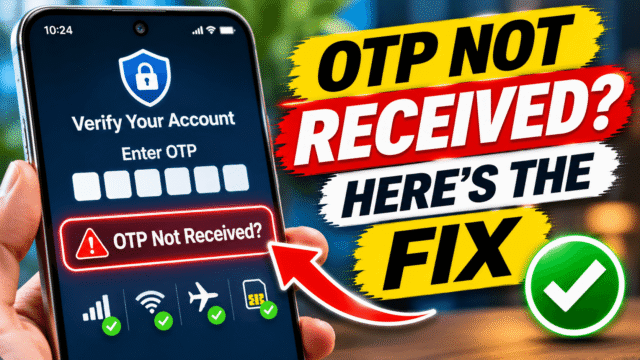
Missing OTPs are rarely a fault with your phone. Usually the message is being blocked, filtered or sent somewhere you’re not looking. Here’s the order I work through, from the quickest checks to the ones that need a call to your carrier.
Step 1: Stop tapping Resend (for a few minutes)
It’s tempting to hit Resend again and again, but this often makes things worse. Many apps and banks limit how many codes they’ll send in a short time. After a few requests, they stop sending altogether for a while, sometimes for an hour or more.
Wait two or three minutes after the first request. If nothing arrives, request one more code, then work through the steps below before trying again.
Step 2: Check the number and which phone it goes to
- Look at the number shown on the code screen. Many apps show the last few digits. Make sure it’s your current number, not an old one you no longer use.
- If you typed the number yourself, check the country code (+91 for India, +1 for the US, +44 for the UK) and that there’s no extra 0 at the start.
- If you have two phones or two SIMs, make sure you’re checking the right one.
If the account is linked to an old number, the code is going there. You’ll need to use another way to sign in (see Step 9) and update your number.
Step 3: Check your signal
Text messages need a mobile network signal. Wi-Fi alone isn’t always enough.
- Look at your signal bars. If they’re low or show “No service” or “Emergency calls only”, move somewhere with better reception, such as near a window.
- Turn on Airplane mode for 10 seconds, then turn it off. This forces your phone to reconnect to the network.
- Restart your phone. It sounds basic, but it fixes a surprising number of missing messages.
If you’re abroad, check that roaming is turned on. Some carriers don’t deliver texts from short codes (the 5- or 6-digit numbers banks and apps use) while you’re roaming. If codes don’t arrive abroad, use one of the alternatives in Step 9.
Step 4: Check your dual SIM settings
On phones with two SIMs, the OTP goes to the SIM registered with your bank or app. If that SIM is switched off, or set up only for data, you may not get the message.
- Android: go to Settings, then Network and internet (or Connections on Samsung), then SIMs or SIM manager. Make sure both SIMs are switched on.
- iPhone: go to Settings, then Mobile Service (or Cellular), and make sure the line linked to your account is turned on.
Step 5: Check your spam filters and blocked senders
This is one of the most common causes. Your phone may be receiving the code and quietly filing it away.
Android (Google Messages)
- Open Google Messages, tap your profile picture, and open Spam and blocked. Look for the code there.
- If you find it, open the conversation and mark it as not spam, so future codes go to your inbox.
- If you use auto-delete for OTPs (Messages settings, then Message organization, then Auto-delete OTPs after 24 hours), remember that older codes disappear automatically. That’s fine for new codes, but it can confuse you if you’re looking for an older one.
If you use another SMS app, such as Truecaller or your phone maker’s Messages app, as your default, check its spam, promotions and blocked folders too. Some third-party apps filter more aggressively than Google Messages.
iPhone
- Open Messages and tap Filters (or the back arrow at the top left) to see Unknown Senders and, if you use filtering, Transactions or Spam. Codes from short codes often land there, not in your main list.
- Go to Settings, then Apps, then Messages, then Blocked Contacts, and check you haven’t blocked the sender by mistake.
Check the blocked list on Android too
In Google Messages, tap your profile picture, then Spam and blocked, then the three dots, then Blocked numbers. Unblock anything that looks like a bank, app or short code.
Step 6: Make sure your messages app can receive
- Default SMS app: on Android, if you’ve recently installed a new messaging app, check which app is your default. Go to Settings, then Apps, then Default apps, then SMS app. Your codes go to whichever app is set there.
- Storage: if your phone’s storage is completely full, it may struggle to receive new messages. Free up some space and restart.
- Notifications: the code may have arrived silently. Open your messages app and look, rather than waiting for a notification.
Step 7: Got a new SIM recently? (India rule)
If you’ve just replaced your SIM, upgraded to a new one or switched to an eSIM in India, your SMS may be blocked on purpose. Since late 2022, India’s Department of Telecommunications has required carriers to stop incoming and outgoing SMS for 24 hours after a SIM replacement or swap. It’s a protection against SIM swap fraud, where criminals take over your number to steal OTPs.
There’s no way round it. Wait the 24 hours, and use another sign-in method in the meantime if you can.
Elsewhere, carriers may have similar protections after a SIM or eSIM change. If codes stopped arriving right after you changed SIM, ask your carrier.
Step 8: Check with your carrier
If texts from people arrive but codes don’t, your carrier may be blocking short codes or business messages.
Common reasons include:
- Short code or premium SMS blocking: some plans, especially prepaid and business plans, block messages from short codes. Ask your carrier to allow them.
- Content or spam filtering by the network: carriers filter spam before it reaches you, and sometimes catch legitimate messages. In India, for example, TRAI’s rules require business texts containing links to use registered, whitelisted links, which has occasionally delayed some messages.
- Account problems: an expired prepaid plan, an unpaid bill, or a number that’s been suspended or recycled can all stop messages.
Call your carrier, tell them you’re receiving normal texts but not verification codes, and ask them to check for blocks on your line.
Step 9: Get the code another way
While you sort out SMS, most services offer another route. On the code screen, look for options such as Try another way, Get a call or More options.
- Voice call: many banks and apps can read the code to you in an automated call.
- Email: some services send the code to your registered email instead.
- WhatsApp: many businesses, especially in India, now send codes through WhatsApp.
- Authenticator app or passkey: if you’ve set one up, use it. They don’t rely on SMS at all, which is why they’re a better choice for your important accounts.
For banks, if none of these work and you need to make a payment urgently, call your bank’s official helpline. They can confirm your registered number and help you through it.
Step 10: Reset your network settings (last resort)
If texts still aren’t arriving and your carrier says your line is fine, reset your phone’s network settings. This clears Wi-Fi passwords, Bluetooth pairings and mobile settings, but not your apps, photos or messages.
- iPhone: Settings, then General, then Transfer or Reset iPhone, then Reset, then Reset Network Settings.
- Android: search Settings for “reset”, then choose Reset Wi-Fi, mobile and Bluetooth (the name varies by brand).
Restart the phone afterwards and request a new code.
Make OTP problems less likely in future
- Keep your phone number up to date with your bank and important apps, especially after changing numbers.
- Don’t let your old number lapse until you’ve updated it everywhere.
- Set up an authenticator app or passkey for your email and other important accounts, so you’re not dependent on SMS.
- Save backup codes where services offer them.
Quick Answers
Why am I not receiving OTP messages?
The most common reasons are poor signal, the wrong SIM being active, the message landing in your spam or unknown senders folder, a blocked sender, too many resend requests, or your carrier blocking short codes. In India, a new or replacement SIM blocks SMS for 24 hours.
Why do OTPs go to spam?
Spam filters in Google Messages, iPhone Messages or apps like Truecaller sometimes misjudge messages from short codes. Check the spam or unknown senders folder and mark the sender as not spam.
Why am I not getting OTPs after changing my SIM in India?
India’s Department of Telecommunications requires carriers to block incoming and outgoing SMS for 24 hours after a SIM replacement or swap. It’s an anti-fraud measure. Wait 24 hours, then try again.
Can I get an OTP without SMS?
Often, yes. Look for Try another way on the code screen to get a voice call, an email, a WhatsApp message or an authenticator code instead.
Why am I not getting verification codes while abroad?
Some carriers don’t deliver texts from short codes while you’re roaming. Make sure roaming is on, and use a voice call, email or authenticator app instead.
Why do I get normal texts but not verification codes?
Your carrier or your phone may be blocking messages from short codes or business senders. Check your spam and blocked lists, then ask your carrier to check your line.