
Table of Contents
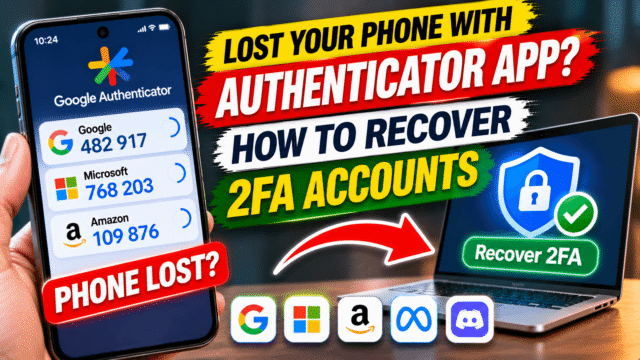
Two-factor authentication is one of the best things you can do for your security. Right up until the day your phone is lost, stolen, broken or wiped, and you realise every six-digit code you needed lived on it.
I’ve helped people through this more than once, and the good news is that it’s usually recoverable. Many authenticator apps now back up your codes without you noticing. Where they don’t, most services have a way back in. It just takes longer.
Here’s the order I work through: first check whether your codes survived, then recover accounts one by one, starting with the most important.
If your phone was lost or stolen, do this first
If the phone is gone rather than just broken or reset, secure it before anything else. Use Find My (iPhone) or Find Hub (Android) to lock or erase it, and change the passwords for your most important accounts from another device. Then ask your mobile carrier for a replacement SIM or eSIM on the same number. Many accounts can still send you a code by SMS, and getting your number back on a new phone opens up a lot of recovery options.
Step 1: Check whether your codes were backed up
Before you start any account recovery, install your authenticator app on the new phone and see what comes back. You may be luckier than you think.
Google Authenticator
Since 2023, Google Authenticator can sync your codes to your Google Account. If that was on, your codes come back automatically.
- Install Google Authenticator on the new phone and tap Get started.
- Sign in with the same Google Account you used on the old phone.
- Your codes should appear on the home screen.
If you see a cloud icon with a green tick next to your profile picture, syncing is on. If the app was used without signing in to a Google Account, the codes stayed only on the old phone and there’s nothing to restore.
Microsoft Authenticator
Microsoft Authenticator can back up the codes for your personal Microsoft account and for other sites, such as Instagram or Amazon. How it works depends on your phone.
- iPhone: since late 2025, backups use iCloud and iCloud Keychain. Sign in to the new iPhone with the same Apple Account, make sure iCloud Keychain is on, then install Microsoft Authenticator. Your accounts should appear.
- Android: backups are stored with a personal Microsoft account. On the new phone, install Microsoft Authenticator, choose to restore from backup, and sign in with the Microsoft account you used for backups. Microsoft says this changes in early 2027, when Android backups move to Google’s own backup system.
Two important limits:
- You can only restore to the same type of phone. An iPhone backup can’t be restored on Android, or the other way round.
- Work or school accounts are never backed up. Only the account name comes back, and you’ll need to sign in again or ask your IT team to set it up fresh.
Authy
If you had Authy on another device, such as a tablet, with Multi-Device turned on, install Authy on the new phone, enter your phone number and approve the new phone from your other device.
If you didn’t, you’ll need Authy’s account recovery. Twilio, which makes Authy, says it takes 24 hours and can’t be rushed. If you never turned on Authy backups, your codes can’t be recovered, and you’ll need to recover each account separately.
Other authenticator apps and password managers
Apps such as 2FAS, Ente Auth and Aegis, and password managers such as 1Password, Bitwarden and Proton Pass, can all store authenticator codes. Most have their own backup or sync. Install the app on your new phone, sign in or restore your backup file, and check whether your codes are there.
If your codes are back, you’re done. Check that a few of them work, then skip to the section on setting up your new phone properly.
Step 2: If the codes are gone, recover your email first
If the codes didn’t survive, you’ll need to get back into each account separately. Start with your main email account, because almost every other account sends its recovery links there.
Google account
Google gives you several ways in when your authenticator isn’t available. On the sign-in screen, tap Try another way and look for:
- A prompt on another phone or tablet that’s signed in to your Google account
- A code sent by text or call to your phone number or a backup number
- One of the backup codes you saved when you set up 2-Step Verification
- A passkey or security key you added
- A computer where you’d ticked “Don’t ask again on this computer”
If none of those work, Google’s account recovery is the last route. Google says it can take 3 to 5 business days, and it may ask for a contact email or phone number. Try it from a device and location you’ve used before, as that can help.
Microsoft account (Outlook, Hotmail, Xbox, Skype)
On the sign-in screen, choose another way to verify, such as a text message, an email to a backup address, or a recovery code if you saved one. If none of your methods are available, follow the “I don’t have any of these” option to Microsoft’s account recovery form, and give as much detail as you can about the account. Microsoft warns that it may not be able to restore access to an account with two-step verification if you’ve lost every verification method, so save your recovery code once you’re back in.
Work or school accounts
Don’t try to fix these yourself. Contact your company’s or college’s IT help desk. They can reset your multi-factor sign-in so you can set it up again on the new phone, usually within minutes once they’ve confirmed who you are.
Step 3: Recover your other accounts, one by one
Make a list of every account that used your authenticator app. Then work through it, most important first.
- Instagram and Facebook: on the code screen, tap Try another way. You can use a backup code, a text message or a WhatsApp code if you set one up. If you can’t, Meta may ask you to verify your identity, sometimes with a short video selfie.
- Amazon, PayPal and online shops: look for an option such as Didn’t receive the code, Lost access or Use another method on the sign-in page. Many send a link to your email or a code by text.
- Banks: call your bank’s official helpline, the number on your card or the bank’s own website. They’ll verify you and help you set up access on the new phone.
- Crypto exchanges: these usually have a “reset 2FA” or “lost authenticator” process with ID checks and a selfie, and often a waiting period of a few days. Use only the exchange’s own website or app.
- Everything else: look for a “lost access” or “can’t use your authenticator” link on the sign-in page. If there isn’t one, contact the site’s support from its official website.
Some smaller sites can’t recover accounts without the second factor at all. If an account doesn’t matter much, it may be quicker to create a new one.
Don’t fall for “2FA recovery” services
When people are locked out, scammers appear. You’ll see ads, comments and DMs from people promising to “bypass 2FA” or recover any account for a fee. They can’t. At best they’ll take your money. At worst they’ll ask for your codes or passwords and take over the accounts you still have. Only use each company’s own recovery process.
Set up your new phone so this never happens again
Once you’re back in, spend 15 minutes on this. Future you will be grateful.
- Turn on backup in your authenticator app. In Google Authenticator, sign in to your Google Account. In Microsoft Authenticator, turn on backup in the app’s settings on Android, or make sure iCloud Keychain is on for iPhone. In Authy, turn on backups and Multi-Device.
- Save your backup codes. Google, Microsoft, Instagram, Facebook and most other services give you a set of one-time recovery codes. Download or print them and keep them somewhere safe, away from your phone, such as in a password manager or with your important documents.
- Add a second way in. Add a backup phone number, set up a passkey, or add a security key, so your authenticator app isn’t your only option.
- Add a second device. If your authenticator syncs, sign in on a tablet or second phone too.
- Keep your old phone until you’ve moved everything. When you switch phones in future, transfer your codes first. In Google Authenticator, go to Menu, then Transfer accounts, then Export accounts, and scan the QR code on the new phone. Don’t wipe the old phone until you’ve checked the codes work on the new one.
Quick Answers
What happens if I lose my phone with Google Authenticator on it?
If you signed in to Google Authenticator with your Google Account, your codes are synced. Install the app on a new phone and sign in with the same account. If you didn’t, the codes are gone, and you’ll need to use backup codes or each service’s account recovery.
Can I recover Microsoft Authenticator codes on a new phone?
Yes, if backup was on. On iPhone, backups use iCloud and iCloud Keychain. On Android, sign in with the Microsoft account you used for backups. You can only restore to the same type of phone, and work or school accounts must be set up again.
How do I get into my Google account without my authenticator app?
On the sign-in screen, tap Try another way. You can use a prompt on another device, a text message code, a backup code, a passkey or a security key. If none work, use Google’s account recovery, which can take 3 to 5 business days.
How long does Authy account recovery take?
Twilio says Authy account recovery takes 24 hours and can’t be rushed. If you didn’t enable backups, your codes can’t be restored.
What are backup codes and where do I find them?
They’re one-time codes you can use instead of your authenticator. Each service creates its own, usually in its two-step verification or security settings. Save them when you set up two-factor authentication, or generate new ones once you’re back in.
Can someone bypass two-factor authentication for me?
No. Only the company that runs the account can restore access. Anyone offering to bypass 2FA for a fee is a scammer.