Table of Contents
Every few days now, some app or website interrupts your login to suggest you “create a passkey.” Most people tap yes without understanding what they agreed to, or tap no out of suspicion, and honestly both reactions are reasonable, because nobody has explained the thing properly.
So let’s do that. What a passkey actually is, why the entire industry is pushing them, how to set them up on whatever you own, and straight answers to the two questions everyone actually worries about: what happens if I lose my phone, and can I still log in on someone else’s computer. Plus the downsides, because there are real ones.
What a Passkey Actually Is, in One Paragraph
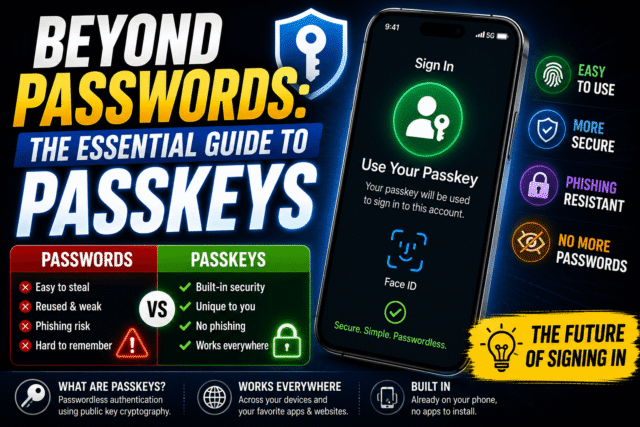
A passkey is a pair of cryptographic keys created for one specific website or app. The private half never leaves your device and unlocks with your fingerprint, face, or screen PIN; the public half sits on the website’s server and is useless to anyone who steals it. When you log in, your device proves it holds the private key without ever transmitting a secret. There is nothing to type, nothing to remember, nothing to reuse across sites, and critically, nothing that a fake phishing website can trick you into handing over, because the passkey mathematically only works on the genuine site it was created for.
That last property is the whole point. Your biometric never leaves your device either; it just unlocks the key locally.
Why Passwords Are Being Retired
Passwords fail in ways no amount of user discipline fixes: they get reused, guessed, leaked in breaches by the billion, and phished by increasingly convincing fake sites. Passkeys kill all four failure modes at once, which is why the push is universal. More than 12 billion online accounts are already passkey-enabled, Google reported over a billion passkey sign-ins across hundreds of millions of accounts, and Microsoft, Apple, Google, Amazon, PayPal, and WhatsApp all now nudge users toward them. This isn’t a startup fad; it’s the FIDO Alliance standard the entire industry co-built.
Setting Up Passkeys on Your Devices
- iPhone: When a site offers to create a passkey, accept, confirm with Face ID or Touch ID, and it’s saved to your Passwords app, syncing end-to-end encrypted across your Apple devices via iCloud Keychain. On iOS 26, some sites even upgrade your existing password login to a passkey automatically. Nothing else to configure.
- Android: Same flow: accept the prompt, confirm with fingerprint or face, and the passkey lands in Google Password Manager, syncing across your Android devices and Chrome everywhere you’re signed in, protected by end-to-end encryption.
- Windows: Windows Hello handles passkeys with your face, fingerprint, or PIN, and Windows 11 now supports plugging in third-party managers like 1Password so your passkeys aren’t stranded on one PC.
- The pro move for mixed households: if you live across ecosystems, an iPhone plus a Windows laptop, say, store your passkeys in a cross-platform password manager like 1Password, Bitwarden, or Dashlane instead of the built-in ones. They sync passkeys to every device you own regardless of who made it, which sidesteps the ecosystem problem we’ll get to in the downsides.
Start with your email account, since it’s the master key to everything else, then your most-used handful of services. There’s no need to convert your whole life in one sitting.
The Lost-Phone Question, Answered Properly
This is the fear that stops most people, so here’s the honest mechanics.
Passkeys created on a modern phone are synced, not trapped in the hardware. Lose your iPhone, sign into your Apple Account on a replacement, and your passkeys restore with your iCloud Keychain. Same story on Android with your Google account, where your passkeys are protected by end-to-end encryption tied to a PIN even Google can’t bypass. The passkey didn’t live only in the phone; the phone was one authorized window into it.
The real dependency, then, is your Apple, Google, or password manager account, so protect that account’s own recovery like it matters, because it does: set up recovery contacts or codes now, while nothing is wrong. And keep at least one fallback sign-in method on important accounts, whether that’s a second device, a recovery code, or yes, the old password still attached to the account. Belt and suspenders is the correct fashion here.
“Can I Log In on Someone Else’s Computer?”
Yes, and the mechanism is elegant. On the borrowed or public computer, choose to sign in with a passkey from another device. A QR code appears; scan it with your phone, approve with your fingerprint or face, and you’re in. The two devices verify they’re physically near each other over Bluetooth, which means a scammer in another country can’t remotely trigger this, and crucially, nothing gets saved on the borrowed computer. You walk away and your credential walks away with you.
When You Still Need a Password
Three situations, honestly. First, the long tail of websites that simply don’t support passkeys yet, which is still most of the internet by raw site count, even though the major services are covered. Second, as the recovery fallback described above. Third, some services implement passkeys half-heartedly, letting you add one but still asking for the password anyway, which defeats the point and deserves the mockery it gets. A password manager remains worth having through this transition, and conveniently, the good ones now hold your passkeys too.
The Honest Downsides
Ecosystem lock-in is real, and easing unevenly. For years, a passkey created in Apple’s or Google’s manager had no exit; switching platforms meant recreating everything. That’s finally cracking: iOS 26 shipped secure passkey export, letting iPhone users move credentials into Bitwarden, 1Password, or even Google’s manager through an encrypted app-to-app transfer. But as of mid-2026, Android’s equivalent has been spotted in testing and hasn’t publicly shipped, and Microsoft’s manager can’t export passkeys at all. If portability matters to you today, either start in a third-party manager or start on iOS.
Your platform account becomes the crown jewels. Everything above assumes you can get back into your Apple or Google account. Its recovery setup is now the single most important security task you have.
Shared logins get awkward. The family streaming password that four people know doesn’t translate directly. Passkey sharing exists in Apple’s Passwords app and the major managers, but it’s clunkier than shouting a password across the room, which, to be fair, was also the problem.
Support is broad but shallow. The giants are in; thousands of mid-tier sites aren’t, so you’ll live in a hybrid world for years yet.
Quick Answers
- Are passkeys safer than passwords?
Yes, categorically. They can’t be reused, guessed, leaked usefully in a breach, or phished, which covers the four ways passwords actually fail. - What happens to my passkeys if my phone dies or is stolen?
They restore on a new device through your Apple, Google, or password manager account. The thief, meanwhile, can’t use them without your biometrics or PIN. - Can someone use my passkey if they steal my device?
They’d need your face, fingerprint, or device PIN. The passkey never works without that local unlock. - Do passkeys work across iPhone and Android?
For signing in, yes, any passkey can log you in on another platform’s machine via the QR method. For storage and sync across both, use a cross-platform password manager. - Should I delete my passwords after creating passkeys?
Not yet. Keep them as recovery fallbacks, ideally in a manager, and let sites retire them on their own schedule.
The Bottom Line
Passkeys genuinely are the rare security upgrade that’s also a convenience upgrade: faster than typing, immune to phishing, and nothing to remember. The technology earned the hype; the ecosystem plumbing around it, portability especially, is still being finished in public. The smart 2026 play is to start now with your email and your most important accounts, store passkeys in a cross-platform manager if you live across ecosystems, lock down your recovery options before you need them, and keep passwords as the fallback they’ve been demoted to. You don’t have to ditch passwords in one dramatic gesture. You just have to stop depending on them, one login at a time.