Table of Contents
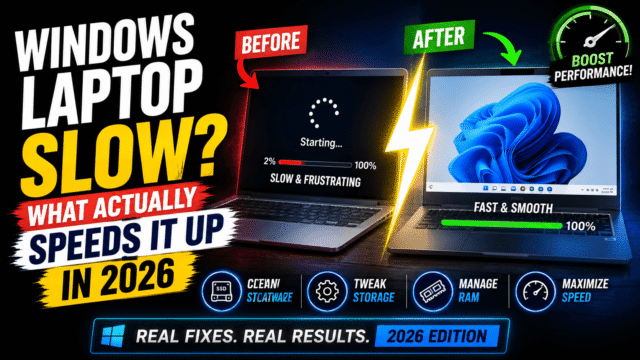
Windows Laptop Slow? What Actually Speeds It Up (and What’s Snake Oil)
A slow laptop generates more predatory advice than almost any tech problem. Search the question and you’ll be offered registry cleaners, RAM boosters, driver updaters, and “PC optimizers,” almost all of them sold by companies whose actual product is the anxiety they just created.
Here’s the useful truth buried under that marketing: Windows already ships with the tools that fix most slowdowns, the biggest wins are free, and the single most common cause isn’t malware or mysterious system rot. It’s the crowd of programs that invited themselves to launch at startup. So let’s do this in the right order: find your actual bottleneck first, fix that specific thing, and know which “solutions” to walk past entirely.
First, Find the Actual Bottleneck (60 Seconds)
Fixing before diagnosing is how people spend a Saturday and gain nothing. Press Ctrl + Shift + Esc to open Task Manager, click the Performance tab, and use the laptop normally for a minute while you watch. What’s pinned high tells you which section below to read.
Memory near 100%: you’re out of RAM, and Windows is shuffling data to your much slower drive to cope, which is why everything stutters once you get going. Head to the RAM and browser sections.
Disk at or near 100% constantly: either your drive is nearly full or it’s a mechanical hard drive struggling with modern Windows. See the storage section.
CPU high with nothing obviously running: check the Processes tab sorted by CPU to name the culprit, and if it’s something you don’t recognize, see the malware section.
Nothing looks stressed but it still feels slow: that’s usually startup bloat and background clutter, plus the possibility that your machine simply hasn’t been restarted in weeks.
One thing to do before any of it: restart the laptop properly. Long uptimes accumulate memory pressure, and people genuinely report 90% memory usage with nothing running, cured by a reboot. Shut down rather than sleep, at least every couple of weeks.
The Startup Purge (Biggest Free Win)
This is the first suspect on almost every slow Windows machine. Over a year of installing things, you can end up with fifteen or twenty programs launching at boot, each claiming memory before you’ve opened anything: a chat app at 50 to 80MB, a music app at 100 to 200MB, a creative-suite updater at 200 to 400MB. That’s half a gigabyte gone before your browser starts.
In Task Manager, open the Startup apps tab, sort by Startup impact, and disable what doesn’t need to be there. Safe to disable: messaging apps, music players, game launchers, software updaters, and manufacturer bloatware. Leave enabled: your antivirus, audio and graphics drivers, and any cloud backup you actually rely on. If you don’t recognize an entry, look it up before touching it.
Nothing is uninstalled here, and everything still opens normally when you click it. You’ve simply stopped them all showing up uninvited at boot.
Storage Headroom: Why Full Drives Crawl
The counterintuitive one. A nearly full drive slows Windows badly, and not because of clutter in some abstract sense: Windows needs room for temporary files, updates, and the pagefile it uses when RAM runs short, while SSDs additionally need free space to reorganize data efficiently in the background. Squeeze that room and everything from launching apps to installing updates drags.
Microsoft publishes no official threshold, and independent guidance ranges from roughly 10% to 25% free, with real-world reports of severe problems when a drive gets down to a couple of gigabytes. A practical target: keep at least 15% of your system drive free, and treat anything under 10% as an active problem.
To reclaim it: Settings, System, Storage shows what’s consuming the drive, and switching on Storage Sense automates the cleanup of temporary files and the recycle bin. Then uninstall software you no longer use (Settings, Apps), and move large photo and video libraries to an external drive, which is worth doing anyway as part of a proper backup rather than as a storage hack.
The Browser Is Probably Your Heaviest Program
For most people the browser is the single biggest consumer of memory on the machine, and thirty open tabs is a memory problem wearing a productivity costume.
Chrome has its own task manager (Shift + Esc) that shows exactly which tabs and extensions are eating your RAM, and the results usually indict a handful of specific tabs. Two habits fix most of it: close what you’re not reading (bookmark instead of hoarding), and audit your extensions ruthlessly, since each one runs constantly whether you use it or not. Edge’s sleeping-tabs feature, which suspends inactive tabs and reclaims their memory, is a genuine advantage if you’re open to switching.
The RAM Verdict: Upgrade, Tolerate, or Replace
If Task Manager showed memory pinned high, this is your bottleneck, and no amount of tweaking substitutes for capacity. In 2026, 8GB is the practical floor for Windows and 16GB is the comfortable target, which is exactly why we’ve argued that 16GB is the non-negotiable spec when buying.
The decision tree: if your laptop’s RAM is upgradeable (many still are, though thin models increasingly solder it), adding memory is the cheapest meaningful upgrade you can make, with one timing caveat: memory prices have surged this year, so check current pricing before assuming it’s cheap. If it’s soldered at 8GB, your options are discipline (fewer tabs, fewer background apps) or a new machine.
And the other transformative upgrade, if it applies: if your laptop still has a mechanical hard drive, replacing it with an SSD is the single biggest speed improvement available, typically for $60 to $120. On a five-year-old machine with an HDD, that one change genuinely makes it feel new, and it’s the reason we keep recommending repair over replacement while phone and laptop prices climb.
The Snake Oil
Now the section the optimizer industry would rather you skipped.
Registry cleaners. The registry doesn’t meaningfully “get dirty” in ways that slow your PC, the promised gains don’t materialize, and aggressive cleaners delete entries Windows still needs, which turns a slow laptop into a broken one. Skip them.
RAM boosters and memory cleaners. These flush memory Windows was deliberately using for caching, so the machine is often slower afterward while it reloads everything. Windows manages memory better than any third-party gadget.
Driver updater apps. They charge for something Windows Update does free, and they’re a common vector for bundled junk. Get drivers from Windows Update or the manufacturer’s site.
Defragmenting an SSD. Pointless on solid-state drives, which read all locations equally fast, and it adds needless write wear. Windows already runs the correct maintenance (TRIM) automatically, so leave the built-in Optimize Drives tool enabled and ignore any tool promising to defrag your way to speed.
The pattern is consistent: if a tool promises a dramatic speedup for a subscription, its actual product is the fear it sells you.
When It’s Malware, and When It’s Just Old
Malware genuinely does cause slowdowns, and the symptom is CPU or disk activity from processes you don’t recognize, especially alongside fans running constantly. Run a full scan with Windows Security, which is entirely capable, and if you want a second opinion, a free on-demand scanner from a reputable vendor. Note the phrasing: an actual scan, not an “optimizer” claiming to find 4,271 problems.
Old is a real diagnosis too. If the machine is eight years old, has soldered 4GB of RAM, and struggles with two browser tabs after every fix above, it’s not broken; it’s finished. Before buying, though, weigh two things: a clean Windows reinstall genuinely restores a machine to fresh-out-of-box speed if you’re willing to back up and start over, and if you’re on Windows 10, you have security coverage running into 2027, so there’s no need to panic-buy at current inflated prices.
Quick Answers
Why is my laptop suddenly slow?
Sudden slowdowns usually trace to a recent update, background apps consuming resources, malware, or a drive that just crossed into “nearly full.” Check Task Manager’s Performance tab to see which.
How much free space does Windows need to run well?
Microsoft doesn’t publish a figure, but independent guidance ranges from about 10% to 25% free. Aim for 15% or more on your system drive, and treat single-digit gigabytes as an emergency.
Do PC cleaner and registry cleaner apps work?
No. Registry cleaners deliver no meaningful speed gain and can break things, and RAM cleaners often make performance worse by flushing memory Windows was using on purpose.
Is 8GB of RAM enough for Windows in 2026?
It’s the bare minimum and it’s where most “slow laptop” complaints originate. 16GB is the comfortable target for browsers, calls, and documents running together.
What single upgrade makes the biggest difference?
Replacing a mechanical hard drive with an SSD, by a wide margin. If you already have an SSD, adding RAM is the next best move where the laptop allows it.
The Bottom Line
Diagnose before you fix: sixty seconds in Task Manager tells you whether you’re fighting memory, storage, or startup bloat, and each has a different answer. Purge the startup list, keep 15% of your drive free, treat your browser as the heavy program it is, restart properly every couple of weeks, and reach for hardware only when the free fixes have been exhausted, at which point an SSD or a RAM stick beats a new laptop at a tenth of the price. Everything the optimizer ads promise is either already built into Windows or isn’t real. The good news is that the built-in version is free, and it actually works.