Table of Contents
Your printer is plugged in, powered on, sitting three feet away with a cheerful ready screen, and your computer insists it’s offline. The document is due, and the internet’s advice is a list of twenty-five fixes in no particular order.
Here’s the reassurance first: “offline” is almost never a broken printer. It’s a status meaning your computer can’t get a response, so Windows parks the printer and stops accepting jobs. The machine is usually fine. What’s broken is the conversation between them, and there’s a correct order for repairing it, starting with checks that take a minute and ending with the fix that stops this recurring every week.
The 60-Second Checks Before Anything Else
Four things, in this order, before you touch a single setting.
Read the printer’s own screen. An error state on the device (paper jam, empty tray, ink or toner alert, open cover) frequently surfaces on your computer as “offline.” Clear the actual error and the status often fixes itself.
Check you’re printing to the right printer. Windows loves promoting whatever you used last to default, so people routinely send jobs to a PDF writer, an old office printer, or a disconnected model with a nearly identical name. Confirm the target in the print dialog before assuming anything is wrong.
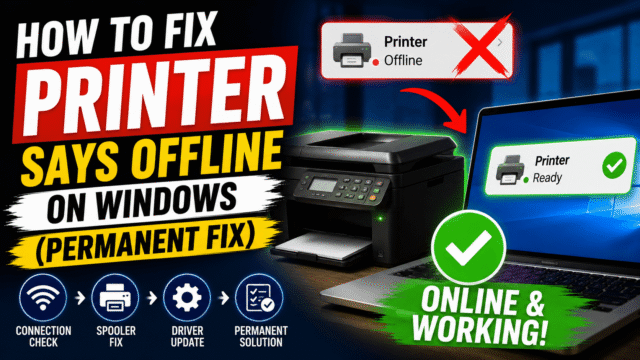
On Windows, check the offline toggle. There’s a setting that literally does this, and it gets enabled by accident constantly. Go to Settings, Bluetooth & devices, Printers & scanners, select your printer, open its print queue, click the Printer menu, and untick Use Printer Offline. On Windows 10 and 11 this single tick box is the fastest fix there is, and if it keeps re-enabling itself, that points at a stuck job (next section).
Confirm the printer is actually on your network. Most printers can print a network configuration page from their own menu, or show connection status on screen. If the printer thinks it’s offline too, the problem is the network, not your PC.
The Restart Order That Matters
If the quick checks came up empty, restart things in this sequence rather than randomly.
Printer first. Power it off with its own power button (not the wall switch, so it can shut down cleanly), wait 30 seconds, power it back on and let it fully wake.
Router second, if the printer isn’t rejoining Wi-Fi. Give it a couple of minutes to bring everything back.
Computer last. A reboot clears whatever stale state Windows was holding.
Then, before reprinting: clear the queue. One corrupted job at the front of the line blocks everything behind it and can flip the printer back to offline on its own. Open the queue and cancel everything. If jobs refuse to disappear, restart the Print Spooler: press Windows key + R, type services.msc, find Print Spooler, right-click and choose Restart. It takes five seconds and resolves a surprising share of offline errors outright.
The Wi-Fi Band Trap
Here’s a cause that catches people with modern routers and older printers, and almost nobody thinks of it.
Many printers, especially budget and older models, only support the 2.4GHz band. Your laptop and phone, meanwhile, are probably on 5GHz. On most home networks that’s fine because both bands belong to one network, but some setups (particularly certain mesh systems, guest networks, or routers with band separation configured) can leave devices unable to see each other across bands.
The test: temporarily connect your laptop or phone to the 2.4GHz network and try printing. If it works, that’s your answer, and the fix is either keeping the printer and computers on the same network, or turning off any client or AP isolation setting in your router that blocks devices from talking to each other. The same band logic we covered in our Wi-Fi speed guide applies here in reverse: the printer’s 2.4GHz limitation isn’t a defect, it’s just where printers live.
After a Windows Update? Check the Driver (and Ignore the Scare Stories)
Windows updates genuinely can disrupt printing: a driver gets replaced with a generic substitute, a port setting resets, or the print spooler ends up in a bad state. If your trouble started right after an update, checking the driver is a reasonable step.
But let’s clear up something you’ll run into while searching, because a lot of sites are still pushing it. In late 2025, Microsoft’s own Windows Roadmap briefly carried an entry suggesting that from January 2026, Windows would stop supporting legacy V3 and V4 printer drivers. Outlets ran with it, alarming headlines followed, and then Microsoft removed the entry and corrected the record: Windows has not ended support for legacy printer drivers, and if your printer works today, it will keep working with no action needed. Windows Central published a full retraction, and Tom’s Hardware and Neowin covered the clarification.
What actually changed is narrow and aimed at manufacturers, not you. Since January 15, 2026, new V3 and V4 driver submissions to Windows Update are approved only on a case-by-case basis, while existing drivers stay available and vendors can still ship drivers through their own installers. Separately, from July 1, 2027, non-security third-party printer driver updates won’t be distributed through Windows Update, meaning you’d get them from the manufacturer’s site instead. Neither of those breaks a working printer.
So if you see a guide claiming a January update killed printer support, treat it as a signal about that guide’s reliability, not about your printer.
The underlying principle is still worth holding, though, because Windows updates do sometimes remove legacy hardware support deliberately. A January 2026 update (KB5074109) removed four legacy modem drivers, documented by Microsoft. Printers simply aren’t on that list.
Practical takeaway: if printing broke after an update, download a current driver from HP, Canon, Epson, or Brother directly, run the manufacturer’s own diagnostic tool if it has one, and know that Microsoft’s generic IPP class driver works as a fallback for many models. If the manufacturer genuinely stopped issuing drivers for your model years ago, that’s an age problem rather than an update problem.
The Permanent Fix for Repeat Offenders
If your printer goes offline weekly, after every router restart, or whenever it’s been idle a while, stop re-fixing it and fix the cause. It’s almost always the IP address.
By default your router hands out addresses dynamically, so the printer can get a new one after a restart or a long sleep, while Windows keeps trying to reach the old address and reports the printer offline. The cure is to pin the address permanently:
Print the printer’s network configuration page from its own menu, and note its current IP address and MAC address.
- Log into your router (typically 192.168.1.1 or 192.168.0.1 in a browser; credentials are usually on the router’s label).
- Find DHCP Reservation (also called Address Reservation or Static Lease), and reserve that IP for the printer’s MAC address.
- Save and restart the printer.
On Windows, point the port at it: printer Properties, Ports, and confirm or configure the port to the now-permanent IP.
Ten minutes, once, and the weekly ritual ends. Most printers can alternatively set a static IP directly from their own network settings menu, which works just as well.
Two smaller habits that reduce recurrence: don’t power the printer down mid-job or via a power strip, and if your printer has an aggressive deep-sleep mode that it struggles to wake from, lengthening or disabling that timeout in its settings often helps.
When the Printer Is Genuinely Done
Rare, but real. If it fails on multiple computers and after a factory network reset, if the manufacturer no longer publishes drivers for current operating systems, or if the hardware is throwing mechanical errors alongside the offline status, you’re maintaining something that has stopped being maintainable. For a home printer that’s several years old, replacement often costs less than the repair, and the ink situation usually deserves as much thought as the printer itself.
Quick Answers
Why does my printer say offline when it’s on and connected?
“Offline” means your computer got no response, not that the printer is broken. The usual causes are the Use Printer Offline setting, a stuck print job, a changed IP address, or a network hiccup.
How do I get my printer back online in Windows 11?
Settings, Bluetooth & devices, Printers & scanners, select the printer, open the print queue, and untick Use Printer Offline in the Printer menu. If that doesn’t hold, clear the queue and restart the Print Spooler.
Why does my printer keep going offline repeatedly?
Almost always a changing IP address. Reserve a fixed address for the printer in your router’s DHCP reservation settings and point the Windows port at it.
My printer stopped working after a Windows update. What happened?
Updates can replace a driver with a generic substitute or reset port settings. Despite widely shared claims, Microsoft has confirmed it did not end support for legacy printer drivers, so install a current driver from the manufacturer’s site and check the port settings.
Should I restart the printer or the computer first?
Printer first (with its own power button), then the router if Wi-Fi is involved, then the computer last.
The Bottom Line
An offline printer is a communication failure, not a funeral, and it responds to order rather than volume of effort. Read the printer’s screen, confirm you’re printing to the right device, untick Use Printer Offline, and clear the queue; that quartet solves most cases inside two minutes. Restart printer, router, then computer if it persists, check the driver if trouble started after a Windows update, and if this happens every single week, spend ten minutes reserving the printer’s IP address in your router so it stops happening at all. Save “buy a new printer” for the day the manufacturer stops shipping drivers, which is the one problem on this list you genuinely can’t fix.