Table of Contents
Ask most people where their photos are backed up and the answer is “Google Photos” or “iCloud,” said with real confidence. That confidence is the problem, because those services are doing something subtly but critically different from backing up, and the gap between the two is where people lose fifteen years of family pictures in a single afternoon.
The numbers say this isn’t hypothetical: in one survey of over 2,000 US adults, 54% reported having lost data, while only 10% backed up daily. So here’s the honest version: why sync isn’t backup, the two-hour setup that actually protects you, and the quarterly habit that keeps it alive.
Cloud Sync Is Not a Backup (Here’s the Proof)
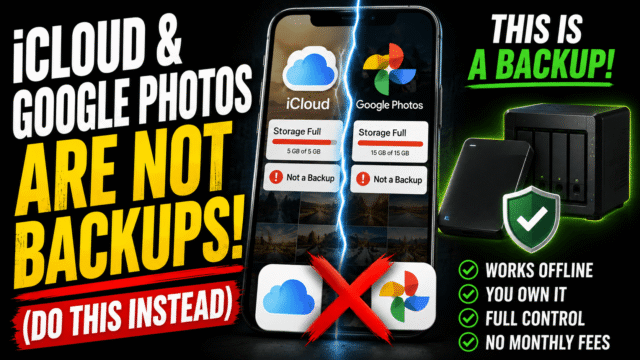
Sync means every copy mirrors every change, including the changes you didn’t mean. Delete a photo on your phone and it vanishes from the cloud and every other signed-in device, which we’ve documented in detail for Google Photos and for iCloud. That’s not a flaw; it’s the entire design. But a system that faithfully replicates your mistakes is not protecting you from them.
The four ways sync-only setups fail people, all common:
- Accidental deletion. A bulk cleanup, a toddler with your unlocked phone, a mis-swipe. The deletion propagates instantly, and after the trash empties (30 days on Google, 30 on iCloud), it’s permanent everywhere.
- Account loss. Lose access to your Google or Apple account, through a forgotten password, a hack, or a policy issue, and every photo is behind that door. Everything in our recovery guide applies, and none of it is a guarantee.
- Storage economics. Miss payments on your storage plan, or leave an account inactive long enough, and providers can and do delete content. We’ve covered both deletion clocks.
- Trusting one company forever. Anyone who remembers Google Photos’ unlimited free tier disappearing knows that terms change and services die.
A real backup is different in one decisive way: it’s a separate copy that doesn’t inherit deletions. That’s the whole distinction, and it’s what the plan below builds.
The 3-2-1 Rule, Translated for Humans
The professional standard sounds intimidating and isn’t: 3 copies of your photos, on 2 different types of storage, with 1 copy somewhere else.
For a normal person that maps to: your phone (copy one), your cloud service (copy two, and a different storage type), and an external drive at home (copy three). The cloud is your offsite copy, protecting against fire and theft; the drive is your independent copy, protecting against deletions and account loss. Neither substitutes for the other, and together they cover essentially everything that goes wrong.
One numbers check before anyone puts all their faith in that drive: Backblaze’s analysis of 344,196 hard drives found a 1.36% annualized failure rate, climbing as drives age past three to five years. A single drive is a ticking clock, which is exactly why it’s copy three of three, not copy one of one.
The Two-Hour Setup
Step 1: Confirm your cloud copy is real (15 minutes). Open Google Photos or iCloud Photos and verify backup is genuinely on and finished, not paused, not “waiting for Wi-Fi,” not stalled because storage is full. A cloud copy you assumed was running is the most common failure in this entire topic.
Step 2: Buy a drive (10 minutes). A 2TB external SSD runs roughly $60 to $120 and will comfortably swallow most family libraries, and SSDs beat spinning drives for something that lives in a drawer and gets bumped occasionally. Buy more capacity than your library needs today, because photo libraries only grow.
Step 3: Get your photos out of the cloud (60 to 90 minutes, mostly waiting).
Google Photos: use takeout.google.com, select Photos only, and request the export. Practical warnings that save people real pain: the archive can be much larger than your reported library size, you need staging space of roughly twice your library, download links expire in about 7 days with limited download attempts, and you should keep the computer awake until every archive file has finished. Also expect the well-known metadata quirk: dates and locations live in accompanying JSON files rather than in the images themselves, so photos can appear with wrong dates when imported elsewhere, and tools exist to write that data back if you care about it.
iCloud Photos: the cleanest route is privacy.apple.com, request a copy of your data, choose photos, and download the archives. On a Mac, you can alternatively open the Photos app and export originals directly to the drive.
Step 4: Copy to the drive and eject it (15 minutes). Get the extracted files onto the external drive, then store it away from your computer, ideally in a different room, drawer, or a fireproof box. A backup drive that lives permanently plugged into your laptop shares the laptop’s fate in a theft, a spill, or a ransomware event.
That’s the whole plan. Under $100, one evening, and you’re now genuinely protected against every failure mode listed above.
The Maintenance Habit (30 Minutes a Quarter)
A backup that never updates protects a version of your life that ended the day you made it. This is where most people quietly fail, so let’s be honest about the effort involved rather than pretending it’s frictionless.
There’s no consumer tool that automatically keeps an external drive in sync with your cloud photo library. Google’s Takeout and Apple’s data export are both manual, on-demand jobs. So the realistic system is a recurring calendar reminder, once a quarter, for about half an hour of mostly-waiting: request the export, download it when it’s ready, copy it to the drive, eject.
Two things make that chore much lighter. First, only export what’s new. Takeout lets you select specific albums, and Apple’s export can be scoped too, so after your initial full archive you’re pulling recent photos rather than fifteen years of them. Second, if the quarterly ritual honestly isn’t going to happen, automate around your own discipline instead: a second cloud service or a NAS with automatic phone backup, both covered below, do this without you remembering anything. Automation beats intentions, and a slightly worse plan you actually follow beats a perfect one you don’t.
And once a year, test a restore. Open a handful of photos directly from the backup drive on a different computer. Backups fail silently, and the worst possible moment to discover a corrupted archive is the moment you need it. Five minutes, and it’s the step separating people who have a backup from people who have a folder they hope is a backup.
What About NAS, Second Clouds, and Overkill
For most families, the plan above is the correct stopping point. Two upgrades are worth knowing about anyway.
A NAS (a Synology or similar sitting on your home network) gives you a private, browsable photo library with automatic phone backup and no subscription, and it’s genuinely lovely, at the cost of a few hundred dollars and a weekend of setup. It suits people with large libraries, multiple family members, or an allergy to cloud dependence.
A second cloud (Backblaze, Amazon Photos, another provider) satisfies the offsite half of 3-2-1 without you driving a drive to a relative’s house, and it’s the easy answer for people who won’t reliably do the quarterly ritual. This is the closest thing to genuine automation available to a normal person, which is why it’s worth the subscription for anyone who knows themselves well enough to admit the calendar reminder will get dismissed.
What isn’t overkill, whatever your setup: protecting the account that holds it all with two-factor and a passkey, since a compromised cloud account can delete backups as easily as you can.
Quick Answers
Is Google Photos or iCloud a backup?
No, they’re sync services. Deletions propagate to every device and to the cloud, so they protect against a lost phone but not against deletion, account loss, or a service change.
How often should I back up my photos?
Quarterly is a realistic minimum, monthly if you shoot constantly. There’s no automatic tool that keeps an external drive updated from cloud photos, so put it on your calendar or use a second cloud service that syncs on its own.
What’s the cheapest way to properly back up photos?
A single external SSD ($60 to $120) plus your existing cloud service satisfies 3-2-1 for most families. That’s the minimum viable plan, and it beats any amount of good intentions.
Will exporting my photos free up cloud storage?
No. Exports create a copy; nothing is removed from the cloud until you delete it separately, which is a different job with its own precautions.
Do I need a NAS?
Most people don’t. Consider one if your library is huge, several family members are involved, or you’d rather own your infrastructure than rent it.
The Bottom Line
The single most valuable thing on your phone is the one thing most people have never actually backed up, because sync convincingly impersonates safety right up until the moment it doesn’t. Fixing that costs one evening and under a hundred dollars: verify the cloud copy is really running, buy a drive, export your library once, and store the drive away from the computer. Then put the quarterly top-up on your calendar, or pay a second cloud service to remember for you, and test a restore once a year so you know it works before you need it to. Photos are the only possessions most of us have that can’t be replaced at any price. They deserve better than a hope and a sync toggle.