
Table of Contents
Your phone says storage is almost full. You delete some photos, uninstall an app you never use, and check again. Barely anything has changed. Then you look at the storage breakdown and see a huge bar labelled System, or Other, and no obvious way to shrink it.
I’ve been through this on more than one Android phone. The good news is that much of the “mystery” space isn’t a mystery at all. Some of it you can’t touch, but a surprising amount is hiding inside apps you use every day, and you can get it back in a few minutes.
Here’s what each category really means, which ones you can shrink, and the order I’d work through them.
First: see what’s actually using your storage
Android shows a breakdown of your storage, but the menu is in a different place on each brand.
- Pixel and most other phones: Settings, then Storage.
- Samsung: Settings, then Battery and device care, then Storage.
- Xiaomi, Redmi and Poco: Settings, then About phone, then Storage, or search Settings for “storage”.
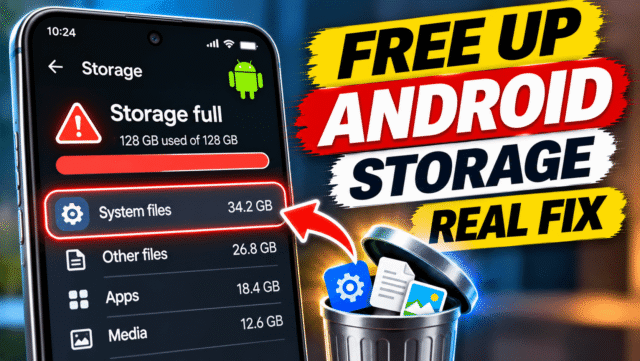
You’ll see a bar and a list of categories, such as Apps, Images, Videos, Audio, Documents, Trash and System. Samsung phones also show Other. Note which ones are biggest. That tells you where to start.
A Samsung tip that makes “Other” look smaller
Samsung says that on some Galaxy phones, Other can look bigger than it really is because the My Files app isn’t being counted properly. On the Storage screen, if you see a small “i” next to Apps, tap it, then Settings, and switch on My Files. Go back, and the numbers should be more accurate.
What each category really means
Apps
This isn’t just the apps themselves. It includes everything they store: downloaded videos, cached images, chat media, offline maps and saved data. On most phones, this is the biggest category, and it’s also where most of the space you can recover is hiding.
Images, Videos, Audio and Documents
These are your own files: photos, screen recordings, voice notes, music, PDFs and downloads. Big, but easy to manage, as long as you know what’s backed up.
Trash
When you delete photos or files, many apps don’t remove them straight away. Google Photos, Samsung Gallery and Files by Google keep them in a trash or recycle bin, usually for 30 days, and they still take up space until then.
System
This is Android itself: the operating system, the software that runs your phone, and the space it needs to install updates. On newer versions of Android, starting with Android 15 on Pixel, System is split into two parts:
- OS: the operating system files. You can’t reduce these, and on modern phones it’s normal for them to take up a lot of space.
- Temporary files: things like downloaded update files, logs and files Android can’t identify. These often shrink by themselves.
Other (Samsung)
On Samsung phones, Samsung describes Other as app data that doesn’t fit another category, including system files, cached data and temporary files. Samsung says you can’t delete Other directly. Instead, you shrink it by clearing app caches and removing what apps have stored.
Can you shrink “System”?
Mostly not, and that’s normal. The core OS is fixed. But the temporary part can sometimes be reduced:
- Restart your phone. Temporary files are often cleared on restart.
- Check for a pending system update in Settings, then System, then Software update (or Software update on Samsung). A half-downloaded update can hold space. Install it, then restart.
- Give it a day. Some temporary files are cleaned up automatically once Android has finished what it was doing.
Skip “phone cleaner” and “junk remover” apps that promise to clear system space. They can’t touch the operating system, many are full of ads, and some are a common source of adware. Android already has the tools you need.
Where your space is really hiding
In my experience, these are the biggest hidden space users, roughly in order.
WhatsApp media
WhatsApp keeps every photo, video, voice note and forwarded meme from every chat and group, and on many phones it’s the single biggest app.
- Open WhatsApp, then Settings, then Storage and data, then Manage storage.
- Look at Larger than 5 MB and the list of chats sorted by size.
- Open the biggest chats, usually busy groups, select the media you don’t need, and delete it.
To stop it building up again, go to Settings, then Storage and data, and limit Media auto-download, especially for videos on mobile data. You can also turn on disappearing messages in busy groups.
Telegram, Instagram and other social apps
Telegram can quietly store gigabytes of cached videos. Open Telegram, then Settings, then Data and Storage, then Storage Usage. Clear the cache and set Keep Media to a shorter period, such as one week.
For Instagram, Facebook, TikTok, X and similar apps, clearing the app’s cache usually frees space safely (see below).
Streaming and offline downloads
Downloaded episodes in Netflix, Prime Video or YouTube, playlists in Spotify, and offline areas in Google Maps can each take several gigabytes. Open each app’s Downloads or Offline section and remove anything you’ve already watched or no longer need.
Your Downloads folder
Old PDFs, APK files, forwarded videos and installers pile up here. Open Files by Google or Samsung’s My Files, go to Downloads, sort by size, and delete what you don’t need.
Photos and videos already backed up
If you use Google Photos and your photos are backed up, you can remove the copies stored on your phone without losing them. Open Google Photos, tap your profile picture, then Free up space. Before you do this, make sure backup is on and complete.
The trash
After a clean-up, empty the trash so the space is actually freed. In Google Photos, go to Collections, then Trash, then Empty trash. In Samsung Gallery, open Recycle bin and empty it. In Files by Google, open Trash from the menu.
Clear cache, clear storage, or archive?
When you open an app in Settings, then Apps, then Storage, you’ll usually see two buttons. They do very different things.
- Clear cache deletes temporary files the app can recreate, such as saved images and thumbnails. It’s safe. You won’t lose your account or data, though the app may load a little slower at first.
- Clear storage (or Clear data) deletes everything, including logins, settings and anything saved only on the phone. Use it only if you’re happy to set the app up again. Never do this for WhatsApp without a backup.
There’s also a third option on Android 15 and later: Archive. It removes most of the app but keeps your data and login. The icon stays on your home screen, and tapping it reinstalls the app with everything as you left it. This is ideal for apps you use occasionally, such as travel or event apps.
To archive an app, long-press its icon, tap App info, then tap Archive. To have it happen automatically, open the Play Store, tap your profile picture, then Settings, then General, and turn on Automatically archive apps. This archives apps you haven’t used for a while when you’re short of space.
Let Files by Google do the hunting
If you don’t want to go app by app, Google’s free Files app finds a lot of it for you.
- Open Files by Google. If you don’t have it, install it from the Play Store.
- Tap the menu, then Clean.
- Look at the suggestions, such as Delete junk files, Delete old screenshots, duplicate files, large files and backed-up photos.
- Review each one, select what you don’t need, and tap Move files to Trash.
- Empty the trash when you’re done.
On Samsung, My Files has a similar tool. Open My Files, then tap Analyze storage or Manage storage to see large, duplicate and unused files.
If you’ve done all this and it’s still full
- Move photos and videos to the cloud or a computer, then delete them from the phone once you’ve checked they’re safe.
- Use a microSD card if your phone has a slot, and move photos, videos and music to it.
- Back up and factory reset. It’s the last resort, but it clears every leftover temporary file and cache in one go. Back up your photos, WhatsApp chats and anything else first, then reset from Settings. Search Settings for “reset” to find the option on your brand.
- Next time, buy more storage. If you’re often at the limit, a phone with 256GB rather than 128GB will save you a lot of hassle.
Quick Answers
What is System storage on Android?
It’s the space used by Android itself: the operating system and the files it needs to run and update. On Android 15 and later, it’s split into OS, which you can’t reduce, and temporary files, which often shrink after a restart or a system update.
Can I delete System storage on Android?
Not the operating system part. You can sometimes reduce temporary files by restarting your phone and installing any pending system update. Avoid cleaner apps that claim to clear system storage.
What is Other storage on Samsung phones?
Samsung describes it as app data that doesn’t fit another category, including system files, cached data and temporary files. You can’t delete it directly, but clearing app caches reduces it.
Why is my Android storage full when I don’t have many files?
Usually because of apps: WhatsApp media, cached videos, streaming downloads, offline maps and files in the trash. Check Settings, then Storage, and look at the Apps category.
Is it safe to clear cache on Android?
Yes. Clearing an app’s cache removes temporary files it can recreate. You won’t lose your login or data. Clearing storage or data is different, and deletes everything the app has saved.
What does archiving an app do?
It removes most of the app to save space but keeps your data and login. The icon stays on your home screen, and tapping it reinstalls the app as you left it.