
Table of Contents
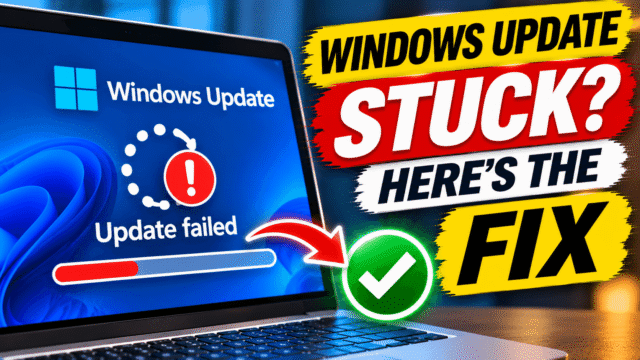
The progress bar has said 36% for an hour. Or the update downloads, installs, asks you to restart, and then tells you “Something didn’t go as planned. Undoing changes.” Or Settings just shows an error code like 0x800f0922 every time you click Retry.
Windows Update problems are frustrating because the messages tell you so little. But most of them come down to a handful of causes, and Microsoft’s own fixes work in a fairly predictable order. Here’s the order I follow, starting with the quick ones and ending with a repair that fixes almost everything without touching your files.
First: is it really stuck?
Before you change anything, give it a fair chance. Big updates, especially the yearly feature updates, can take a long time, and the percentage often sits still while work is happening in the background.
- If the download or install is at the same percentage in Settings, leave it for at least 30 minutes to an hour, especially on a slow internet connection.
- If you see a blue “Working on updates” or “Configuring updates” screen during a restart, be more patient. Don’t turn the PC off unless nothing has changed for a couple of hours. On older laptops with slow hard drives, this stage can take a long time.
- Keep the laptop plugged in. Some updates won’t install on battery power.
If it really hasn’t moved, or it fails and shows an error, work through the steps below.
Step 1: Restart and try again
It sounds too simple, but Microsoft’s own advice for updates stuck at 0% or 100% starts here.
- Click Start, then Power. If you see Update and restart, choose it. Otherwise choose Restart.
- Once you’re back, go to Settings, then Windows Update, and click Check for updates.
A surprising number of stuck updates finish the second time round.
Step 2: Free up disk space
Low storage is one of the most common reasons updates fail. Microsoft says Windows needs around 20GB of free space for some updates on 64-bit PCs, and the error code 0x800f0922 often points to a space problem.
- Go to Settings, then System, then Storage, and check how much space is free.
- Turn on Storage Sense, or click Cleanup recommendations and remove temporary files, old downloads and items in the Recycle Bin.
- Uninstall apps and games you no longer use.
If your laptop has a small drive, Windows may offer to use a USB drive as temporary space during the update. Plug one in when it asks.
The hidden-partition problem (0x800f0922)
Sometimes the space that runs out isn’t the space you can see. In May 2026, Microsoft confirmed that its May security update (KB5089549) was failing on some Windows 11 PCs because a small hidden partition, the EFI system partition, had too little free space. The update would get to about 35% during the restart, then show “Something didn’t go as planned. Undoing changes.”
Microsoft rolled out a fix automatically to most home PCs. If you saw this error around that time, run Check for updates again and it should install. It’s a good reminder that a space error doesn’t always mean your main drive is full.
Step 3: Run the Windows Update troubleshooter
Windows has a built-in troubleshooter that checks the update service and fixes common problems on its own.
- On Windows 11, search Start for Get Help, open it, and search for “Windows Update troubleshooter”. You can also go to Settings, then System, then Troubleshoot, then Other troubleshooters, and click Run next to Windows Update, if your version still shows it.
- Follow the prompts, then restart and check for updates again.
Step 4: Check the basics Windows Update depends on
These sound unrelated, but each one can block an update:
- Date and time: go to Settings, then Time and language, then Date and time. Turn on Set time automatically and Set time zone automatically, then click Sync now. A wrong clock can break the secure connection to Microsoft’s servers.
- Internet connection: switch from a weak Wi-Fi signal to a stronger one or a cable if you can. Turn off any VPN while updating. Microsoft specifically mentions VPNs for 0x800f0922.
- Unplug extras: disconnect external drives, docks, printers and anything else you don’t need, then try again.
- Admin account: some updates need an administrator account. If you use a child or standard account, ask the PC’s administrator to install them.
Step 5: Pause, then resume updates
A quick trick that sometimes clears a stuck download:
- Go to Settings, then Windows Update.
- Click Pause updates and choose the shortest option, such as 1 week.
- Restart the PC.
- Go back to Windows Update and click Resume updates, then Check for updates.
Step 6: Clear the update cache
Windows stores downloaded update files in a folder. If one of them is damaged, the update can fail every time. Clearing the folder forces Windows to download fresh copies.
- Search Start for Command Prompt, right-click it and choose Run as administrator.
- Type each of these lines, pressing Enter after each one and waiting for it to finish:
net stop wuauserv
net stop bits
ren %systemroot%\SoftwareDistribution SoftwareDistribution.bak
ren %systemroot%\System32\catroot2 catroot2.bak
net start bits
net start wuauserv
- Restart the PC, then check for updates again.
This doesn’t delete anything you need. It just renames the old update folders so Windows builds new ones. You can delete the .bak folders later once updates are working.
Step 7: Repair Windows system files
If Windows’ own files are damaged, updates can fail. Two built-in tools check and repair them.
- Open Command Prompt as administrator, as above.
- Type this and press Enter. It can take 10 to 20 minutes:
DISM.exe /Online /Cleanup-image /Restorehealth
- When it finishes, type this and press Enter:
sfc /scannow
- Restart and try the update again.
Step 8: Install the update manually
If one particular update keeps failing, you can download and install it yourself.
- Go to Settings, then Windows Update, then Update history, and note the KB number of the failing update, such as KB5089549.
- Go to the Microsoft Update Catalog website (catalog.update.microsoft.com) and search for that KB number.
- Download the version that matches your PC. Most PCs need the x64 version. Some newer laptops with Snapdragon chips need the ARM64 version.
- Double-click the downloaded file to install it, then restart.
For a stuck yearly feature update, Microsoft’s Windows 11 download page also has an Installation Assistant that installs the latest version for you.
Step 9: Fix problems using Windows Update (keeps your files)
This is the most useful fix most people have never heard of. Since 2024, Windows 11 can reinstall itself through Windows Update, repairing system files and components while keeping your apps, files and settings.
- Go to Settings, then System, then Recovery.
- Under Fix problems using Windows Update, click Reinstall now.
- Choose whether the PC should restart automatically 15 minutes after the installation finishes.
- Click OK. Windows downloads a repair version of the last update that installed successfully and installs it.
Keep the PC plugged in and connected to the internet the whole time. It takes a while, but it’s far quicker than a full reset, and your files stay where they are. It isn’t available on PCs managed by an employer or school.
If an update installed but broke something
Sometimes the problem isn’t that an update won’t install, but that it did, and now something is wrong.
- If Windows still starts: go to Settings, then Windows Update, then Update history, then Uninstall updates. Find the most recent one and click Uninstall.
- If Windows won’t start properly: after two or three failed starts, Windows should open the recovery screen. Choose Troubleshoot, then Advanced options, then Uninstall Updates, and remove the latest quality update or feature update.
Then pause updates for a week or two while Microsoft fixes the problem.
When to stop and get help
If you’ve tried everything here, including Reinstall now, and updates still fail, the problem may be deeper: a failing drive, faulty hardware or a heavily damaged installation. At that point, back up your files and either reset the PC (Settings, then System, then Recovery, then Reset this PC) or take it to a repair shop. It’s also worth checking the drive’s health with your laptop maker’s diagnostics tool.
Quick Answers
How long should I wait if Windows Update is stuck?
Give a download or install in Settings at least 30 to 60 minutes. On the “Working on updates” screen during a restart, wait longer, up to a couple of hours, before turning the PC off.
What does error 0x800f0922 mean?
It often means there isn’t enough free space, sometimes on a small hidden partition, or that a VPN or other component is interfering. Free up space, turn off any VPN and try again. In May 2026, Microsoft confirmed and fixed a version of this error caused by low space on the EFI system partition.
How do I reset Windows Update?
Run the Windows Update troubleshooter first. If that doesn’t work, clear the update cache by stopping the Windows Update and BITS services, renaming the SoftwareDistribution and catroot2 folders, then starting the services again and restarting.
Can I fix Windows Update without losing my files?
Yes. In Windows 11, go to Settings, then System, then Recovery, and under Fix problems using Windows Update, click Reinstall now. It repairs Windows and keeps your apps, files and settings.
How do I uninstall a bad Windows update?
Go to Settings, then Windows Update, then Update history, then Uninstall updates. If Windows won’t start, use the recovery screen: Troubleshoot, then Advanced options, then Uninstall Updates.
Is it safe to turn off my PC during a Windows update?
Avoid it if you can. Turning off during the “Working on updates” stage can damage Windows. Only do it if nothing has changed for a couple of hours.