
Table of Contents
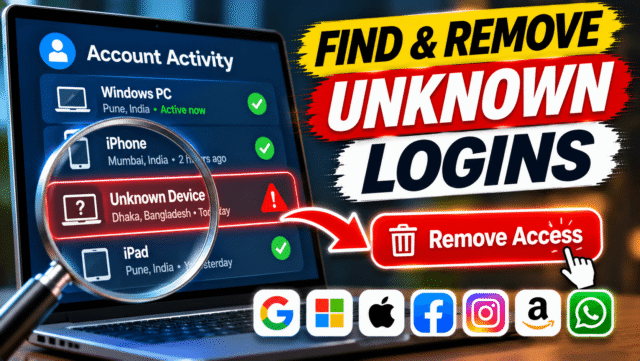
An old phone you sold. A laptop at your last job. A friend’s TV you once used for Netflix. An ex who still knows your password. Over the years, your accounts end up signed in on far more devices than you remember, and any of them could still be reading your email, your chats or your photos.
Every major service keeps a list of the devices signed in to your account, and most let you sign them out remotely in a few taps. Here’s where to find that list for the accounts that matter most, and what to do if you spot something you don’t recognise.
Which accounts to check first
Start with the accounts that give access to everything else:
- Your main email account (Google or Microsoft), because password resets for everything else go there.
- Your phone’s account (Apple Account on iPhone, Google on Android), because it can hold your photos, backups, location and saved passwords.
- WhatsApp, Instagram and Facebook, because they hold your private messages.
- Streaming and shopping accounts, such as Netflix and Amazon.
How to read a device list
Before you start signing things out, know what you’re looking at:
- Device names aren’t always obvious. A Windows laptop might show as “DESKTOP-4G7K2LM”, and a phone may show only its model number.
- Locations are approximate. They’re based on internet addresses, so a sign-in can appear to come from a nearby city, or a different city entirely if you use a VPN or mobile data.
- Old devices linger. Some lists include devices that were signed in during the last few weeks, even if they’re no longer active.
If you’re not sure whether a device is yours, it’s safe to sign it out. If it was yours, you’ll just need to sign in again.
Google account (Gmail, YouTube, Android)
- Go to myaccount.google.com, or open Settings on an Android phone and tap Google, then Manage your Google Account.
- Open Security and sign-in (called Security on some versions).
- Under Your devices, tap Manage all devices.
- Tap any device you don’t recognise, then tap Sign out.
The list shows devices that are signed in now or were in the last few weeks. Google doesn’t have a single “sign out everywhere” button, so sign out each one you don’t want. If several entries share the same name, sign out of each of them.
Apple Account (iPhone, iPad, Mac, iCloud)
- On your iPhone, open Settings and tap your name at the top.
- Scroll down to see every device signed in with your Apple Account.
- Tap a device you don’t recognise or no longer own, then tap Remove from Account.
You can also do this on a computer at account.apple.com, under Devices.
If you remove a device you’ve sold or given away, also make sure Find My was turned off on it and that it was erased, so the new owner can’t see your data.
Microsoft account (Outlook, Hotmail, Windows, Xbox)
- Go to account.microsoft.com and sign in.
- Open Devices to see the Windows PCs, Xbox consoles and other devices linked to your account. Remove any you no longer use.
- To sign out of everything, go to Security, look for the option to sign out everywhere (it may be under advanced security options), and confirm.
Microsoft says signing out everywhere can take up to 24 hours to take effect.
WhatsApp linked devices
WhatsApp can be linked to computers, tablets and browsers through WhatsApp Web and the desktop app. If someone linked your WhatsApp to their computer, even once, they may be able to read your chats.
- Open WhatsApp.
- On Android, tap the three dots, then Linked devices. On iPhone, tap Settings, then Linked devices.
- You’ll see every computer, browser and tablet linked to your account, and when each was last active.
- Tap any device you don’t recognise, then tap Log out.
This is one of the most important checks in this guide. A linked device you’ve forgotten about can see your messages without you knowing.
Instagram and Facebook
Meta manages logins for both through Accounts Center.
- In Instagram or Facebook, open Settings, then Accounts Center.
- Tap Password and security, then Where you’re logged in.
- Choose your account to see every device and location.
- Tap a device you don’t recognise and choose Log out. You can also select several devices and log them out together.
If you see logins you didn’t make, change your password straight away and turn on two-factor authentication in the same Password and security section.
Netflix
Netflix can remove devices you no longer have, such as a friend’s TV or a hotel smart TV.
- Go to netflix.com/manageaccountaccess, or open Account and choose Manage access and devices.
- You’ll see devices with recent streaming activity on your account.
- To remove one, click the arrow next to it and choose Sign out.
- To remove all of them, choose Sign out of all devices at the bottom of the page and confirm.
Netflix says new devices can take up to 48 hours to appear on this page.
Amazon
Amazon handles this in two places.
- To remove a specific device, such as a Fire TV, Kindle or a phone with Prime Video, go to Account and Lists, then Content and Devices, then Devices. Choose the device and select Deregister.
- To sign out of everything, go to Account and Lists, then Your Account, then Login and security. Changing your password signs out most devices. Some regions also offer a compromised account option with a button to sign out of everything.
Changing your Amazon password may disconnect Echo and other Alexa devices. You can reconnect them in the Alexa app.
Other accounts worth checking
- Telegram: Settings, then Devices. Tap Terminate all other sessions.
- Spotify: on the Spotify website, go to your account page and choose Sign out everywhere.
- Banking apps: most show your registered devices in their security or profile settings. Remove any you don’t recognise and call your bank if something looks wrong.
- Your Wi-Fi: if you’re worried someone is using your home network, check your router’s device list too.
Also check who can see your location
Signing out devices doesn’t stop location sharing you’ve set up yourself, and this matters most after a breakup or if you’ve shared a phone.
- iPhone: open the Find My app and tap People. Stop sharing with anyone who shouldn’t see your location. You can also go to Settings, then Privacy and security, then Safety Check, which reviews sharing and access in one place.
- Android: open Google Maps, tap your profile picture, then Location sharing, and stop sharing with anyone you don’t want.
If you find a device you don’t recognise
Signing it out is only the first step. If someone has your password, they can sign straight back in.
- Change your password to a new one you haven’t used anywhere else.
- Turn on two-step verification, ideally with an authenticator app or a passkey.
- Check your recovery phone number and email, and remove anything that isn’t yours.
- Check for email forwarding rules if it was your email account, because hackers often set them up.
- Repeat for any other account that used the same password.
Make it a habit
Set a reminder to do this every few months, and always when you:
- Sell, give away or trade in a phone, tablet or laptop
- Leave a job or stop using a shared computer
- End a relationship with someone who knew your passwords
- Use your account on a hotel, friend’s or public device
It takes about ten minutes to check everything, and it’s one of the simplest ways to keep your accounts private.
Quick Answers
How do I see where my Google account is signed in?
Go to myaccount.google.com, open Security and sign-in, and under Your devices tap Manage all devices. Tap a device and choose Sign out to remove it.
How do I check if someone else is using my WhatsApp?
Open WhatsApp and go to Linked devices. You’ll see every computer, browser and tablet linked to your account. Tap any you don’t recognise and choose Log out.
How do I log out of Instagram on all devices?
Go to Settings, then Accounts Center, then Password and security, then Where you’re logged in. Choose your account and log out of any device you don’t recognise.
How do I sign out of Netflix on all devices?
Go to netflix.com/manageaccountaccess and choose Sign out of all devices at the bottom of the page.
Does changing my password sign out other devices?
Often, but not always. Many services sign out other devices when you change your password, but it’s safer to sign them out from the device list too.
What should I do if I see a login I don’t recognise?
Sign out that device, change your password, turn on two-step verification and check your recovery details. Do the same for any account that shares the password.