Table of Contents
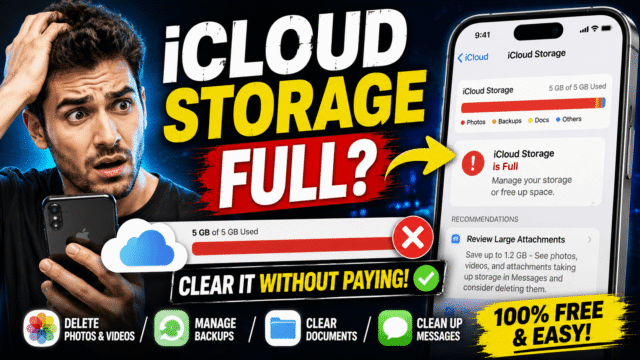
The “iCloud Storage Full” warning is Apple’s most persistent nag, and it comes with real consequences: your nightly backups quietly stop, new photos stop syncing, and if you use an iCloud email address, even your mail can grind to a halt. All because of a free allowance, 5GB, that hasn’t grown since it was introduced, in an era when a single minute of 4K video can be a third of a gigabyte.
Here’s the good news most people never discover: the thing eating your 5GB usually isn’t your photos. It’s ghosts. Let me show you what’s actually consuming your allowance, the free fixes in the order that recovers the most, and the honest point at which paying $0.99 a month beats fighting.
First, know the battlefield. Open Settings, tap your name, then iCloud, and look at the colored bar. Everything below maps to what you’ll see there. And keep one distinction straight throughout, because it confuses everyone: iCloud storage and iPhone storage are two different things. This guide frees the cloud. If your phone says it’s full, that’s a different problem we’ve covered separately.
The Old-Backup Graveyard (Start Here)
Here’s the fact that solves this problem for a huge share of people: Apple does not delete your old iPhone’s backup when you move to a new one. Trade in a phone every two or three years and your iCloud is quietly hoarding backups of devices you no longer own, each worth gigabytes, forever, until you personally delete them.
Go to Settings, your name, iCloud, then Manage Account Storage, and tap Backups. If you see an iPhone you sold in 2023 or an iPad that lives in a drawer, that’s your storage. Deleting a dead device’s backup is the single biggest, safest win available, and here’s why it’s safe: your photos (if iCloud Photos is on), your messages (if Messages in iCloud is on), your contacts, and your iCloud Drive files all sync separately from backups. Removing an old backup touches none of them.
One rule: do not delete the backup of the iPhone in your hand. That’s your safety net for the day this phone breaks or gets stolen.
Put Your Current Backup on a Diet
While you’re in that Backups screen, tap your current iPhone and look at the app list. Every app listed is including its data in your nightly backup, and much of it is pointless: streaming apps whose downloads you can re-fetch, games whose progress lives on their own servers, social apps that rebuild themselves on sign-in. Toggle off the fat, replaceable ones and your backup shrinks permanently.
The special case here is WhatsApp, whose iCloud backup can be enormous on its own thanks to years of chat videos. Inside WhatsApp’s chat backup settings, excluding videos from the backup routinely reclaims gigabytes while keeping your messages and photos protected, a trick from the same playbook we used on the Google Drive side for Android.
Photos: Untangling the Confusion That Wastes Everyone’s Time
If iCloud Photos is your biggest bar segment, two misunderstandings need clearing before any deleting.
“Optimize iPhone Storage” does not free iCloud space. That setting keeps small versions of photos on your phone while full originals live in the cloud. It solves a full phone; it does absolutely nothing for a full iCloud, and mixing these up is the Apple edition of the same trap we flagged with Google Photos’ “Free up space” button.
Deleting a synced photo deletes it everywhere. With iCloud Photos on, your library is one library. Delete a photo on your phone and it’s gone from the cloud, your iPad, and your Mac too. That’s the mechanism working as designed, so use it deliberately: the correct way to shrink the Photos segment is to genuinely cull, and the highest-value targets are videos, which dwarf photos. In the Photos app, the Videos album sorted by your longest clips is where the gigabytes live, along with screen recordings you forgot existed.
Then the step everyone skips: open the Recently Deleted album and delete permanently. Everything in there keeps counting against your quota for up to 30 days otherwise, which is why cleanups so often “don’t work.”
The Hidden Culprits
When backups and photos are handled and the bar still looks wrong, sweep these in Manage Account Storage:
- Messages. With Messages in iCloud enabled, every attachment in every conversation counts. The storage view lets you review and delete the large ones, and years-old group chat videos are a classic multi-gigabyte find.
- Mail. If you use an @icloud.com address, large attachments and a never-emptied trash count. Search your mail for attachments, delete the heavy ones, and empty the trash.
- Voice Memos. They sync to iCloud by default, and long recordings pile up invisibly. Genuinely one of the most overlooked line items.
- App data. The Manage Account Storage list shows every app storing data in iCloud, sorted by size. Anything unrecognizable or long-deleted can usually have its data removed from there directly.
The Zero-Cost Endgame: Back Up to Your Computer Instead
Here’s the move the “just pay Apple” crowd never mentions, and it’s the fully free solution for people with a computer. You can back up your iPhone locally, to a Mac via Finder or a Windows PC via the Apple Devices app, encrypted, complete, and costing zero iCloud space. Do that regularly, switch off iCloud Backup, and the single biggest consumer of your 5GB disappears entirely, leaving the free tier for photos and files.
The honest trade-off: local backups only happen when you actually plug in, so this suits people with a routine, not people who’d forget for eight months. The half-measure that works for many: keep iCloud Backup on but aggressively trimmed as above, with an occasional local backup as a second layer, which is good practice anyway.
Pay or Purge: The Honest Math
Do the free steps above and a typical account recovers 2 to 4GB, which resets the clock for a year or more. So when does paying make sense?
The genuine tipping point is iCloud Photos with a modern iPhone camera. If you shoot 4K video and want your full library in the cloud in original quality, no amount of tidying keeps you under 5GB, and pretending otherwise just schedules your next crisis. iCloud+ starts at 50GB for $0.99 a month (with local pricing in markets like India proportionally low), 200GB at $2.99 shareable with your whole family, and the tiers now stretch to 2TB and beyond. The paid plans also bundle Private Relay, Hide My Email, and HomeKit video storage that doesn’t count against your quota.
My honest rule mirrors the one from our Google guide: if the cleanup gets you comfortably under the line, stay free and repeat annually. If photos are the reason you’re chronically over, $12 a year for 50GB is the cheapest peace Apple sells, and cheaper than the time you’d spend purging quarterly.
Quick Answers
- What happens if my iCloud storage stays full?
Backups stop running, new photos and files stop syncing, and iCloud email can stop receiving. Nothing already uploaded gets deleted, but nothing new is protected either. - Is it safe to delete old iCloud backups?
Backups of devices you no longer own, yes. Photos, messages, contacts, and Drive files sync separately and aren’t touched. Never delete your current device’s backup. - Why is my iCloud full when my phone has plenty of space?
They’re separate storage pools. iCloud is Apple’s 5GB cloud allowance shared across backups, photos, and files; your phone’s storage is the hardware inside it. - Does deleting photos from my iPhone free up iCloud?
If iCloud Photos is on, yes, deleting removes them everywhere, and they keep counting until you also empty Recently Deleted. That permanence is exactly why you should cull deliberately. - Do apps and music I bought count against iCloud?
No. Purchased apps, music, and books never count. Only backups, photos, iCloud Drive, Mail, Messages, and app data share the quota.
The Bottom Line
Apple’s 5GB hasn’t budged in over a decade, but most full accounts aren’t victims of the allowance; they’re victims of ghosts: backups of retired iPhones, videos in Recently Deleted, WhatsApp’s uncut backup, and voice memos nobody remembers. Clear the graveyard first, put your current backup on a diet, cull videos rather than photos, and empty every trash so it actually counts. If you own a computer, local backups make the free tier genuinely livable. And if a modern camera roll is what keeps you over the line, take the $0.99 deal without guilt, because the point was never to suffer for sport. It was to stop paying rent on phones you don’t own anymore.