Table of Contents
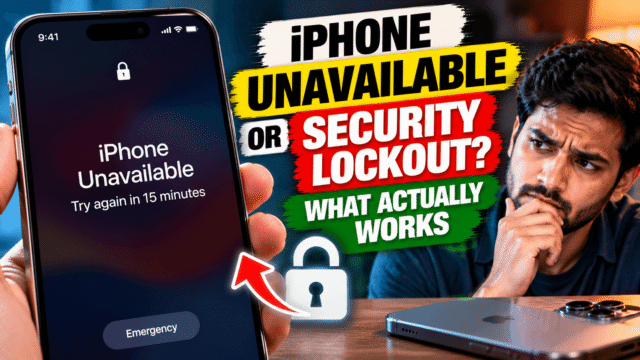
You pick up your iPhone and it says “iPhone Unavailable, try again in 15 minutes.” Or worse, it says “Security Lockout” and there’s no timer at all. Maybe you changed your passcode last week and your fingers keep typing the old one. Maybe a child got hold of it.
Search for help and you’ll find page after page selling unlock software for a few thousand rupees. You don’t need any of it. Apple has free, official ways out of this screen, and I’ll walk through every one, in the order you should try them.
One thing to know up front: if you’ve truly forgotten your passcode, there is no way to unlock the iPhone and keep the data on it. Not from Apple, and not from any paid tool. What you can do is erase it, set it up again, and restore your data from a backup. Before you erase anything, though, check the first two options below.
What the screens mean
- iPhone Unavailable appears after too many wrong passcode attempts. At first it shows a timer, and the wait gets longer with each wrong attempt. After enough wrong attempts, the timer disappears and the iPhone stays locked.
- Security Lockout is the screen you see after tapping Forgot Passcode. It’s the start of Apple’s reset process, not a separate fault.
If you see a timer, the simplest fix is to wait. Put the phone down, let the timer run out, and try the passcode again slowly. Every extra wrong attempt makes the next wait longer, so only try when you’re fairly sure.
Option 1: Changed your passcode recently? Use the old one
If you changed your passcode in the last 72 hours, you can unlock your iPhone with the old one. This works on iOS 17 and later.
- Enter wrong passcodes until you see the iPhone Unavailable screen.
- Tap Forgot Passcode? at the bottom of the screen.
- Tap Enter Previous Passcode.
- Type your old passcode, then follow the prompts to set a new one.
Your data stays exactly as it was. Apart from remembering the passcode, this is the only fix that doesn’t erase your iPhone, so it’s worth trying first if there’s any chance you changed your passcode recently.
Option 2: Erase and reset from the lock screen
If you can’t remember any passcode, you can erase your iPhone straight from the lock screen, without a computer.
You’ll need:
- iOS 15.2 or later
- Find My switched on (it was set up before you got locked out)
- Your iPhone connected to Wi-Fi or mobile data
- Your Apple Account password (the one for your Apple ID, not your phone passcode)
On iOS 17 or later:
- Enter wrong passcodes until you see the iPhone Unavailable screen.
- Tap Forgot Passcode?
- On the Security Lockout screen, tap Start iPhone Reset.
- Enter your Apple Account password to sign out.
- Tap Erase iPhone. If you use an eSIM, you can choose to keep it or delete it.
- When your iPhone restarts, set it up again and restore from your backup.
On iOS 15.2 and iOS 16, you’ll see an Erase iPhone option directly on the lock screen instead. Tap it and follow the same steps.
Why don’t I see Forgot Passcode?
The option only appears when three things are true: your iPhone is connected to Wi-Fi or mobile data, you’re signed in with your Apple Account, and Find My is on. If your phone isn’t connected, try bringing it near a Wi-Fi network it already knows, or put in a working SIM. If it still doesn’t appear, use a computer instead.
Option 3: Erase it remotely with Find My
If you have another Apple device or can borrow a computer or phone with a web browser, you can erase your iPhone through iCloud.
- Go to icloud.com/find and sign in with your Apple Account.
- Select your iPhone from the list of devices.
- Choose Erase This Device and confirm with your Apple Account password.
If your iPhone is online, the erase starts straight away. If it’s offline, it starts the next time it connects. You can also use the Find My app on another iPhone, iPad or Mac signed in to the same Apple Account.
After the erase, set your iPhone up again and restore from your backup.
Option 4: Use a computer and recovery mode
This works on any iPhone, even if it isn’t connected to the internet or Find My is off. It takes up to an hour.
You’ll need:
- A Mac, or a Windows PC with Apple’s free Apple Devices app from the Microsoft Store
- A cable that connects your iPhone to the computer
- An internet connection on the computer
Step 1: Turn off your iPhone
Unplug it from the computer first.
- iPhone with Face ID: press and hold the side button and the volume down button together until the power-off slider appears, then drag it.
- iPhone with a Home button: press and hold the side or top button until the slider appears, then drag it.
Wait about a minute to make sure it’s fully off.
Step 2: Put it into recovery mode
Find the right button for your model:
- iPhone with Face ID, iPhone 8 or later, and iPhone SE (2nd or 3rd generation): the side button
- iPhone 7 and iPhone 7 Plus: the volume down button
- iPhone 6s and earlier, and iPhone SE (1st generation): the Home button
Connect the cable to your computer. Then hold that button and, while still holding it, connect the cable to your iPhone. Keep holding. Don’t let go when the Apple logo appears. Release the button only when you see a picture of a computer and a cable on the iPhone screen.
If you see the passcode screen instead, turn the iPhone off and try again.
Step 3: Restore
- On a Mac: open Finder, select your iPhone in the sidebar, and click Restore when asked.
- On Windows: open the Apple Devices app, select your iPhone, and choose Restore.
The computer downloads the latest iOS and erases your iPhone. If the download takes more than 15 minutes, your iPhone may leave recovery mode on its own. Let the download finish, then repeat steps 1 and 2.
When the restore is complete, your iPhone shows the Hello screen. Disconnect it and set it up.
If you don’t have a computer, an Apple Store or an Apple Authorised Service Provider can do this for you.
After the erase: Activation Lock and getting your data back
When your iPhone starts up again, it will ask for the Apple Account and password that were on it before. This is Activation Lock. It stops a thief from erasing a stolen iPhone and using it.
Enter your Apple Account details and the iPhone will activate. If you’ve forgotten your Apple Account password too, reset it at iforgot.apple.com or from another Apple device first. If you can’t reset it, Apple can remove Activation Lock if you can prove you own the iPhone, usually with the original bill. You can start that request from Apple’s Activation Lock support page.
Then, during setup, choose to restore from your backup:
- If iCloud Backup was on, choose Restore from iCloud Backup and pick the latest one.
- If you backed up to a computer, choose to restore from Mac or PC.
- Photos in iCloud Photos, contacts, notes and other iCloud data come back when you sign in, even without a full backup.
- WhatsApp chats come back when you reinstall WhatsApp, if you had WhatsApp’s own chat backup switched on.
If you never backed up, anything stored only on the iPhone is gone. It’s painful, but it’s the reason to turn on iCloud Backup straight after setup.
Don’t pay for iPhone unlock software
Search results for this problem are full of “iPhone unlocker” software with countdown timers and discount codes. Here’s what you should know before paying:
- They can’t recover your data. Without the passcode, nothing can unlock your iPhone and keep what’s on it. Most of these tools erase the iPhone, which you can do yourself for free with the steps above.
- Many simply automate recovery mode. You’re paying for the restore Apple gives away.
- They can’t legitimately remove Activation Lock. Tools claiming to bypass it are unreliable at best, and some come bundled with malware.
- Anyone on social media offering to “unlock any iPhone” for a fee is very likely a scammer.
Bought a second-hand iPhone that’s locked?
If a used iPhone you bought shows Activation Lock or a previous owner’s passcode, the seller needs to fix it, because only they can remove it from their Apple Account. Ask them to sign in at icloud.com/find, select the iPhone and remove it from their account. If they won’t, return it. A second-hand iPhone that’s locked to someone else’s account is close to worthless.
How to avoid this next time
- Turn on iCloud Backup: go to Settings, tap your name, then iCloud, then iCloud Backup.
- Write down your Apple Account password and keep it somewhere safe, or store it in a password manager.
- Add a recovery contact for your Apple Account, so someone you trust can help you get back in.
- If you change your passcode, use it a few times that day so it sticks. Remember you have 72 hours to fall back to the old one.
- If young children use your iPhone, think about switching off Erase Data in Settings, then Face ID and Passcode. When it’s on, your iPhone erases itself after 10 wrong passcode attempts.
Quick Answers
How do I unlock an iPhone that says iPhone Unavailable?
If there’s a timer, wait for it to finish and try again. If you changed your passcode in the last 72 hours, tap Forgot Passcode? and then Enter Previous Passcode. Otherwise, tap Forgot Passcode? and Start iPhone Reset to erase it, then restore from a backup.
Can I unlock my iPhone without losing data?
Only if you remember your passcode, or you changed it in the last 72 hours and can use the old one. Otherwise, you have to erase the iPhone and restore your data from a backup.
How do I reset my iPhone if I forgot the passcode and don’t have a computer?
On iOS 15.2 or later, use Forgot Passcode? or Erase iPhone on the lock screen. You’ll need an internet connection, Find My switched on and your Apple Account password. You can also erase it from icloud.com/find on another device.
Why is there no Forgot Passcode option on my iPhone?
It only appears if your iPhone is online, signed in to your Apple Account and has Find My on. If any of those is missing, use a computer and recovery mode.
Can Apple unlock my iPhone without erasing it?
No. Apple can’t bypass your passcode. An Apple Store can help you erase and restore it, and Apple can remove Activation Lock with proof of purchase.
Do iPhone unlock tools work?
Most just erase your iPhone, which you can do for free. None can unlock it without erasing your data, and tools that claim to bypass Activation Lock are unreliable.
Bottom Line
The iPhone Unavailable and Security Lockout screens look scary, but Apple’s fixes are free. If you changed your passcode recently, use Enter Previous Passcode and you’ll lose nothing. Otherwise, erase your iPhone from the lock screen, through icloud.com/find, or with a computer in recovery mode, then restore from your backup. Skip the paid unlock tools. They can’t do anything Apple’s own steps can’t, and the most important fix is the one you make afterwards: turning on iCloud Backup.