Table of Contents
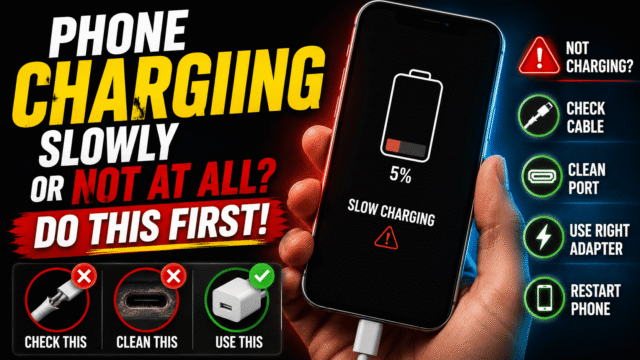
A phone that won’t charge feels like an emergency, and a phone that charges at a crawl feels like a dying battery. Usually it’s neither. The real culprit, most of the time, is one of four boring things: the cable, the port, heat, or a setting your phone shipped with that’s working exactly as intended.
The trick, as with every troubleshooting guide we write, is finding out which one before you fix anything. So here’s the isolation test first, then the fixes in the order that actually resolves this for most people, and at the end, the genuine red flags that mean hardware.
The 60-Second Isolation Test
Charging involves four links in a chain: outlet, adapter, cable, phone. Test them by swapping one at a time.
Different cable first, because cables fail more than everything else combined; they’re the part that gets bent, yanked, and coiled daily, and a cable can look pristine while broken inside. Then a different adapter, then a different outlet. If any single swap fixes it, you’re done for the price of the failed part.
Two side notes while you’re testing. If you’re charging from a laptop, a monitor, or a multiport hub, that’s your “problem”: those ports often deliver a trickle, and a wall adapter is the fair test. And if the phone appears completely dead, plug it into a known-good setup and walk away for 30 minutes before concluding anything. A deeply drained battery can need that long before showing any sign of life, and a black screen at minute five proves nothing.
If the phone still misbehaves with a known-good cable, adapter, and outlet, the problem is in the phone, and it’s almost always the next section.
The Pocket-Lint Port Problem (and Safe Cleaning)
Here’s the most common hardware cause of both slow charging and no charging, and it costs nothing to fix: your charging port is packed with compressed pocket lint. Every time you plug in, the connector rams debris deeper, until the cable can’t seat fully against the pins. The telltale sign is feel: if the cable sits loose, wobbly, or won’t click flush the way it used to, this is very likely your answer.
Cleaning it safely: power the phone off, shine a flashlight into the port, and you’ll often see a felt-like wad at the back. Use a wooden toothpick (shave it thinner if needed) or a soft dry brush, insert gently straight in, and scrape lightly along the back and walls, minding the connector pins in the middle. Do not use anything metal, which can short or bend the pins, and don’t introduce liquids. Two or three gentle passes usually dislodges an alarming little felt pellet, and charging comes back like the phone is new.
Related: if you’re seeing a moisture or liquid detected warning, the phone has disabled charging on purpose for safety. Unplug, let the port air-dry for a few hours, and know that lint and debris can also false-trigger this alert, so a port clean is step one there too. Never force charging through the warning.
When Slow Charging Is Your Phone Protecting Itself
Now the fake faults, which currently generate more worry than every real fault combined.
Heat throttling. Phones deliberately slow or pause charging when warm, and charging while gaming, navigating, or lying in the sun stacks heat fast. If slow charging happens with the phone hot, that’s protection, not damage, and the fix is the cool-down routine we’ve covered in depth: case off, screen off, shade. A fair speed test is a cool phone, screen off, for fifteen minutes.
The “stops at 80%” panic. If your phone reliably halts at the same percentage, 80, 85, 95, it is almost certainly a battery-longevity setting doing its job, and every brand now ships one. On iPhone it’s Optimized Battery Charging plus the Charge Limit option. On Samsung it’s Settings, Battery, Battery protection, with three modes including one that holds at 80% overnight and finishes before your alarm. On Pixel it’s Charging optimization, with Adaptive Charging and an 80% limit. These features are genuinely good for your battery, as we explained in our battery health guide, so the right move isn’t disabling them in a panic; it’s recognizing the pattern, and temporarily allowing a full charge before a travel day when you need it.
The diagnostic rule that separates protection from a real fault: protection is consistent (same percentage, or always when hot), while hardware failure is erratic (random cutouts, works at some angles, different behavior every day).
Wireless Charging: Slower by Design
If your complaint is specifically that wireless charging crawls compared to the cable, that’s physics, not failure. Wireless pads deliver a fraction of wired wattage, lose more to heat, and slow further when the phone isn’t centered on the coil. A thick case or a card wallet on the back makes it worse. Wireless is a convenience tier, not a speed tier; when you need fast, use the wire, and check that your pad and phone actually match on standards if speeds seem below even wireless norms.
When It’s Genuinely Hardware
After the swaps, the port clean, and the settings check, what remains is real. The signals worth acting on:
Erratic connection with a known-good cable: charging that cuts in and out, works only when the cable is held at an angle, or clicks connected and disconnected repeatedly. That’s a worn or damaged port, and port repair is a modest, common fix at any reputable shop.
A battery that drains absurdly fast even when charging works, or a phone that dies at 30%: that’s the battery itself, and whether to replace it or replace the phone is a cost question we’ve already done the honest math on; a battery swap is cheap enough that it usually wins for a phone you otherwise like.
Stop-everything signs: a connector or cable end that gets genuinely hot to the touch, any burning smell, melted plastic on the plug, or a swollen back panel. Those aren’t troubleshooting situations; unplug and get the device looked at, because heat-damaged charging hardware is the one version of this problem with safety stakes.
Quick Answers
- Why is my phone suddenly charging so slowly?
Most often a failing cable, a lint-packed port, heat, or a battery-protection setting pausing near 80%. Swap the cable first, then inspect the port with a flashlight. - Why does my phone stop charging at 80%?
That’s a deliberate battery-health feature (Optimized Charging on iPhone, Battery protection on Samsung, Charging optimization on Pixel), not a fault. You can allow a full charge temporarily when needed. - How do I clean my charging port safely?
Phone off, flashlight in, and a wooden toothpick or soft dry brush used gently along the back and walls. Never metal tools, never liquids, and mind the center pins. - My phone says liquid detected but it’s dry. Why?
Debris in the port can false-trigger the sensor, and the alert occasionally sticks after real moisture has dried. Clean the port, give it a few hours, and never bypass the warning. - Is it bad that wireless charging is slower than the cable?
No, it’s inherent to the technology. Alignment, cases, and heat all reduce it further. Use the cable when speed matters.
The Bottom Line
Charging problems obey a hierarchy that’s kinder than it feels: cables fail constantly, ports fill with lint reliably, heat and protection settings masquerade as faults daily, and actual hardware failure sits at the bottom of the list. Run the swaps, clean the port with wood and patience, learn what your phone’s 80% pause actually is, and give a “dead” phone thirty plugged-in minutes before mourning it. Save the repair shop for the erratic port and the fading battery, and save your urgency for the one true emergency in this topic: anything that smells hot. Everything else is a toothpick and a spare cable away from solved.