Table of Contents
Handing a child their first phone is a big moment, for them and for you. The twenty minutes you spend setting it up before you hand it over will do more to keep them safe than any number of rules you set afterwards.
Both Apple and Google have built proper parental controls into their phones, and both have improved them a lot this year. Apple’s iOS 27 added website approvals and age-based time limits. Google has changed how its controls work when a child turns 13.
Here’s how to set up a child’s iPhone or Android phone properly, what each setting actually does, and what no setting can do for you.
Before You Start: Give Your Child Their Own Account
The most important step happens before you touch any settings. Your child needs their own child account, linked to yours. Don’t hand them a phone signed in with your Apple Account or Google account.
A child account is what makes parental controls work. It tells the phone who’s using it, lets you manage settings from your own phone, and makes sure purchase requests, website requests and contact requests come to you. A phone signed in with your account just gives your child an adult’s phone.
You’ll need:
- Your own phone, updated to the latest software
- Your child’s phone, also updated
- About 20 to 30 minutes when you’re not in a hurry
Setting Up a Child’s iPhone
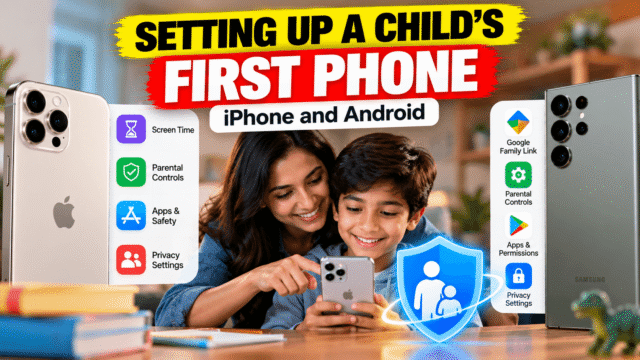
Apple manages everything through Family Sharing. Parental controls for a child now live in one place on your own iPhone: Settings, then Family, then your child’s name.
Create a Child Account
On your iPhone, open Settings, tap Family, and use the option to add a member, then choose Create Child Account. You’ll enter your child’s name and date of birth. Child Accounts are for children under 13 in most countries, and Apple links the account to your family group automatically so controls are switched on from the start.
In iOS 27, setup also asks which apps your child should start with. You can pick a small set of essential apps, Apple’s recommended starter set, or choose your own.
Then sign in to the new iPhone with your child’s account.
Approve Apps and Purchases: Ask to Buy
With Ask to Buy on, any app download or purchase sends a request to your phone first. You approve or decline it from Messages. This is the single best way to know which apps your child is using, and it stops surprise bills.
Approve Websites: Ask to Browse (New in iOS 27)
Ask to Browse blocks websites you haven’t approved in Safari. When your child tries to open a new site, they can send you a request, and you approve it in Messages. It’s strict, so it suits younger children best. For older kids, Content & Privacy Restrictions lets you filter adult websites instead of approving every one.
Control Who They Talk To: Allowed Contacts
Allowed Contacts lets you decide who your child can call, message and FaceTime. You can require them to ask your permission before adding someone new. For a first phone, setting this to family and close friends only is a sensible starting point.
Set Time Limits: Time Allowances and Screen Time Schedule
Time Allowances, new in iOS 27, set daily limits for categories like Social Media, Games and Entertainment. Apple suggests starting limits based on your child’s age, informed by guidance from child health experts, and you can adjust them. Screen Time Schedule sets when the phone is available, for example blocking most apps at bedtime and during school hours, with different times on weekends.
Turn On Communication Safety
Communication Safety detects nudity in photos and videos your child receives or tries to send in Messages, AirDrop and FaceTime, and in iOS 27 it also detects graphic violence. It blurs the image and offers ways to get help. The detection happens on the phone, and Apple doesn’t see the content. For teens aged 13 to 17, Apple switches this and web content filters on by default.
Set Age Limits for Content
Under Content & Privacy Restrictions, set age ratings for apps, films, TV, music and books. The App Store now uses 13+, 16+ and 18+ ratings, which makes it easier to match apps to your child’s age.
Setting Up a Child’s Android Phone
On Android, parental controls run through Google Family Link. You manage everything from the Family Link app on your own phone, which works on both Android and iPhone.
Create or Supervise Your Child’s Google Account
If the phone is brand new, the easiest route is to create a Google account for your child during setup, using the Family Link app on your phone to approve it.
If your child already has a Google account, you can add supervision from their phone. Open Settings, tap Google, then All services, and under Kids & Family tap Parental controls. Follow the steps and sign in with your own account to link the two. You need to be 18 or over and live in the same country as your child.
Approve Apps
In Family Link, you can require your approval for apps your child wants to download from Google Play, and block apps already on the phone. As with the iPhone, this is the most useful control you have.
Set Screen Time Limits and School Time
Family Link lets you set a daily screen time limit and a bedtime, after which the phone locks. You can also give individual apps their own time limits, or always allow essentials like a calculator or maps.
School time limits the phone to the apps you choose during school hours, and you can add breaks for lunch or recess. Google added it to Android phones in 2025, after it started on kids’ smartwatches.
Filter Content
Family Link controls content filters in Chrome, Google Search and the Play Store. Turn on SafeSearch for search results, block explicit sites in Chrome, and set age ratings for Play Store apps, games and films.
Manage Contacts and See Location
On supported phones, Family Link lets you approve which contacts your child can call and text, and your child can request new ones. You can also see the phone’s location on a map in the Family Link app, as long as the phone is on and connected.
What Happens When Your Child Turns 13
This changed in early 2026. When a child on Family Link turns 13, or the relevant age in your country, they can update their account to a supervised teen account. But supervision now continues unless you agree to end it. Google’s own wording is that teens under 18 need parental approval to stop supervision, while you as a parent can stop it at any time.
That change came after a backlash over emails Google sent to children approaching 13, explaining how they could leave supervision.
Social Media and Messaging Apps
Phone controls only go so far once your child is inside an app. Most social and messaging apps, including WhatsApp, Instagram and Snapchat, set a minimum age of 13. Before you approve one, check its age rating and look at its own teen settings.
Instagram, for example, puts users under 16 into Teen Accounts, which are private by default and need a parent’s permission to loosen some settings. Some other apps offer family centres or parental dashboards. They’re worth a look, but none of them let you read your child’s messages, and they shouldn’t.
If you’re in India, the rules are about to get stricter. Under India’s data protection rules, anyone under 18 counts as a child, and apps will need verifiable parental consent before handling a child’s personal data. Those requirements become enforceable on May 14, 2027.
Location Sharing Without Spying
Both phones let you see where your child is. On iPhone, Family Sharing lets you share locations through the Find My app. On Android, Family Link shows the phone’s location.
Used well, this is reassuring for both of you. Used badly, it teaches a child that they’re always being watched, and older kids will find ways around it. Tell your child that location sharing is on and why. Most children are fine with a parent checking they got home safely. Very few are fine with being tracked in secret.
Talk About Scams Before Anything Else
No parental control stops your child from replying to a message that looks friendly. Before they get the phone, talk through three things:
- Never share a code. If anyone, including someone claiming to be from a game, a bank or a school, asks for a code sent to the phone, it’s a scam.
- Strangers who move fast are a warning sign. Someone they’ve just met online who asks for photos, money, gift cards or to keep things secret should be reported to you straight away.
- Nothing is too embarrassing to tell you. Kids hide mistakes when they’re afraid of losing the phone. Make it clear that coming to you will never get them in trouble for being tricked.
The phone settings handle the technical side. That conversation handles the rest.
Quick Answers
How do I set up parental controls on my child’s iPhone?
Create a Child Account in Settings, then Family on your iPhone, and sign in to your child’s phone with it. Then manage Ask to Buy, Ask to Browse, Allowed Contacts, Time Allowances and Communication Safety from Settings, then Family, then your child’s name.
How do I set up Google Family Link on my child’s phone?
Install Family Link on your phone. On your child’s Android phone, open Settings, then Google, then All services, then Parental controls, and follow the steps to link their account to yours.
Can my child turn off Family Link at 13?
Not on their own any more. Teens under 18 need a parent’s approval to stop supervision, though parents can end it at any time.
What is Ask to Browse on iPhone?
It’s a new iOS 27 feature that blocks websites you haven’t approved in Safari. Your child can request access to a site, and you approve or decline in Messages.
At what age can a child use WhatsApp or Instagram?
Most social and messaging apps, including WhatsApp and Instagram, set a minimum age of 13. Instagram puts users under 16 into Teen Accounts with stricter default settings.
Can I see my child’s messages with parental controls?
No. Apple’s and Google’s controls let you manage apps, time, contacts and content filters, but not read your child’s messages.
Bottom Line
Give your child their own account linked to yours, turn on app approvals, and set sensible limits on time and contacts before you hand the phone over. Apple’s iOS 27 and Google’s Family Link both do this well now, and both let you loosen controls as your child gets older. Then have the conversation no setting can replace: what to do when something online feels wrong, and that telling you will never get them in trouble.