Table of Contents
Scan From Your Phone and Print From Your PC in 2026 (Office Lens Is Gone, Here’s What Works)
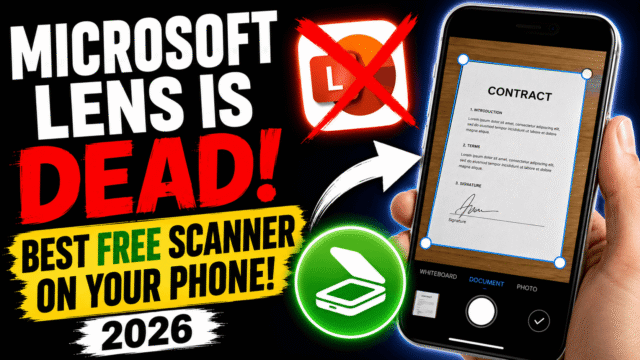
If you came here looking for how to scan and print using Office Lens, there’s something you need to hear first: the app is dead. Microsoft Lens, as it was later renamed, entered retirement on January 9, 2026, vanished from the App Store and Google Play on February 9, and had its scanning switched off entirely on March 9. If it’s still sitting on your phone, it no longer scans anything. Any tutorial telling you to use it today is teaching you to drive a car with no engine.
One rescue tip before we move on: if the app is still installed and you stay signed into the last account you used with it, your old scans remain accessible in the MyScans folder. Export anything you care about now, because that access is unsupported and won’t survive a reinstall.
Now the good news. You almost certainly already own a better scanner, built into the phone in your hand, with no download, no account hoops, and no watermark. I’ll show you the cleanest path from a piece of paper on your desk to a printed copy from your PC, and exactly when the built-in tool is enough versus when it isn’t.
What Microsoft Wants You to Use Instead
Microsoft’s official replacement is the scan feature inside the OneDrive app, with the Microsoft 365 Copilot app offered as a second option. In OneDrive, you tap the plus button, tap Scan, and the page goes straight to the cloud. If you live inside Microsoft 365 and just want documents backed up, it does the job.
But know what you’re getting. OneDrive’s scanner cannot save files locally to your device; everything must go to the cloud. Several Lens niceties didn’t make the trip either: the Word, PowerPoint, and Excel export options are gone (OneDrive does PDF and image only), and the Android version drops you straight into scanning with none of the Document, Whiteboard, or Business Card modes.
For today’s specific goal, printing a document, you don’t need Microsoft’s ecosystem at all. There’s something simpler already on your phone.
The Scanner You Already Own
On iPhone, a full document scanner has been built in since iOS 11; most people just never noticed it. Open Notes, tap the camera icon, choose Scan Documents, and the camera finds the page edges automatically, flattens the perspective, stacks multiple pages into one PDF, and offers colour, greyscale, and black-and-white modes. The same engine lives inside the Files app: long-press in any folder, tap Scan Documents, and the finished PDF lands right in that folder. On iOS 26, Apple’s new Preview app adds another scanning entry point with stronger PDF handling attached.
On Android, the universal equivalent is the scanner inside Google Drive: plus button, Scan, and you get auto edge detection, perspective correction, and multi-page PDFs. It quietly became excellent this year. Scans now save as searchable PDFs, with Drive running text recognition so you can actually find your documents later. And a redesign rolling out since late May 2026 added Smart Batch Scanning, where you hover your phone over a pile of pages like you’re recording a video instead of photographing them one at a time, with blurry frames swapped for sharp ones and duplicate pages skipped automatically. The processing runs on-device, so it works offline, though this new experience needs a phone with at least 8GB of RAM.
For a contract, a permission slip, a receipt, or a school form, these built-in tools are genuinely the right answer.
Printing Changes Which Tool You Should Pick
Here’s the distinction that most guides blur.
If you only want to share a document digitally, email it, WhatsApp it, upload it, your phone alone finishes the job in seconds. Scan, tap share, done. No PC required, and any of these apps handles it.
If your goal is a printed hard copy, priorities shift. You want a clean PDF that exists as a real file you control, ideally saved locally or somewhere you can reach instantly, because you’re going to open it on the machine connected to your printer and set things a phone print dialog often fumbles: exact paper size, scale to fit, single or double-sided.
That’s precisely why I’d steer you away from a cloud-only capture like OneDrive’s when printing is the goal. On iPhone, scanning directly into the Files app is perfect, since your scan is a proper file from the first second. On Android, Google Drive’s scan gives you a PDF you’ll open on the computer a minute later. A properly named, easy-to-locate PDF beats fighting a cloud sync to find “Scan Jan 12 09.15 AM.pdf” every single time.
The Scan-to-Print Workflow, End to End
Step 1: Scan on the phone. iPhone: open Files, navigate to the folder you want, and Scan Documents. Android: open Google Drive and tap Scan. Capture your pages, nudge the corners if the auto-detection missed, and save one PDF with a name you’ll recognise, like “rent-agreement-jul2026” instead of the default timestamp soup.
Step 2: Get it to your PC. The scan is now just a file, so use whichever bridge fits how you already operate. Saved into iCloud Drive, OneDrive, or Google Drive? Open the same folder on your computer and it’s there. Prefer to skip the cloud? Email the PDF to yourself, or connect the phone with a cable and copy it across. All of these work.
Step 3: Open and print. On the PC, open the PDF in any viewer or your browser and hit print. This is where you get the grown-up controls: paper size, scaling, duplex if your printer supports it. If the printer is on your Wi-Fi network, it appears in the list automatically; no cable to the printer needed.
Paper, to phone, to file, to a properly printed page. That’s the whole bridge.
When the Built-In Scanner Isn’t Enough
Should you always just use the built-in tool? Honestly, not always. Know the gaps.
Apple’s Notes and Files scans don’t embed a searchable text layer in the exported PDF. You can lift text off a scan with Live Text on the phone, but the file itself won’t respond to Ctrl+F in a PDF reader on your PC. Neither platform’s built-in tool offers easy compression, merging, password protection, or a proper signature workflow.
So if you regularly need to search inside scans on your computer, sign documents, protect sensitive files, or scan in serious volume, a dedicated app earns its keep. Adobe Scan has excellent text recognition, with its best features behind a subscription. Genius Scan and Scanner Pro are long-standing quality options, and PDFgear Scan positions itself specifically as a Lens-style replacement with local saving. One I’d actively avoid for anything sensitive is CamScanner, which has a documented history of privacy problems, including malware found in its Android app back in 2019.
For the everyday scan-a-page-and-print-it job, though, don’t overcomplicate it and don’t pay for anything. The scanner in your phone is enough.
Quick Answers
Is Microsoft Lens coming back?
No. Scanning was permanently disabled on March 9, 2026, and Microsoft’s replacements are OneDrive’s scanner and the Microsoft 365 Copilot app.
Can I still see my old Lens scans?
Yes, if the app is still installed and you’re signed into the account you last used. They’re in MyScans. Export them soon; this access is unsupported.
Does the iPhone have a built-in document scanner?
Yes, inside Notes and Files since iOS 11, and also in the Preview app on iOS 26. No download needed.
How do I print a scan from my phone without a PC?
Both iPhone and Android can print directly to a Wi-Fi printer from the share or print menu. A PC simply gives you finer control over paper size, scaling, and double-sided printing.
Which free scanner makes searchable PDFs?
Google Drive’s scanner saves searchable PDFs automatically. On iPhone, built-in scans aren’t searchable as files, so use a dedicated app like Adobe Scan if that matters to you.
The Bottom Line
Office Lens is retired, so don’t build a workflow on a dead app, and treat any guide that mentions it as your cue to click away. Microsoft’s OneDrive scanner works if you’re cloud-first, but for the everyday job of getting paper onto paper, the scanner already inside your iPhone’s Files app or Android’s Google Drive is the fastest route: scan to a real PDF, move the file however suits you, and print from the desktop with full control. Reach for a paid app only when searchable files, signatures, or bulk scanning genuinely enter the picture.