Table of Contents
WhatsApp Media Missing After Moving From Android to iPhone? Here’s Why (and What Actually Works)
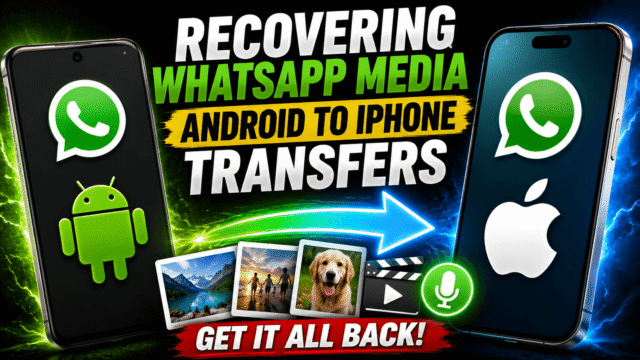
You switched from Android to a new iPhone. The transfer said it worked. Then you open WhatsApp and your photos are blurred placeholders, voice notes won’t play, and years of shared memories look like they’ve vanished.
Before you panic, or follow some video telling you to dig into your iPhone’s “hidden file system” and manually rebuild folders: stop. That method doesn’t exist, and on a normal iPhone it isn’t even possible. Here’s what’s actually happening, why WhatsApp media specifically gets left behind in a cross-platform move, and the realistic options for getting it back, including an honest answer about what’s recoverable and what isn’t.
Why WhatsApp Media Breaks in a Cross-Platform Move
The root cause explains everything else, so let’s start there.
Moving between two Androids or two iPhones is easy because WhatsApp leans on the platform’s own cloud backup: Google Drive on Android, iCloud on iPhone. Chats and media come back together, cleanly.
Android and iPhone don’t share a backup system. Your Android backup on Google Drive is encrypted in a format tied to Android, an iPhone restores only from iCloud, and there is no native way for WhatsApp on iPhone to read a Google Drive backup. The media in that Drive backup is effectively locked to a system your new phone can’t open.
That’s why crossing platforms requires a dedicated migration process rather than just signing in, and why media specifically, the heavy files like photos, videos, and voice notes, is what most often arrives incomplete. If the migration was skipped, interrupted, or run under the wrong conditions, WhatsApp treats your iPhone as a fresh install, and those files never make the jump.
So no, you didn’t do anything stupid. You hit a genuine, well-documented limitation of two platforms that were never designed to hand this data to each other.
The “Manual File System” Fix Is a Myth
Let me address the advice plastered across YouTube and forums: browse into your iPhone’s file system, find WhatsApp’s container, and drop your Android media into a folder that mimics the Android structure.
It does not work. iPhones are sandboxed. Every app’s private data, WhatsApp’s media library included, is walled off from you and from other apps. On a non-jailbroken iPhone, you cannot browse into WhatsApp’s internal container, and iOS will not let you hand-place files there.
Even if you somehow could, WhatsApp on iOS wouldn’t scan loose folders and adopt them. There is no magic bridge folder. Any tutorial promising this is either describing something that requires jailbreaking, which wrecks your device’s security for most people, or it’s simply invented. Don’t burn hours on it. Here’s what genuinely works.
The Official Fix: Redo the Migration Properly
Most media loss comes from transfer conditions not being met, not from a deep technical fault. The officially supported path is Apple’s Move to iOS transfer, and it’s stricter than people expect. The real checklist:
Your iPhone must be factory new or freshly reset. The transfer only runs during initial iPhone setup. If your iPhone is already set up, using the official method means erasing it and starting over. That’s a genuinely frustrating limitation, and no workaround avoids it.
One hard warning before you reset: WhatsApp cannot merge histories. Any new chats you’ve created on the iPhone since switching will be lost when you redo the transfer. Old history or new messages; the official route makes you choose.
Everything else on the list: the same phone number active on both phones, both devices charged and ideally plugged in, both on the same Wi-Fi network or the Android joined to the iPhone’s hotspot, and current versions of WhatsApp and the operating systems on both sides. Outdated software is one of the most common documented reasons the transfer fails or the WhatsApp option never appears. Minimums are Android 5 and iOS 15.5, but “latest available” is the practical rule.
Two newer options make this smoother in 2026. Apple now supports connecting the two phones directly with a USB-C cable for a faster, more stable transfer, which I’d strongly recommend for large media libraries. And if your Android is recent enough (Android 16 or newer on supported models), the transfer can now run during iPhone setup without installing the Move to iOS app at all, via a QR code pairing.
However you connect, the golden rule is the same: once the transfer starts, put both phones down and leave them alone until the progress bar on the iPhone fully finishes, even if the Android claims it’s done. Interrupting a long media transfer is a leading cause of the exact problem you’re reading this to solve. Expect big libraries to take an hour or more.
Small print worth knowing: call history doesn’t transfer with the official method, and WhatsApp Business isn’t supported by it.
If Your iPhone Is Already Set Up and You Won’t Reset It
This is the harder scenario, and the honest picture has two sides.
There are commercial desktop tools that bridge WhatsApp data across platforms without a factory reset. Names you’ll run into include MobileTrans, iToolab WatsGo, and Dr.Fone. They connect both phones to a computer, pull from the Android, and write to the iPhone, and many people use them successfully, including merging old chats into an in-use iPhone, which the official method cannot do.
Now the other side. WhatsApp’s own support documentation states plainly that using apps other than Move to iOS isn’t supported and can cause chat loss. These tools also cost real money, results vary by device and how your data was stored, and no software can resurrect data that was already overwritten. If you go this route: back up everything that still exists before running anything, read current reviews rather than the tool’s own marketing, and treat free trials with caution since most only preview rather than transfer.
The non-negotiable requirement either way: your old Android phone must still have the WhatsApp data on it. Every recovery path pulls from the source device. Which brings us to the hard part.
The Honest Recovery Verdict
If your old Android still exists with WhatsApp intact, you’re in good shape. Redo the official migration properly, or use a reputable transfer tool if you won’t reset. Your media isn’t gone; it just never completed the jump.
If the Android has been wiped, sold, or reset, and your only backup is the Android-encrypted one on Google Drive, then some of that media may genuinely be unrecoverable on the iPhone. No file-system trick changes that, and anyone selling you one is selling you false hope. Check one thing before giving up: whether the media might survive outside WhatsApp, in Google Photos backups, the old phone’s camera roll sync, or files previously exported to email or drives. WhatsApp media people care about most is often duplicated somewhere they forgot.
And the lesson for anyone about to switch, or helping a parent who is: do not wipe the old phone until every chat, photo, and voice note is confirmed present and playable on the new one. That single habit prevents nearly all of this heartbreak.
Quick Answers
Why are my WhatsApp photos blurry on my new iPhone?
You’re seeing thumbnail placeholders. The full files never transferred, usually because the migration was skipped, interrupted, or run without meeting the requirements.
Can I restore my Google Drive WhatsApp backup to an iPhone?
No. Google Drive and iCloud backups use incompatible systems, and WhatsApp on iOS cannot read a Drive backup. A device-to-device transfer is the only bridge.
Can I transfer WhatsApp to an iPhone that’s already set up?
Not with the official method, which only runs during setup. Third-party tools can, but WhatsApp doesn’t officially support them, so weigh the risk and back up first.
Does Move to iOS transfer everything in WhatsApp?
Messages, photos, videos, voice notes, settings, and your profile photo move across. Call history doesn’t, and peer-to-peer payment history doesn’t either.
How long does the transfer take?
A few gigabytes may finish in 15 to 20 minutes. Years of media can take an hour or more. A USB-C cable between the phones speeds this up considerably.
The Bottom Line
Missing WhatsApp media after an Android-to-iPhone switch is a real, common problem caused by incompatible backup systems, not by anything you did wrong. The fix is never a hidden file-system hack, because that isn’t real. It’s redoing the official migration under the right conditions, cable-connected and uninterrupted, or a carefully chosen transfer tool if your iPhone’s already in use. And the old phone stays untouched until the new one is verified. Your memories usually aren’t lost. They’re stuck on the wrong side of a bridge, and now you know how to actually get them across.