Table of Contents
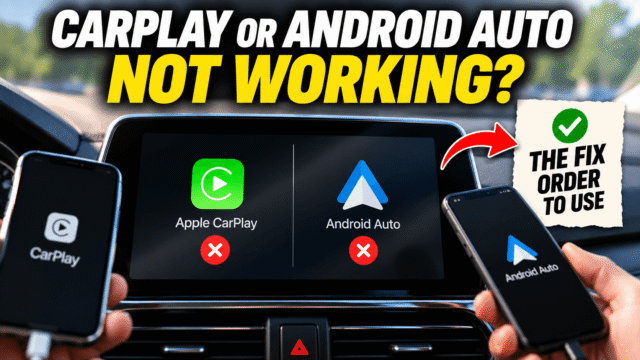
You plug in, the phone charges, and the screen sits there showing you the radio. Or wireless CarPlay connected fine for a year and now refuses, every single morning, in the one part of your day when you’re least equipped to troubleshoot anything.
The good news is that almost none of this is broken hardware. By most accounts, the cable and a Siri setting alone account for something like 70% of reported cases, with a stale pairing, a background VPN, or a privacy setting covering most of the rest. Work through them in order and you’ll usually be done before you’ve finished your coffee.
One thing to ignore while you’re searching: a lot of advice on this topic is published by companies selling replacement head units, and their recommended fix is, remarkably, a replacement head unit. Try the free things first.
The 60-Second Triage
Three questions, answered before you touch anything.
- Wired or wireless? They fail for different reasons, so this determines which sections below apply to you.
- Does it work with a different phone, or does your phone work in a different car? If a friend’s phone connects fine to your car, the problem is your phone. If your phone connects fine elsewhere, the problem is your car’s system. If neither works anywhere, you’ve learned something about the cable.
- Did this start after something changed? A phone update, a car software update, a new cable, a second phone in the household, a VPN you installed. Recent changes are the usual suspects.
Then do the two free resets: restart the phone, and restart the car’s infotainment, which on many head units means holding the power or volume knob for around ten seconds.
The Cable Problem (The Most Common Cause by Far)
If you’re wired and the phone charges but nothing appears on screen, this is almost certainly your answer.
Most cables are charge-only. They carry power and pass no data, producing exactly the symptom of a charging phone and a dead CarPlay screen. The cheap cable in the glovebox, the petrol-station replacement, the freebie from a power bank: any of them can be power-only. You need a proper data cable, MFi-certified for iPhone.
The port matters too. Many cars have several USB ports where only one carries data, often marked with a smartphone or CarPlay icon while the rest only charge.
And cables die invisibly, fraying inside the connector long before the outside looks worn. If your connection drops while driving, particularly when the phone moves, suspect the cable first.
Also worth thirty seconds: shine a light into both the phone’s port and the car’s. Compacted pocket lint stops the connector seating fully, which we’ve covered on the charging side, and it produces intermittent failures that look exactly like software faults.
The Siri Switches (and the Hidden One)
If your car shows “CarPlay Not Available, Enable Siri,” or wireless refuses while wired works, this section is your fix, and it’s more specific than most guides admit.
The honest picture: CarPlay’s dependency on Siri is strongest for wireless connections. Users have reported wired CarPlay working with Siri restricted, and behaviour varies by iPhone model and iOS version, so treat this as a very common blocker rather than an absolute rule. Either way, these are the switches to check, and there are three of them in two different places.
In Settings, Siri: at least one of Listen for “Hey Siri” or Press Side Button for Siri must be on. With both off, Siri is effectively disabled and CarPlay commonly refuses. Then enable Allow Siri When Locked, which matters because your phone will be locked in your pocket for most of the drive.
The hidden one, in Screen Time: Settings, Screen Time, Content & Privacy Restrictions, Allowed Apps, and confirm Siri & Dictation is permitted. This is the switch that catches people out, because Siri can look perfectly enabled on its own settings page while a restriction quietly blocks it. If someone else set up the phone, or you configured restrictions years ago and forgot, check here first. While you’re in that menu, confirm CarPlay itself isn’t restricted.
One more worth enabling: Settings, General, CarPlay, select your car, then Allow CarPlay While Locked, which prevents disconnections when the phone’s screen times out.
On Android: confirm Android Auto is enabled in the car’s own settings menu, that the app is updated, and that its permissions haven’t been revoked by an update.
Wireless: The Handshake, the VPN, and the Privacy Setting
Wireless CarPlay and Android Auto work through a two-part handshake: Bluetooth makes the initial connection, then hands off to Wi-Fi for the data. Both must be on, which is why switching Wi-Fi off to save battery breaks the whole thing.
The basics: Bluetooth on, Wi-Fi on, airplane mode off. Then find the car’s network in your Wi-Fi settings and enable Auto-Join, the single most-missed wireless setting.
Turn off your VPN, properly. This one is genuinely underreported: a VPN running in the background can block the handshake between phone and car, and crucially, it can do this even when the VPN app itself shows as disconnected. Toggling the server off isn’t enough; switch the VPN off completely, and if you use one routinely, add an exception or disable it before driving. If you’re wondering whether you even need one running all the time, we’ve written an honest answer to that.
Check Private Wi-Fi Address and IP tracking. iOS defaults to rotating your device’s Wi-Fi address for privacy, which is good practice generally and a problem here, because the car can’t reliably recognise your phone’s network address between sessions. On the car’s network specifically, go to Settings, Wi-Fi, tap the (i) beside the car’s network, and switch off Private Wi-Fi Address and Limit IP Address Tracking. Doing this for one network only, rather than globally, keeps the privacy benefit everywhere else. This has resolved persistent wireless failures for a lot of people, and it’s the same setting that occasionally breaks ordinary Wi-Fi connections too.
The airplane mode trick: toggle airplane mode on for five seconds and off again, forcing a re-scan and fresh handshake. Fixes a stubborn number of “worked yesterday, not today” cases in ten seconds.
Disconnect the other phone. If your partner’s phone is already connected, yours isn’t getting in. Cars typically prioritise the last-connected device, which explains a lot of mysterious two-phone-household failures.
Clearing the Car’s Memory (Both Sides)
When a stale pairing has gone bad, you must delete it in two places, and this is the step almost everyone half-does. Deleting on one side leaves two systems authenticating against a record only one still holds, exactly the failure we documented with ordinary Bluetooth pairings.
On the phone: iPhone, Settings, General, CarPlay, select the car, then Forget This Car. Android, Settings, Connected devices, tap the car, then Forget. Also remove the car from your phone’s regular Bluetooth list, since duplicate entries cause conflicts.
On the car: open the infotainment’s Bluetooth or paired-devices menu and delete your phone.
Then pair from scratch, following the car’s setup prompt rather than initiating from the phone.
If wireless still refuses after a clean re-pair, a network settings reset clears every broken network profile and often resolves it. Keep it last, since it erases all saved Wi-Fi passwords.
When an Update Broke It
A common and infuriating pattern: everything worked until a phone or car update landed.
Check both sides for updates rather than one. Phones update constantly; car infotainment firmware almost never does, and some manufacturers require a dealer visit or a USB-stick update for the version that fixes compatibility. If your car’s system hasn’t been updated since purchase, that’s worth asking about, and it’s free at many dealers.
If a phone update broke it and no car update exists yet, a clean both-sides re-pair is the practical fix while you wait, and it’s worth re-checking the Siri and privacy switches above, since updates have been known to reset them.
Quick Answers
Why does my phone charge in the car but CarPlay won’t start?
Almost certainly a charge-only cable or the wrong USB port. Use a certified data cable in the port marked for data or CarPlay.
My car says “CarPlay Not Available, Enable Siri.” What do I do?
Turn on at least one of “Listen for Hey Siri” or “Press Side Button for Siri,” enable “Allow Siri When Locked,” then check Screen Time, Content & Privacy Restrictions, Allowed Apps and make sure Siri & Dictation is permitted. That last one is usually the culprit when Siri looks enabled already.
Can a VPN stop CarPlay from connecting?
Yes, and it can do so even when the VPN app appears disconnected. Switch the VPN off entirely before connecting.
Why did wireless CarPlay suddenly stop working?
Usually the Bluetooth-to-Wi-Fi handshake. Confirm both are on with Auto-Join enabled, turn off Private Wi-Fi Address and Limit IP Address Tracking for the car’s network, and toggle airplane mode for five seconds.
Why does CarPlay work for one phone but not another?
Cars prioritise the last connected device, so another phone in the car can hold the connection. Disconnect it and reconnect yours.
The Bottom Line
Work the order and you’ll rarely reach the expensive end. Restart both phone and car, then check the cable and port if you’re wired. If you’re seeing a Siri error, flip the three switches and the Screen Time restriction behind them. For wireless, confirm the Bluetooth-plus-Wi-Fi handshake with Auto-Join, kill any VPN completely, and turn off Private Wi-Fi Address for the car’s network specifically. Then, if it’s still stubborn, forget the car on the phone and the phone on the car before pairing fresh, because half a deletion fixes nothing. Save the network reset for last and the new head unit for never, or at least until a dealer has confirmed something is genuinely wrong with the car.