Table of Contents
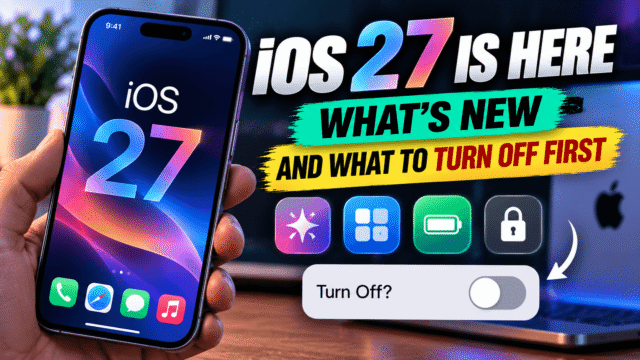
iOS 27 rolls out today, September 14, arriving for most people around 10am Pacific / 1pm Eastern, with much of Asia receiving it in the early hours of the 15th. It’s Apple’s biggest iPhone software release in years, and alongside the genuinely useful additions there’s one change the keynote didn’t dwell on: the single switch that used to turn Apple Intelligence off no longer exists.
The good news, which almost nobody is reporting, is that a working replacement does exist and it’s hiding somewhere unexpected. Here’s the practical tour: what’s new, what the rebuilt Siri can and can’t do yet, and how to actually control the AI on your own phone.
If you haven’t updated yet, our pre-update checklist is worth five minutes first, particularly the backup and the free-space check.
The New Siri, and Whether You Can Use It
This is the headline, and the availability rules matter more than the features.
The rebuilt Siri arrives in beta today, initially for devices set to English only, with French, Japanese, Korean, Portuguese, and Spanish following in October. It requires Apple Intelligence-capable hardware, meaning an iPhone 15 Pro or newer, though iOS 27 itself runs on the iPhone 11 and later.
Two significant regional exclusions: the new Siri is not initially available in the EU, and remains unavailable in China while Apple works through regulatory approvals. If you’re in either, the rest of iOS 27 installs normally and the assistant stays as it was.
Where available, it offers genuine conversational back-and-forth, better handling of multi-step requests spanning several apps, and deeper awareness of what’s on your screen. Underneath it runs on a custom model built with Google’s Gemini technology inside Apple’s own servers, an arrangement we’ve explained in full separately. Being a beta, expect rough edges.
What Actually Changed Day to Day
- Photos got the most useful new tools. Spatial Reframing adjusts a photo’s composition after the fact by virtually shifting the camera position. The Extend tool expands an image beyond its original edges with generated infill, handy for straightening a horizon or changing aspect ratio without cropping your subject away. And Clean Up now removes larger objects, with a Fast mode for small blemishes and a High Quality mode for intricate edits.
- Safari quietly became smarter. Organize by Topic groups tabs automatically by analysing the pages. Notify Me watches a webpage and alerts you when something changes, aimed squarely at price drops and stock availability. And Describe an Extension builds a simple custom extension from a plain-language description.
- Image Playground was rebuilt on a new generative model handling photorealistic styles, natural language and touch edits, and can generate Lock Screen wallpapers and Contact Posters.
- Shortcuts gained Describe a Shortcut, so automations can be built by describing them.
- Screen Time was redesigned, with an at-a-glance view of average usage and most-used apps, and controls letting parents restrict or extend access in the moment. Worth revisiting alongside the wider parental controls picture, especially with platform-level teen limits arriving separately.
- Home bundles related accessory alerts into single summarised notifications, and Liquid Glass gets a refinement pass rather than another redesign.
The Change Apple Didn’t Advertise
In iOS 26 and earlier, Settings had a single Apple Intelligence toggle that switched everything off and removed the on-device models, freeing several gigabytes.
That master switch is gone in iOS 27. Apple Intelligence is no longer a layer on top of the OS; it’s merged into the system alongside the new Siri, so there’s no single off button. And turning Siri off doesn’t do it either, since Writing Tools, Image Playground, and parts of Visual Intelligence keep running regardless.
The Workaround: Screen Time Is the Closest Thing to a Master Switch
Here’s what most coverage misses. Screen Time isn’t just for children’s devices, and on your own iPhone it provides the most comprehensive AI controls available in iOS 27.
Go to Settings, Screen Time, Content & Privacy Restrictions, turn Content & Privacy Restrictions on, then tap Intelligence & Siri. Inside, each feature gets its own Allow or Don’t Allow control. Apple’s own documentation covers:
- Writing Tools, which blocks Write with Siri and the AI writing features throughout iOS.
- Image Creation, covering Image Playground, Genmoji, and Image Wand in one go.
- Intelligence Extensions, which blocks third-party AI providers such as ChatGPT.
In iOS 27 this panel has expanded, with reports from users on release day noting that Siri AI and Math Assistance can be switched off here too.
Set a Screen Time passcode different from your device unlock code while you’re there, and the settings stick. This is the sequence I’d recommend to anyone who genuinely wants the AI features gone: it’s centralised, it’s Apple’s own supported mechanism, and it covers considerably more than the scattered individual toggles.
The Individual Toggles, for Finer Control
If you’d rather keep some features and kill others, these live in their normal places:
- Mail summaries: Settings, Mail, turn off Summarize Message Previews.
- Messages summaries: Settings, Messages, turn off the summaries option.
- ChatGPT requests: Settings, Apple Intelligence & Siri, then ChatGPT under Extensions, and toggle off Use ChatGPT.
- Notification summaries: disable per app under Notifications.
- Image Playground: it’s a standalone app now, so it can simply be deleted.
- Per-app learning: Settings, tap an app, Siri & Search, turn off “Learn from this app.” Worth doing for banking apps, your password manager, and anything health-related.
One Setting Worth Confirming
Under Settings, Apple Intelligence & Siri, Visual Intelligence, check that Highlight to Image Search is off. It should be off by default, and it’s worth confirming because Apple notes that enabling it can send images to third parties when searching for similar content.
And if your iPhone has an Action Button configured to launch Visual Intelligence, reassigning it in Settings, Action Button stops that triggering by accident.
Storage note: because the models are now part of the system, you can’t reclaim their space the way iOS 26 allowed.
The Other Settings to Review Right Now
Every major update is a good moment to check these.
- Tracking: Settings, Privacy & Security, Tracking, and confirm “Allow Apps to Request to Track” is off if that’s your preference.
- Significant Locations: Settings, Privacy & Security, Location Services, System Services, Significant Locations. This is the log of places you regularly visit, and plenty of people are surprised it exists.
- Analytics: Settings, Privacy & Security, Analytics & Improvements.
- App permissions generally, since a major update is the natural prompt to audit microphone, camera, and location access. For the fuller version of this exercise, our Google privacy walkthrough covers the other side of your digital life.
What’s Rolling Out Later
Not everything announced arrives today. The new Siri’s additional languages come in October, EU and China availability remains unresolved, and some features vary by region, language, and local regulation. If something from the keynote is missing on your phone, that’s usually why rather than a failed install.
Quick Answers
When does iOS 27 arrive?
Today, September 14, typically around 10am Pacific / 1pm Eastern, with much of Asia getting it in the early hours of September 15. Check Settings, General, Software Update.
Can I turn off Apple Intelligence in iOS 27?
Not with the old single switch, which Apple removed. The closest equivalent is Settings, Screen Time, Content & Privacy Restrictions, Intelligence & Siri, where Writing Tools, Image Creation, Intelligence Extensions, and more can each be set to Don’t Allow.
Is the new Siri available everywhere?
No. It launches in beta for English-language devices, with more languages in October, and isn’t initially available in the EU or China.
Which iPhones get the new Siri?
iPhone 15 Pro and newer. iOS 27 itself supports the iPhone 11 and later, without the Siri upgrade.
What is Highlight to Image Search?
A Visual Intelligence feature that searches for similar images. It’s off by default, and Apple notes enabling it can send images to third parties.
The Bottom Line
iOS 27 is a substantial update with a rebuilt Siri at its centre, though the assistant arrives as an English-language beta with notable regional gaps, so many people installing today will mostly notice the Photos and Safari improvements. Those are genuinely good. The thing worth ten minutes is the quieter change: Apple removed the master AI switch, and the replacement lives somewhere nobody thinks to look. Open Screen Time, turn on Content & Privacy Restrictions, and use the Intelligence & Siri panel to decide feature by feature what your phone is allowed to do. Updates are when defaults get re-established, and this one re-established more than most.