Table of Contents
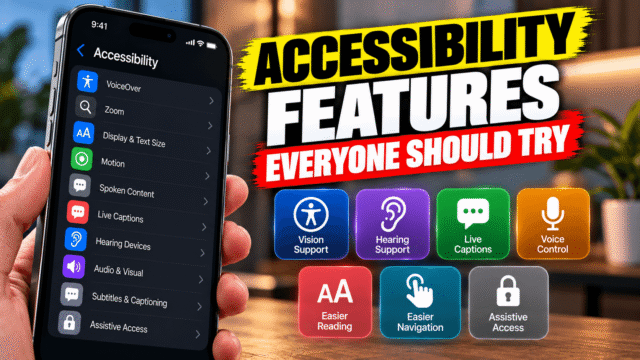
Most people never open the Accessibility section of their phone’s settings. They assume it’s only for people who are blind, deaf or have trouble using a touchscreen, so they scroll straight past it.
That’s a shame, because it’s also where Apple and Google keep some of the most useful features on your phone. There’s a way to make your screen dimmer than the brightness slider allows, one that stops carsickness when you read in a moving car, and one that turns your phone’s camera into a text reader. None of them are advertised, and all of them are free.
Here are the ones worth ten minutes of your time on an iPhone and on Android, with the exact settings to find them.
Why These Features Are for Everyone
Accessibility features are built for people who need them, but they solve problems almost everyone has sometimes. You can’t hear a video on a noisy train. You’re reading your phone in bed and even the lowest brightness hurts. Your hands are full and you need to take a screenshot. You get queasy reading in the back of a cab.
Using them doesn’t take anything away from anyone. If anything, the more people use these tools, the more attention they get from the companies that build them.
iPhone Accessibility Features Worth Turning On
All of these live under Settings, then Accessibility, on any iPhone running a recent version of iOS.
Back Tap: Turn the Back of Your Phone Into a Button
Go to Settings, then Accessibility, then Touch, then Back Tap. You can assign one action to a double tap on the back of your iPhone and another to a triple tap.
Set double tap to Screenshot and you’ll wonder how you managed without it. Other good choices are the flashlight, Control Center, or a Shortcut you’ve built. It works through most cases, and it saves a lot of awkward button-pressing with one hand.
Reduce White Point: Dimmer Than the Lowest Brightness
Go to Settings, then Accessibility, then Display & Text Size, and turn on Reduce White Point. A slider appears that tones down how bright white things look on screen, on top of your normal brightness setting.
The trick is to put it on a shortcut. Go to Settings, then Accessibility, then Accessibility Shortcut, and select Reduce White Point. Now a triple-click of the side button turns it on and off. It’s the best fix I know for reading in a dark room without lighting up your whole face.
Vehicle Motion Cues: Less Carsickness
Go to Settings, then Accessibility, then Motion, then Show Vehicle Motion Cues. Choose Automatic and your iPhone shows small animated dots along the edges of the screen when it senses you’re in a moving vehicle. The dots shift in response to the car speeding up, braking and turning, which helps settle the mismatch between what your eyes see and what your body feels.
It sounds too simple to work, but plenty of people who get motion sick find it lets them read or scroll in a car again. You can also add it to Control Center so it’s one tap away.
Background Sounds: Rain on Demand
Go to Settings, then Accessibility, then Audio & Visual, then Background Sounds. Your iPhone can play rain, ocean, stream and other steady sounds under whatever else you’re doing, or on its own. You can set it to stop when the phone locks, and adjust the volume separately from your music.
It’s built for people who find background noise distracting, but it’s just as good for focusing in a noisy office or falling asleep without a separate sleep-sounds app.
Sound Recognition: Alerts for Sounds You’d Miss
Go to Settings, then Accessibility, then Sound & Name Recognition, then Sound Recognition. Pick the sounds you want your iPhone to listen for, like a doorbell, a smoke alarm, a baby crying, a dog barking or running water. When it hears one, you get a notification.
This is useful if you wear noise-cancelling headphones at home, sleep through things, or have an older relative living alone. The listening happens on the phone. It does use extra battery, so turn on only the sounds that matter to you.
Accessibility Reader: A Clean View for Long Text
Go to Settings, then Accessibility, then Read & Speak, then Accessibility Reader, and turn it on. Then triple-click the side button in any app with a lot of text. The text opens full screen in a clean layout where you can change the font, size, spacing and colours, and have it read aloud with speed control.
It’s excellent for long articles on cluttered websites, dense PDFs and messages from people who don’t believe in paragraphs. In iOS 27, it handles more complicated layouts like multi-column articles and tables, and on iPhones that support Apple Intelligence it can summarise and translate too. If you already use the triple-click for Reduce White Point, iOS shows a small menu so you can pick either.
Generated Subtitles: Captions for Videos That Have None (iOS 27)
New in iOS 27, your iPhone can create subtitles for videos that don’t come with any, using speech recognition on the phone itself. The catch is that it’s English only and limited to the US and Canada for now, and it won’t work in every app. If you’re in one of those countries, look for it in the Accessibility captioning settings after updating.
Android Accessibility Features Worth Turning On
Settings names vary a little between Pixel, Samsung, OnePlus and others, so if a path doesn’t match your phone exactly, type the feature’s name into the search bar at the top of Settings.
Live Caption: Subtitles for Anything With Audio
Press a volume button, tap More (or the three dots) under the volume slider, and turn on Live Caption. Your phone now puts captions on videos, podcasts, voice notes, phone calls and video calls, even when the app doesn’t offer subtitles.
This is the single most useful accessibility feature on Android for most people. Watching a video on a crowded bus with no headphones becomes easy. On Pixel 6 and newer, plus some other recent Android phones, it supports 15 languages, including Hindi. The first time you use it, it needs Wi-Fi to download a language pack. It doesn’t caption music.
Extra Dim: Darker Than the Lowest Brightness
Go to Settings, then Accessibility, then Display, and turn on Extra dim. Once it’s on, a toggle also appears in Quick Settings, so you can flip it on in bed without digging through menus.
It’s the Android version of the iPhone’s Reduce White Point, and it’s just as good for late-night reading. On the newest Pixels, Google has folded this into the brightness slider itself, so it may simply let you slide lower than before.
Select to Speak: Have Your Phone Read Things Aloud
Go to Settings, then Accessibility, then Select to Speak, and turn on the shortcut. Use the shortcut, which is usually a two-finger swipe up, then tap or drag across anything on screen to hear it read aloud.
The part most people don’t know about is camera mode. Open the camera, point it at a printed menu, a medicine label or a sign, trigger Select to Speak and drag across the text. Your phone reads it to you. That’s handy for tiny print, text in a language you’re learning, or giving your eyes a rest.
Sound Notifications: Your Phone Listens for Alarms
Go to Settings, then Accessibility, then Sound Notifications, and tap Open Sound Notifications. Pixel phones and some others have it built in. On other phones, install the free Live Transcribe & Notification app from Google first.
It listens for smoke alarms, sirens, a baby crying, a dog barking, knocking, doorbells, appliance beeps and running water, and it can flash your camera light or vibrate when it hears one. Audio stays on your phone. Like the iPhone version, it uses more battery, so expect to charge daily.
Expanded Dark Theme: Dark Mode for Apps That Don’t Have One
On phones running Android 16, the dark theme has an Expanded option that darkens most apps, even ones that never built their own dark mode. Look in Settings under Display, then Dark theme, turn it on and pick Expanded. It’s worth trying if you use dark mode and hate the flash of a bright white app at night. Some apps may look slightly off, and you can switch back any time.
Where to Start If You Only Try Three
If you don’t want to go through the whole list, start here:
- For your eyes at night: Reduce White Point on iPhone or Extra dim on Android. Put it on a shortcut.
- For noisy places: Live Caption on Android. On iPhone, try Generated Subtitles if you’re in the US or Canada.
- For daily convenience: Back Tap for screenshots on iPhone, and Select to Speak’s camera mode on Android.
Once you’ve set those up, spend five more minutes scrolling through the rest of the Accessibility menu. There’s almost always something there that fixes a small annoyance you’d stopped noticing.
Quick Answers
How do I make my iPhone screen darker than the lowest brightness?
Go to Settings, then Accessibility, then Display & Text Size, and turn on Reduce White Point. Add it to the Accessibility Shortcut so a triple-click of the side button switches it on and off.
How do I make my Android screen darker than the lowest brightness?
Go to Settings, then Accessibility, then Display, and turn on Extra dim. A toggle then appears in Quick Settings.
Does Live Caption work in Hindi?
Yes, on Pixel 6 and newer and some other recent Android phones. It supports 15 languages, including Hindi, and needs Wi-Fi the first time to download the language.
What is Back Tap on iPhone?
It lets you run an action by double- or triple-tapping the back of your iPhone. Set it up under Settings, then Accessibility, then Touch, then Back Tap.
Can my phone alert me when the smoke alarm goes off?
Yes. On iPhone, turn on Sound Recognition under Settings, then Accessibility, then Sound & Name Recognition. On Android, use Sound Notifications under Settings, then Accessibility. Both use extra battery.
How do I stop getting carsick using my iPhone?
Turn on Vehicle Motion Cues under Settings, then Accessibility, then Motion, and set it to Automatic. Moving dots at the edges of the screen help your eyes match what your body feels.
Bottom Line
The Accessibility menu is the most underused part of your phone. Ten minutes there gets you a dimmer screen for night reading, captions for videos on the bus, a back-of-phone shortcut, alerts for alarms you might miss, and a camera that reads print aloud. Start with the three above, then keep exploring. These features were built for people who depend on them, and they’ve quietly become some of the best tools on the phone for everyone else too.