Table of Contents
New iPhones are arriving this week, and the transfer itself is genuinely easy now. What isn’t easy is the handful of things that don’t come across automatically, and the fact that doing steps in the wrong order can lock you out of your own accounts for a day.
So here’s the version that accounts for that: which transfer method to pick, the eSIM and two-factor sequence that prevents lockouts, what never transfers no matter which method you choose, and the one instruction to ignore when your old phone asks you to erase it.
Before You Start: Three Things on the Old Phone
Fifteen minutes here saves hours later.
- Update both phones and make a fresh backup. Even if you’re using Quick Start, which doesn’t rely on a backup, make one anyway as a fallback. If iCloud is full, note that Apple offers temporary free iCloud storage during new iPhone setup on eligible devices, which neatly solves the classic blocker.
- Sort your authenticator app now. This is the single most common disaster in the whole process. Codes from authenticator apps do not automatically move to a new phone, and people discover this after they’ve already wiped the old one. Open your authenticator today and either enable its cloud sync or run its explicit transfer-accounts flow, then confirm a working code appears on the new phone before going any further. If you skip this, you’ll be reading our account recovery guide instead of enjoying your new phone.
- Back up WhatsApp manually. In WhatsApp’s own settings, run a fresh chat backup. Relying on last week’s automatic backup is how people lose a week of messages, and it’s a common complaint after transfers.
Quick Start, iCloud, or Computer: Which to Choose
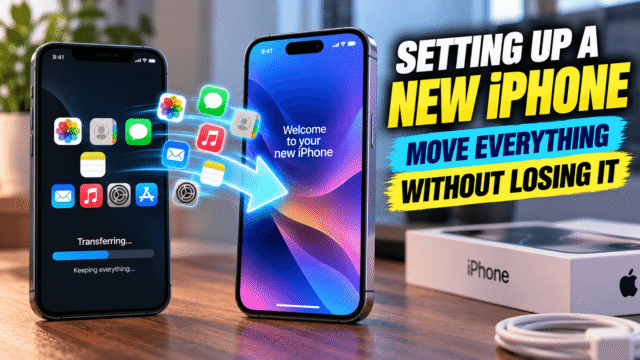
- Quick Start is what most people should use. Hold the two iPhones near each other during setup and everything transfers directly between them: apps, app data, home screen layout, widget arrangement, settings. It uses no iCloud storage at all, which makes it free regardless of your storage plan, and it can run over a USB-C cable between the phones if Wi-Fi is unreliable. The trade-off is that both phones are occupied until it finishes, which can take anywhere from half an hour to several hours depending on how much you’re moving.
- iCloud restore is the right choice when the old phone isn’t with you, is broken, or has already been sold. You’ll need enough iCloud storage for the backup, and apps continue downloading in the background after setup completes, so the phone is usable sooner.
- Computer backup via Finder on a Mac or the Apple Devices app on Windows is the power-user option: fast, local, and immune to iCloud storage limits. One detail matters enormously here: tick “Encrypt local backup.” An encrypted backup preserves saved passwords, Wi-Fi settings, and Health data, and an unencrypted one doesn’t. People restore from an unencrypted backup and wonder where years of Health history went.
- Move to iOS is the only supported route from Android, and it has its own set of conditions we’ve covered separately.
The eSIM Step, and Why Order Matters
If your number lives on an eSIM, and on recent US iPhones it always does, this step has consequences beyond convenience.
- Transfer during setup if you can. The setup wizard offers eSIM Quick Transfer before you reach the home screen, and that route tends to be more reliable than doing it afterwards from Settings. Requirements: both phones signed into the same Apple Account, both unlocked, Bluetooth on, physically close, and a carrier that supports the feature. Recent iOS versions allow transferring more than one number during setup.
- The device requirement is lower than most people assume. Quick Transfer works on iPhone XS, XS Max, XR and later, on both phones, running iOS 16 or later. Apple introduced the feature with iOS 16 back in 2022, so unless your old phone is an iPhone X or earlier, the hardware almost certainly supports it. What it doesn’t do is work across platforms: moving a number between iPhone and Android always needs your carrier.
- Carrier support is the real variable. If Quick Transfer doesn’t appear as an option, the usual reason isn’t your phone, it’s that your carrier hasn’t implemented it, or the profile carries a transfer lock. In the US, the major three document the flow on their own support pages; elsewhere it varies considerably. The fallback is a QR code or an activation through the carrier’s app, and it’s usually free.
- Travel eSIMs are different, and this catches people out. Third-party travel eSIMs generally cannot use Apple’s Quick Transfer, because they’re issued by different operators outside Apple’s carrier transfer system, and many providers allow each profile on only one device ever. Contact the provider rather than assuming it’ll move, and if you’re about to travel, read our full travel eSIM guide first.
- The ordering consequence: an eSIM works on one device at a time, so the moment it activates on the new phone it deactivates on the old one, and SMS verification codes stop arriving on the old phone immediately. If anything you need to log into during setup relies on text message codes, transfer the eSIM before you need those codes, not after. And don’t try to install the same profile on both phones, since carriers commonly lock a profile for 24 hours when that happens.
What Doesn’t Transfer Automatically
Even a flawless Quick Start leaves gaps. Check each of these.
- Authenticator apps, as above. The most important item on this list.
- Apple Watch cellular plans. Your watch re-pairs with the new iPhone, but its cellular plan often needs removing from the old phone and adding again on the new one, since the watch’s eSIM profile becomes invalid when the paired iPhone changes.
- Apps requiring their own re-login, particularly banking apps, which frequently treat a new device as a new device regardless of what transferred, and may require identity verification.
- Certain messaging histories. WhatsApp restores from its own backup rather than the iPhone transfer, which is why the manual backup in step two matters.
- Anything stored only in an unencrypted computer backup, meaning Health data and saved passwords, per the encryption note above.
- Physical SIM cards and any content on them, and on older phones, anything not covered by your backup method.
After Setup: What to Check
Before you celebrate, run through this in ten minutes.
Open your authenticator and generate a code. Send and receive a text message, and make a call. Open your banking apps and log in. Check WhatsApp for your full chat history and that media loads. Open Photos and confirm your library is there, remembering that iCloud Photos may still be downloading full-resolution versions in the background. Check Apple Pay cards, since they usually need re-adding. And confirm your Apple Watch is paired and its plan is active.
If something looks wrong, having the old phone still intact means it’s an inconvenience rather than a loss, which brings us to the last and most important instruction.
Don’t Wipe the Old Phone Yet
When Quick Start finishes, your old iPhone will offer to erase itself. Say no.
Keep it untouched for at least a week, ideally two. Everything above can be recovered from the old phone while it still holds your data, and nothing can be recovered once it doesn’t. Trade-in programmes typically allow a couple of weeks, so there’s usually no rush.
When you are genuinely finished, wipe it properly rather than just factory resetting it, which means signing out of your Apple Account first so activation lock releases. We’ve covered that whole sequence in detail, along with how to get the most money for it if you’re selling rather than keeping it as a backup.
Quick Answers
What’s the fastest way to transfer to a new iPhone?
Quick Start, holding both phones together during setup. It moves apps, data, and layout directly without using iCloud storage, and can run over a cable if Wi-Fi is slow.
Do my authenticator app codes transfer to a new iPhone?
No, not automatically. Enable cloud sync or use the app’s transfer flow before you wipe the old phone, and verify a code works on the new device first.
Will my eSIM move to the new iPhone automatically?
Usually yes, via Quick Transfer during setup, provided both phones are an iPhone XS, XS Max or XR or later on iOS 16 or higher and your carrier supports the feature. Travel eSIMs from third-party providers generally must be reinstalled through the provider instead. Travel eSIMs from third-party providers generally must be reinstalled through the provider instead.
Does an iCloud backup include everything?
Nearly everything, but Health data and saved passwords require an encrypted computer backup if you’re going that route, and WhatsApp restores from its own separate backup.
When can I erase my old iPhone?
After a week or two of using the new one, once you’ve confirmed your authenticator, banking apps, messages, and photos all work. Never immediately after the transfer, whatever the prompt suggests.
The Bottom Line
The transfer itself is the easy part; the order around it is what matters. Sort your authenticator app and a fresh WhatsApp backup before you start, choose Quick Start unless the old phone isn’t available, tick the encryption box if you’re going through a computer, and move the eSIM during setup while remembering that SMS codes follow it. Then check everything that matters before you touch the old phone, and leave it intact for a fortnight regardless of what it prompts you to do. The people who lose things in this process almost never lose them during the transfer. They lose them by erasing the only remaining copy an hour too early.