
Table of Contents
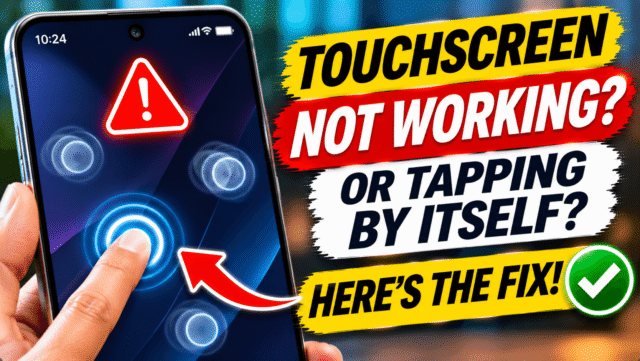
Your phone screen ignores your taps. Or worse, it starts tapping, typing and swiping by itself, opening apps and calling people you didn’t mean to call. This is usually called “ghost touch”, and it’s as unsettling as it sounds.
Touchscreen problems feel like hardware failure, but a surprising number come down to something simple: a charger, a screen protector, a drop of water or a misbehaving app. Here’s the order I work through, from the quickest checks to the signs that it really is time for a repair.
First: if the screen is frozen, force a restart
If the screen won’t respond at all, you can’t use any settings. A force restart works even when the screen doesn’t.
- iPhone 8 and later: press and quickly release volume up, press and quickly release volume down, then press and hold the side button until the Apple logo appears.
- Samsung: press and hold the side button and the volume down button together for about 10 seconds, until the phone restarts.
- Pixel: press and hold the power button for about 30 seconds, or until the phone restarts. If that doesn’t work, try holding power and volume up together.
If the screen works again afterwards, keep going through the steps below so it doesn’t come back.
Step 1: Unplug the charger and any accessories
This is the most overlooked cause of ghost touches. A cheap, damaged or faulty charger or cable can interfere with the touchscreen, so the phone registers touches that aren’t there, or misses real ones.
- Unplug the charger and anything else connected to the port, such as earphones, adapters or USB drives.
- If the problem stops, try a different socket, cable or charger.
- If it only happens while charging, replace the charger with the phone maker’s own or a reputable certified one.
Samsung recommends using a different, undamaged charger if this happens, and avoiding using the touchscreen while the phone is charging. Apple also suggests disconnecting accessories and trying a different socket, cable or charger.
Step 2: Clean and dry the screen
Water, sweat, grease and dust all confuse touchscreens.
- Turn the screen off.
- Wipe it with a soft, slightly damp, lint-free cloth. A glasses cloth works well.
- Dry it completely, including the edges.
If your hands are wet or you’re wearing gloves, the screen may not respond properly either. Dry your fingers and take gloves off unless they’re made for touchscreens.
Step 3: Take off the screen protector and case
Screen protectors are one of the most common causes of both unresponsive and phantom touches, especially cheap tempered glass and protectors that are peeling, cracked, bubbled or have dust trapped underneath.
- Take off the case first, and test the screen.
- If that doesn’t help, peel off the screen protector, starting from a corner, and test again.
While you’re at it, peel off any stickers covering the screen or the sensors near the top, such as protective labels left from the box.
If the screen works without the protector, replace it with a better-fitting one made for your exact model. Samsung warns that non-genuine protectors and cases can cause problems with touch and gestures, especially near the edges of the screen.
Step 4: Turn up touch sensitivity (if you keep a protector)
If you want to keep a screen protector, most phones have a setting that makes the screen more sensitive.
- Samsung: go to Settings, then Display, and turn on Touch sensitivity.
- Pixel: go to Settings, then Display and touch, then Touch sensitivity, and turn on Screen protector mode. Some Pixels also have Adaptive touch, which adjusts sensitivity automatically.
- iPhone: there’s no screen protector setting, but if taps register wrongly, check Settings, then Accessibility, then Touch, and make sure Touch Accommodations isn’t switched on by mistake.
If your screen is too sensitive and tapping by itself, try turning these sensitivity settings off instead.
Samsung: turn on Accidental touch protection
On Samsung phones, go to Settings, then Display, and turn on Accidental touch protection. It stops the phone reacting to touches while it’s in a pocket or bag, which is a common source of random taps and calls.
On Galaxy phones with curved edges, your palm can also brush the sides of the screen while you hold the phone, and the phone counts it as a tap. Holding the phone slightly differently, or using a case with a raised edge, often stops these phantom taps.
Step 5: Check accessibility settings
Some accessibility features change how the screen responds to touch, and they’re easy to switch on by accident.
- Android: if a single tap only highlights things and you need to double-tap to open them, TalkBack is on. Turn it off in Settings, then Accessibility, then TalkBack. Samsung also suggests checking the Magnification shortcut settings.
- iPhone: if a single tap selects instead of opening, VoiceOver is on. Turn it off in Settings, then Accessibility, then VoiceOver. You can also ask Siri to “turn off VoiceOver”.
Step 6: Update your phone
Touch problems are sometimes caused by software bugs that the phone maker has already fixed.
- iPhone: Settings, then General, then Software Update.
- Android: Settings, then Software update or System, then Software update.
Also update your apps. If the problem only happens in one app, update or reinstall that app, or contact its developer.
Step 7: Use safe mode to rule out apps
If ghost touches started after you installed an app, such as a screen overlay, gesture app or launcher, safe mode can confirm it. It starts the phone with only its built-in apps.
- Samsung: open the power menu, touch and hold Power off, then tap Safe mode.
- Pixel and most other Android phones: press and hold the power button, then touch and hold Power off, and tap OK.
If the screen behaves normally in safe mode, an app you installed is causing the problem. Restart normally, then uninstall recent apps one at a time, starting with the newest, until the problem stops. iPhones don’t have a safe mode, but deleting recently installed apps has the same effect.
Step 8: Run a touchscreen test
Some phones can test the touchscreen for you, which tells you whether the problem is hardware.
- Samsung: open the Samsung Members app, tap Support, then Get started, and choose Touch screen to run just that test.
- Pixel 9 and later: go to Settings, then Display and touch, then Touch diagnostics.
- Any phone: open a drawing or notes app and drag one finger slowly across the whole screen in rows. A gap in the line shows a dead zone.
If the test shows a dead area, or the screen registers touches where you aren’t touching, it’s likely hardware.
Step 9: Reset the phone (last resort)
If the problem happens even in safe mode and no app seems to be the cause, a factory reset rules out software completely. Back up your phone first, then reset it. Search Settings for “reset” to find the option on your phone.
Test the screen before you restore your apps. If the problem is gone, restore your backup. If it’s still there straight after the reset, it’s hardware.
When it’s hardware
Apple says that if part of the screen doesn’t respond, responds intermittently, or responds even when you’re not touching it, you may need service. Look out for these signs too:
- Cracks, even small ones near the edges
- A screen that’s lifting from the frame, or a gap along one side
- A bulging or swollen back, which can mean the battery is expanding and pressing on the screen. Stop using and charging the phone and get it checked straight away.
- Signs of water damage, especially after rain, a spill or a steamy bathroom
- The problem started after a drop or a screen replacement
Screen replacements from unofficial repair shops sometimes use lower-quality parts that cause ghost touches. If yours started after a repair, go back to the shop first.
If your phone is under warranty, contact the maker or an authorised service centre before anyone opens it.
Quick Answers
What is ghost touch on a phone?
It’s when your phone’s screen registers taps, swipes or typing that you didn’t make. Common causes include faulty chargers, screen protectors, moisture, software bugs and damaged screens.
Why does my phone screen tap by itself while charging?
A cheap or damaged charger or cable can interfere with the touchscreen. Unplug it, and use the phone maker’s charger or a certified one instead.
Can a screen protector cause touchscreen problems?
Yes. Thick, poorly fitted or damaged protectors can stop the screen responding or cause phantom touches, especially near the edges. Remove it to test, and turn on touch sensitivity if you keep one.
How do I test my phone’s touchscreen?
On Samsung, use the Touch screen test in the Samsung Members app. On Pixel 9 and later, use Touch diagnostics in Display and touch settings. On any phone, drag a finger slowly across the screen in a drawing app and look for gaps.
How do I fix an unresponsive touchscreen without touching it?
Force restart the phone using its buttons. On iPhone, press volume up, then volume down, then hold the side button. On Samsung, hold the side and volume down buttons. On Pixel, hold the power button for about 30 seconds.
When should I get my touchscreen repaired?
If the problem continues after removing the charger, case and screen protector, cleaning the screen, updating and testing in safe mode, or if the screen is cracked, lifting or the phone is swollen, it’s time for a repair.