Table of Contents
The “Hidden” Android Gaming Setting: What Graphics Driver Preferences Actually Does
There’s a setting buried in your Android phone’s Developer Options called Graphics Driver Preferences. Search for it and you’ll find hundreds of videos promising it’s a secret switch that turns a budget phone into a gaming machine. Flip it, they say, and watch your frame rate jump.
Here’s the thing. The setting is completely real. It’s an official part of Android and has been for years. And on most phones, flipping it does absolutely nothing.
Not because it’s broken. Because of how Android’s graphics system is built. Once you understand that, you’ll know in about thirty seconds whether this setting can help your specific phone, or whether you’re about to spend an afternoon chasing a placebo. I’ll give you that test at the end. First, the actual mechanics.
Why You Can’t Just Update GPU Drivers on Android
Start with the problem this setting was invented to solve.
On a gaming PC, updating your graphics driver is trivial. NVIDIA or AMD pushes an update, you install it, done. They sell to you directly, so they ship drivers to you directly.
Android has no such relationship. Qualcomm and Arm, the companies behind the Adreno and Mali GPUs inside most Android phones, never sell you anything. Qualcomm sells its GPUs to phone makers as part of a system-on-chip, and Arm licenses its designs to silicon vendors like MediaTek. You’re not their customer. Your phone’s manufacturer is.
The consequence: Android offers no easy way to update graphics drivers, and short of gaining root access, doing it yourself is close to impossible on most devices. Drivers ship welded into your phone’s firmware, and they age along with it.
That matters more than it sounds. One enthusiast test on an end-of-life Pixel 3 XL, rooted and manually flashed with much newer Adreno drivers pulled from another device, showed a significant jump in 3DMark scores. Fresh drivers also fix bugs in how graphics features are implemented, which is a genuine headache for game developers targeting thousands of different Android devices. So the performance is sometimes really there, locked away. Google knew this, and built an official mechanism for updatable drivers. Graphics Driver Preferences is the user-facing corner of that mechanism.
What the Setting Actually Controls
Here’s how it works under the hood, accurately.
When an updatable driver exists, it’s delivered to the phone as an APK, and that APK carries a whitelist of app packages the manufacturer wants automatically opted in. Separately, you can go to Developer Options and pick a driver for all apps, or on a per-app basis.
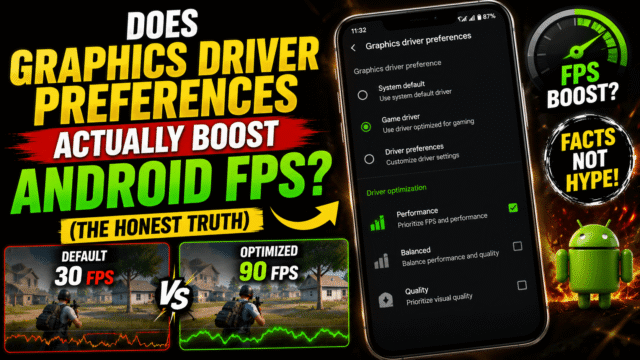
Open the setting and you’ll typically see two choices per app. System Graphics Driver is the conservative, thoroughly tested driver that shipped with your firmware. Game Driver points to an updatable driver, if one is installed on your device.
That conditional is the entire ballgame. If no updatable driver APK exists on your phone, selecting Game Driver doesn’t summon one from the internet. There is nothing for the toggle to point at, so Android quietly keeps using the driver it already had, and your frame rate stays exactly where it was. The switch is real. On most phones, the bulb it’s wired to was never installed.
It also explains why the option is missing entirely from many phones. If your manufacturer never wired up the feature, the menu simply doesn’t appear, and no ADB command or unlock sequence will conjure it.
Why Almost Nobody Ships the Driver
So who actually delivers these updatable drivers? Very few manufacturers, and the reason is interesting.
Silicon vendors don’t push driver updates through this system themselves. Think about Qualcomm’s position: if it pushed an update that broke a batch of popular games on some manufacturer’s phone, that manufacturer would be furious. So Qualcomm only provides prerelease driver APKs and leaves distribution to each phone maker. Most phone makers, in turn, simply don’t bother. Xiaomi has shipped a GPU Driver Updater on certain devices, and it stands out precisely because it’s rare.
Meanwhile, the same company proves the model works when the incentives line up. On Snapdragon X Elite Windows laptops, Qualcomm now runs a full Snapdragon Control Panel that notifies you when new GPU drivers are available and installs them, PC-style, with fixes for over 100 games since launch. Updatable Adreno drivers are clearly not a technical impossibility. On Android phones, the distribution chain just isn’t built for it, and your phone maker holds the keys.
One more design detail worth knowing: to limit the damage a buggy driver could do, updatable drivers are never loaded for privileged or system apps. Your phone’s core always runs the tested driver regardless of what you toggle. Which is also why this setting is safe to play with. It touches no system files, bypasses nothing, and reverses instantly. The “this will destabilize your phone” warnings attached to it in some videos are mostly invented drama.
Check Your Own Phone in 30 Seconds
Here’s the honest test instead of a promised miracle.
Open Settings, go to About Phone, and tap Build Number seven times to enable Developer Options. Go into Developer Options and look for Graphics Driver Preferences.
If it isn’t there: that’s your answer. Your device doesn’t support the feature. There’s no hidden unlock. Stop here and go play your game.
If it’s there but every app only offers System Graphics Driver: no updatable driver is installed, so switching changes nothing. Same answer, slightly slower.
If you see a real Game Driver option: now it’s genuinely worth testing. Change it for one game only. Play the same section of that game with a frame rate counter on screen, before and after, changing one thing at a time. And be honest with yourself about the numbers, because the placebo effect in mobile gaming is enormous.
One safety note that actually matters: skip the third-party “Graphics Driver Preferences” apps on the Play Store and APK mirror sites. They are literally just shortcuts to the settings page you reached in ten seconds above. Their own reviews are full of people discovering the option doesn’t exist on their phone at all. Installing system utilities from unverified mirrors is real risk for zero benefit.
Quick Answers
Why is Graphics Driver Preferences missing from my Developer Options?
Your manufacturer didn’t implement the updatable driver feature on your model. It can’t be added with commands or apps.
Does Game Driver increase FPS?
Only if an actual updatable driver is installed on your device, which is rare. Without one, the toggle silently falls back to your existing driver and performance is unchanged.
Is switching graphics drivers safe?
Yes. It’s per-app, instantly reversible, and system apps always stay on the tested driver by design.
What’s the difference between System Graphics Driver and Game Driver?
System is the stable driver baked into your firmware. Game Driver points to a newer, updatable driver delivered separately by your manufacturer, when one exists.
Can I install an Adreno or Mali driver update myself?
Not without root access. Unlike Windows, Android gives GPU makers no direct channel to you; driver updates can only come through your phone’s manufacturer.
The Bottom Line
Graphics Driver Preferences is real, official, and safe. It was built to fix a genuine weakness of Android, and when an updatable driver actually exists on a device, choosing it can deliver a measurable improvement. But that “when” is doing enormous work. On the overwhelming majority of phones, and especially the budget phones these videos target, the driver was never shipped. The reason it keeps getting presented as a secret unlock isn’t that someone found what Google is hiding. It’s that “hidden setting doubles your FPS” performs extremely well as a thumbnail. Take the thirty-second test, get your answer, and then go actually play the game.