

Table of Contents
How many times did you wish for getting your Android notifications on desktop? I’m sure you wished it for at least once, especially when your phone is away charging or is in the other room, right? Well, if you ever needed it, now get your Android notifications on your Windows / Mac / Linux desktop very easily using a free app & a browse extension for Google Chrome and / or Firefox.
Sometimes, you may have your phone in other room, maybe it’s on a silent mode or left your phone at home, you can still get all the notifications on your laptop.
To begin, you need to first start by installing the app on your Android device; it could be a phone or a tablet. The full set up will be complete in less than 7 minutes.
Step 1: Install Desktop Notifications for Android
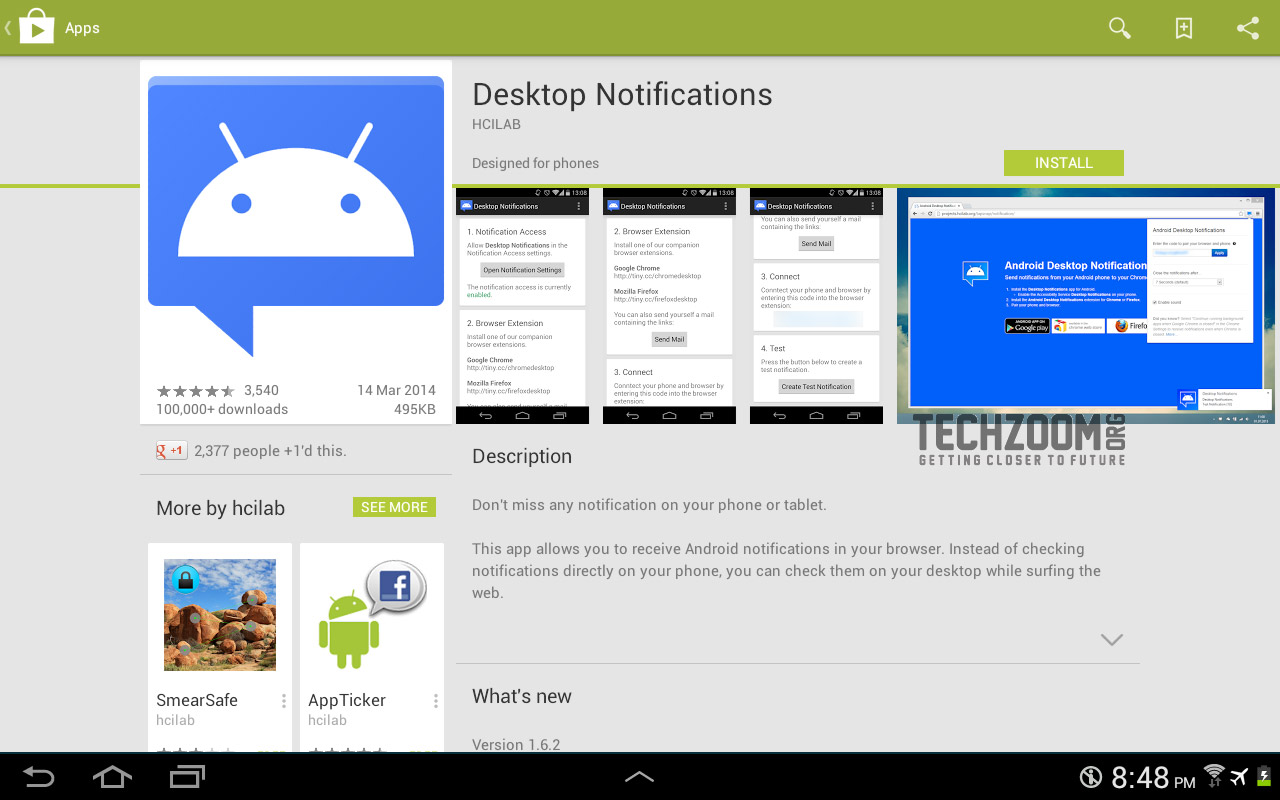
- Go to Play Store from your device & search for the Desktop Notifications app or click here to go to its play store page.
- Install the app & open it.

Step 2: Set up your Android device
- The app will prompt you to enable accessibility service for ‘Desktop Notifications’. Go ahead & click on ‘Open Accessibility Settings’
- Under Accessibility > Desktop Notifications > Enable this service & click ‘OK’ to accept.
- Come back to the app’s screen & you will see 2 important items, one is for links to the browser extensions & the other one is a unique code to pair your device with the browsers.
- Click ‘Send Mail’ to send an email to yourself. This way, you can easily copy-paste the unique code from your Desktop into the extension


Step 3: Set up your desktop browser
Now that our device is almost ready to pair with the browser, let’s go ahead & download the extension.
- You can use extension for Chrome & Firefox. Choose the one you use the most.
- Download for Chrome or download for Firefox
- After installation, open the extension
- Go to your inbox & from the email we sent earlier – copy the unique code for pairing & enter as prompted on Desktop Notifications extension.
- You can then set duration to hide notifications. I used 8 seconds.
- As per your preference, tick or un-tick ‘Enable Sound’
- Once done, it will show a success message.
- From your Android device – use ‘Send test notification’ button to see if its working fine.


Step 4: Final configuration of device & test
- On your device, restart the Desktop Notifications using the app icon or go to Accessibility > Desktop notifications > Settings & you now should see more options to configure.
- This is where you would want to configure & choose which notifications you want to see or when.
- If you need notifications to be sent over cellular data, when your phone is not along with you, don’t tick ‘Wi-Fi only’.
- If you need notifications about downloads, you can tick ‘Ongoing notifications’
- You can also filter which apps to receive notifications from & also can disable system notifications to be sent over.

That’s about it. Once everything is configured as desired, you will start receiving your Android notifications on desktop or on a laptop’s browser.
Android Desktop Notifications work very swiftly, however, even though the Wi-Fi – there is a little long delay in receiving these desktop. However, when I tested it, the delay is no longer than 5-10 seconds, which is fine.
Other Alternatives
You can also use these following alternatives for Android notifications & for sending files
- Push Bullet
- AirDroid – It’s free version is ad-supported.
Please note that, this app does not send a notification about the incoming call like in Push Bullet, but does send a missed call notification.
This is a browser extension & hence it works fine to get Android notifications on a Windows PC, Mac & on Linux, except that, there are some issues on Chrome for Linux at the moment. This one is probably the easiest way to see Android notifications on desktop or on a laptop. Hope this helps. Do let us know if you have any questions.