Table of Contents
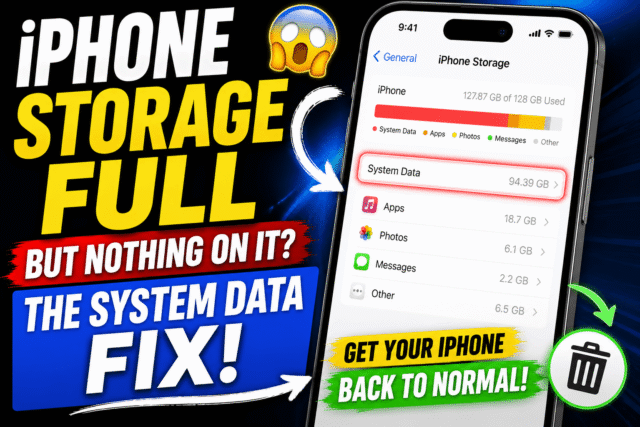
You’ve deleted the photos. You’ve culled the apps. You’ve emptied everything you can find, and your iPhone still says storage is full. So you open Settings, General, iPhone Storage, and there it is: a giant coloured block called System Data, quietly eating twenty, forty, sometimes sixty gigabytes of your phone. With no button to clear it.
You’re not imagining this, and you didn’t cause it. One user watched their System Data climb past 130 gigabytes while they were typing a complaint about it. Another hit 170. This is a real, documented, widespread problem, and it got dramatically worse for a lot of people after iOS 26. Here’s what’s actually inside that block, the fixes that genuinely work in the order you should try them, the popular tips that do absolutely nothing, and one honest warning most guides won’t give you.
What System Data Actually Is
Apple’s official description is “caches, logs, and other resources currently in use by the system,” which tells you almost nothing. In practice, System Data is the junk drawer of iOS. Safari’s browsing cache. Streaming buffers from music and video apps. Siri voices. Software update leftovers. Message attachment overhead. Diagnostic logs. Temporary files from downloads, syncing, indexing, and file decompression. Nearly everything you do passes through here.
iOS is supposed to manage this pool itself, shrinking it automatically when space runs low, and here’s the key thing: it’s deliberately lazy about it. If you’re not using the space, iOS sees no reason to spend resources clearing cached data it might need again. That’s fine when it works. The problem is when the housekeeping fails, the category balloons, refuses to shrink, and Apple never built you a manual empty button.
So the fix isn’t one magic setting. It’s forcing iOS to clean up after itself, from the gentlest nudge all the way to a full rebuild.
The Fixes That Actually Work, in Order
- Update iOS (the big one right now)
Normally “just update” is lazy advice. Right now it’s genuinely the most effective step, because iOS 26.0 shipped with a bug that caused System Data to swell uncontrollably, and later point updates fixed it for many affected people.
The reports are striking. One user was stuck at 118 gigabytes used out of 128, so choked they physically couldn’t install the update. They plugged into a Mac, updated to 26.1 that way, and the next day had 40 gigabytes free having deleted nothing at all. Another watched System Data drop from around 70GB to about 16GB roughly ten minutes after updating.
Notice the cruel catch in that first story: a phone strangled by System Data often doesn’t have enough free space to install the update that fixes it. The escape hatch is updating through a computer. Plug into a Mac using Finder, or a Windows PC using the Apple Devices app, select your phone, and update from there. Computer-based updates need far less free space on the device itself, and that exact route is how stuck users got out of the loop.
- Restart the phone
Unglamorous, sometimes effective, costs you thirty seconds. Do it after every other step on this list too, because several cleanups only show up in the storage graph after a reboot.
- Clear Safari’s cache
Settings, Safari, Clear History and Website Data. Weeks of browsing quietly stack into gigabytes, and all of it lives inside System Data. You’ll get signed out of websites. When you’re desperate, that’s a fair trade.
- Deal with Messages, the silent hoarder
Go into your Messages settings, find Keep Messages, and change it from Forever to One Year or 30 Days. Years of photo and video attachments in old conversations are a classic multi-gigabyte pile nobody thinks about. Then check Recently Deleted inside both Messages and Photos and empty it permanently, because deleted items sit there counting against your storage for weeks.
- Delete and reinstall your cache-monster apps
Open Settings, General, iPhone Storage, and study the per-app list. Streaming and social apps are the usual culprits, and so are photo, music, and video editing apps that work with large raw files.
An honest nuance here, because you’ll see conflicting advice online. Apple’s Offload App option deliberately preserves the app’s documents and data, so for a truly bloated app, Delete App and reinstall fresh is the thorough option. That said, offloading isn’t useless. It does clear an app’s cache, and some users have had success just enabling Offload Unused Apps. It’s also a handy diagnostic: offload apps one at a time and watch whether System Data drops, and you may identify exactly which app is the villain.
The “Fixes” That Do Nothing
Save yourself the wasted evening.
Storage cleaner apps from the App Store. iOS sandboxing means no third-party app can touch System Data or another app’s cache. It’s architecturally impossible. Every “deep clean” app is really just finding your duplicate photos, something you can do for free, wrapped in a subscription.
Swiping apps closed. Force-quitting affects memory, not storage. Zero bytes recovered. Ever.
The date-jump trick. You’ll see videos claiming that setting your clock months ahead tricks iOS into expiring its caches. At best it’s unreliable and recovers a gigabyte or two, and while you’re doing it, you’re breaking your two-factor codes and app sessions. It’s a curiosity, not a fix.
Deleting photos and videos. This frees storage generally, obviously. But it does not touch the System Data category, which is exactly why people who’ve “deleted their entire life” still stare at the same giant block.
The Nuclear Option
When nothing above dents it, one method reliably resets System Data to sanity: back up, erase, restore. Wiping the phone forces iOS to rebuild its entire storage index from scratch, abandoning the corrupted and orphaned cache files it stubbornly refused to release.
Back up first, to iCloud or preferably to a computer. Then go to Settings, General, Transfer or Reset iPhone, and choose Erase All Content and Settings. When the phone restarts, restore from the backup you just made. Users routinely report System Data dropping from 50 gigabytes or more down to under 15 after this.
One warning before you start: your data and apps come back, but some two-factor authentication and banking apps will need re-verification afterward, so keep another trusted device or your recovery codes to hand.
And the second warning is important enough to get its own section.
The Honest Part Nobody Tells You
For some people, this comes back.
Updating fixed it for many users, genuinely and dramatically. But the forums are also full of people it didn’t work for. One user restored their phone and a month later System Data had ballooned back to 180 gigabytes. Another wiped and restored, had plenty of space, and was full again in two weeks. Someone else did a fresh restore and was back to 104 gigabytes within a week.
I’m telling you this not to discourage you. The steps above genuinely work for most people. But if you do all of this and the block creeps back, you should know it’s not you, and you didn’t do it wrong. You’re dealing with a stubborn iOS bug, and the honest answer is that Apple hasn’t fully solved it for everyone yet. If that’s your situation, install iOS point updates promptly, because storage housekeeping fixes ship inside them more often than the release notes ever admit, and use the habits below so it grows back slower.
Keeping It Down
Keep Messages on a 30-day or one-year retention instead of Forever. Clear Safari every couple of months. Don’t hoard offline downloads in streaming apps you no longer use. Restart your phone occasionally instead of never. And install those point updates promptly. None of it takes more than a few minutes, and it keeps you off the erase-and-restore treadmill.
Quick Answers
What is System Data on iPhone?
The catch-all category for caches, logs, temporary files, Siri voices, and update leftovers. Older iOS versions labelled it “Other.” Around 5 to 15GB is normal; far beyond that means the automatic cleanup has failed.
Why is my System Data 50GB or more?
Runaway caches, most often from streaming and social apps, message attachments, or an iOS bug. iOS 26.0 had a documented ballooning problem that later updates addressed for many users.
Can I clear System Data directly?
No. Apple provides no button for it. You shrink it indirectly with the steps above, or fully via erase and restore.
Does offloading apps reduce System Data?
It can, since offloading clears an app’s cache while keeping its documents and data. For seriously bloated apps, a full delete and reinstall clears more, and offloading one app at a time works well as a diagnostic.
Will updating iOS delete my stuff?
No. Updating preserves your data, and right now it’s the first thing to try, through a computer if your storage is too full for an over-the-air update.
The Bottom Line
System Data isn’t a punishment for something you did. It’s iOS housekeeping falling behind, occasionally shoved right off a cliff by a bug like the one iOS 26 shipped with. Update first, through a computer if you have to. Then work the list. Skip the cleaner apps and the clock tricks entirely. And if that block still won’t move, back up, erase, restore, because sometimes the only way to clean out a junk drawer is to tip the whole thing out and start again.