Table of Contents
Black screen. No response to the power button. No charging indicator. Your phone looks dead, and somewhere in it are photos you never backed up.
Take the panic down a notch, because most phones that appear dead aren’t. The overwhelming majority of black-screen cases come down to three things: a battery so deeply drained it can’t show you anything yet, software frozen so hard the screen went dark, or a display that failed while the phone underneath runs perfectly fine. All three look identical from the outside, and all three have fixes you can do in the next hour without spending money.
Here’s the order, and the order matters, because doing step two before step one is why people give up on phones that were about to come back.
First: Charge It, and Wait Longer Than Feels Reasonable
This sounds too obvious to be the answer. It’s the answer more often than anything else on this list.
When a lithium battery drains completely, a protection circuit shuts it down to prevent damage, and it needs to recover a minimum voltage before the phone can even display a charging screen, let alone boot. During that window the phone shows nothing at all. No logo, no battery icon, no light. It looks broken because it’s supposed to.
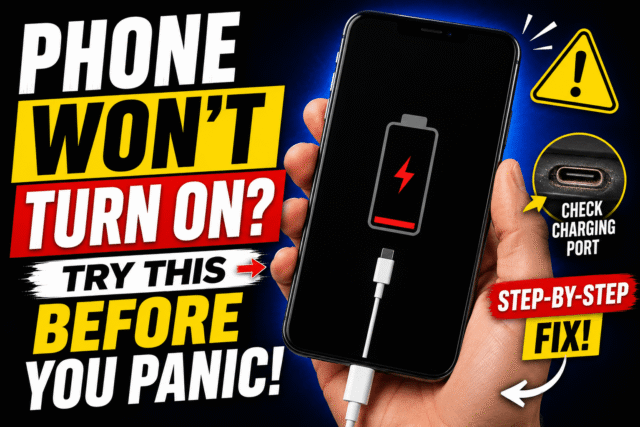
Plug it into a wall outlet (not a laptop, not a hub, both of which deliver less power) with a cable and adapter you know work, and leave it alone. Apple’s own guidance is to charge for a full hour before concluding anything, and Google’s is at least 30 minutes. If you see a red light on an Android, that means the battery is fully discharged; a flashing red light means there still isn’t enough power to boot.
Two things to check while it sits there. Confirm your cable and adapter aren’t the actual problem by testing them on another device, since cables fail constantly and a dead-looking phone is sometimes just a dead charger. And look into the charging port with a flashlight for compressed lint, which is the single most common reason a phone won’t take a charge at all, and which we’ve covered how to clean safely.
Worth knowing if you’re on a recent iPhone: users reported through 2026 that iPhone 17-series and Air models sometimes refuse to boot immediately after hitting zero, with the workaround being simply to leave the phone on a charger for fifteen minutes or more rather than expecting an instant restart. Same principle, newer hardware.
The Force Restart (Different for Every Model)
If it’s had a proper charge and still won’t wake, the next suspect is frozen software, and a force restart resolves it. This is not the same as a normal restart: it resets the hardware directly and doesn’t erase anything.
- iPhone 8 and newer (including all Face ID models): press and quickly release volume up, press and quickly release volume down, then press and hold the side button until the Apple logo appears. Apple notes this can take longer than 10 seconds, so keep holding well past the point it feels futile.
- iPhone 7 and 7 Plus: hold the side button and volume down together until the logo appears.
- iPhone 6s and earlier: hold the Home button and the side or top button together, around 10 seconds.
- Most Android phones: press and hold the power button for about 30 to 35 seconds. If nothing happens, plug the phone in and hold volume down and power together for at least 20 seconds.
- Samsung: hold power and volume down for 15 to 20 seconds until the logo appears.
The common failure here is letting go too early. If the screen stays black for ten or fifteen seconds while you’re holding, that’s normal; release only when you see a logo or you’ve clearly passed the time limit.
Is the Phone Actually On, With a Dead Screen?
This is the diagnostic most guides skip, and it changes everything about what you do next. A failed display looks exactly like a dead phone, but the device underneath may be fully alive with all your data intact.
Call it from another phone, or ring it through Find My or Find Hub. If it rings or vibrates, the phone is running and your problem is the screen or its cable.
Feel for vibration: flip the silent switch on an iPhone or press the volume buttons on an Android and watch for haptic feedback.
Plug it into a computer. If your Mac or PC chimes, shows the device in Finder, or lists it in Device Manager, the phone is on and communicating.
A yes to any of those means a screen repair rather than a dead phone, and crucially, it means your data is recoverable, which matters enormously for the next section.
Liquid, Drops, and Heat
If the blackout followed an incident, the branch changes.
- Liquid exposure: do not charge it. Applying power to wet circuitry is how recoverable phones become unrecoverable. Dry it as thoroughly and as long as you can (days, not hours), skip the rice folklore, and get it to a repair shop, where ultrasonic cleaning can reverse corrosion if it’s done early enough.
- A drop: the screen or its internal connector is the usual casualty, so run the is-it-actually-on test above before assuming the worst.
- Heat: phones shut down deliberately when they overheat and refuse to restart until they’ve cooled. Let it sit somewhere cool for half an hour before trying again, and cool it the safe way, not with a fridge or freezer.
A swollen battery, meaning a bulging back panel, a lifted screen edge, or a phone that rocks on a flat table, is a stop-everything situation. Don’t charge it, don’t press it, get it serviced.
Battery, Board, or Screen: What You’re Actually Paying For
If nothing above works, you’re into repair territory, and the honest cost hierarchy helps you decide.
A failing battery that can no longer hold or deliver charge is the cheapest and most common culprit, and a replacement is inexpensive enough that it’s usually worth it on any phone you otherwise like, which is the same calculation we walked through in our battery health guide.
A screen or display connector repair is moderate, and worth it if the is-it-on test said the phone lives.
A logic board failure is the expensive one, and on a phone more than two or three years old it often costs more than the device is worth. Get an estimate first, then compare it honestly against replacement, including the refurbished route.
Getting Your Data Off a Dead Phone
The real fear underneath this whole situation is usually the photos, so let’s address it directly.
If your phone was backing up to iCloud or Google Photos, your data is already safe and waiting on any new device; sign in and it’s there. If the phone still responds to a computer, a repair shop can often recover data even when the screen is gone. If the board is genuinely dead and nothing was backed up, specialist data recovery exists but is expensive and not guaranteed.
Which is the whole argument for doing something about this before it happens again: a phone that dies with everything backed up is an inconvenience, and a phone that dies without is a loss. Our photo backup guide is the fifteen minutes that decides which one you’ll be having.
Quick Answers
How long should I charge a phone that won’t turn on?
At least an hour on a wall charger with a known-good cable. A deeply drained battery shows no screen activity at all for the first several minutes, and sometimes much longer.
Does a force restart delete my data?
No. It resets the hardware without erasing anything, which is why it’s safe to try before any other step.
My phone vibrates or rings but the screen stays black. What does that mean?
The phone is running and the display or its connector has failed. That’s a screen repair, and your data is intact.
My phone got wet and won’t turn on. Should I charge it?
No. Charging wet circuitry causes more damage. Dry it thoroughly for days and get it professionally cleaned as soon as possible.
Is a dead phone worth repairing?
A battery replacement usually is. A screen repair often is. A logic board repair on a phone older than two or three years usually isn’t; compare the quote against a refurbished replacement first.
The Bottom Line
A phone that won’t turn on is guilty until proven dead, and the proof takes about ninety minutes. Charge it on a wall outlet for a full hour, with a cable you’ve verified and a port you’ve checked for lint. Force restart it with the exact sequence for your model, holding well past the point it feels pointless. Then call the phone to find out whether it’s genuinely off or just showing you nothing. Most people get their phone back somewhere in those three steps. The ones who don’t at least learn precisely what they’re paying to fix, which is a much better position than staring at a black rectangle guessing.